
Automate SharePoint Tasks with Power Automate
A working Power Automate pattern for SharePoint document approvals, notifications, and routing - with the subfolder-trigger gotcha most tutorials miss.

TL;DR: Automate SharePoint tasks in Power Automate with a document-library trigger, the Approvals connector for review steps, and a Condition action to route the result - Microsoft's own template builds a working approval flow in about 15 minutes.
The pattern below - new file triggers a review, approval moves the file, rejection stops there - covers the most common SharePoint automation request: invoice review, contract sign-off, or any document that needs a human check before it counts as final. The Power Automate trigger that never fires is the single most common way this breaks, so the gotcha section below gets equal billing with the happy path.
What does this SharePoint automation build?
A file lands in an "Incoming" folder, a flow retrieves its metadata, an approver gets a request in Teams or email, and on approval the flow moves the file to a "Reviewed" folder - all without anyone opening SharePoint Designer, which Microsoft retired for new sites in 2026.
How do you set up the SharePoint trigger?
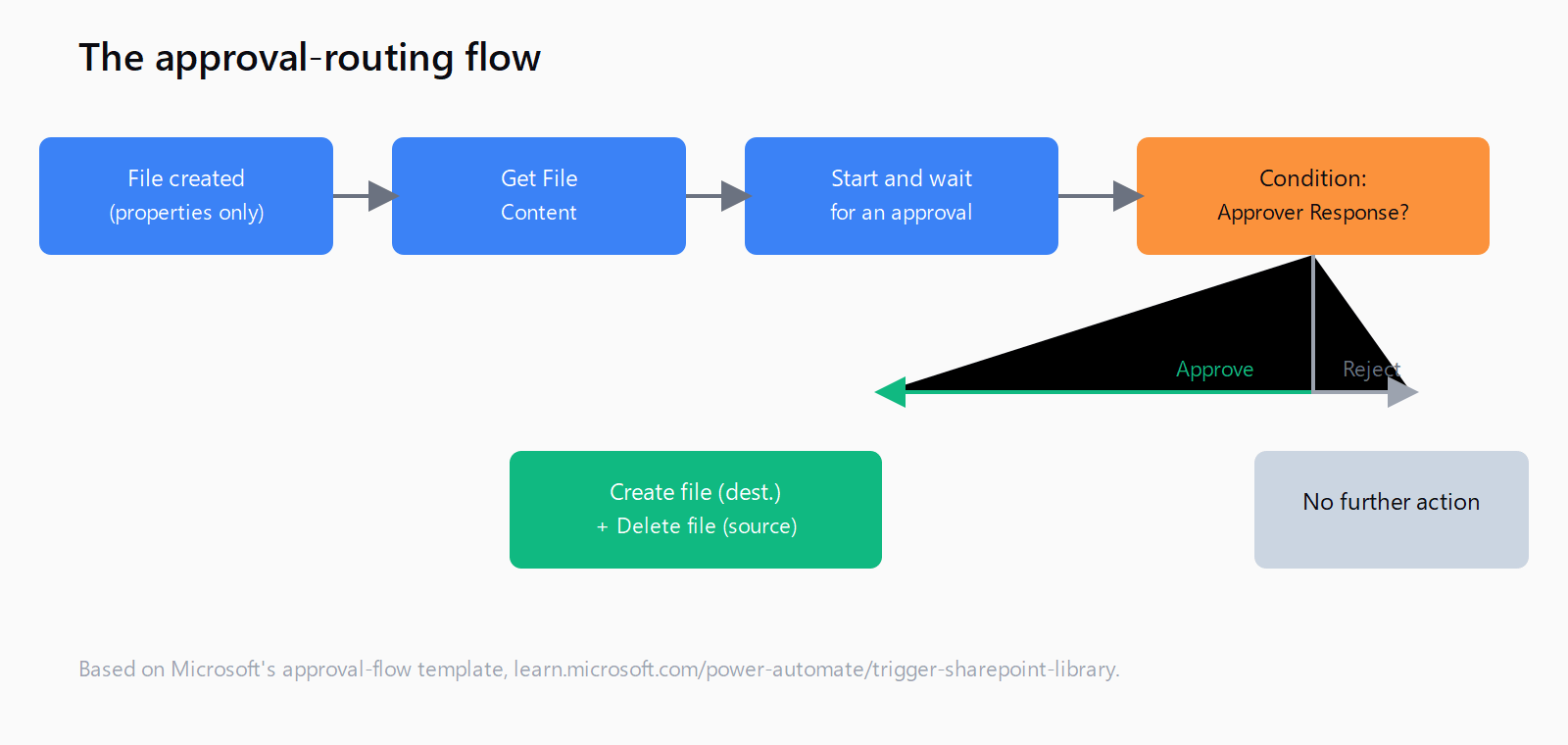
In Power Automate, search Templates for "Start an approval for new file to move it to a different folder" - it pre-wires a document-library trigger. Point the Site Address and Library Name fields at your SharePoint site, then set the Folder parameter under Advanced options to the folder you're watching. Use When a file is created (properties only) rather than the full "created or modified" trigger when the flow only needs metadata to route logic - it skips downloading the file body, which is faster and avoids unnecessary premium-connector throttling on large libraries.
How do you add the approval action?
Add Get File Content right after the trigger (needed because "properties only" doesn't include the file body), pointing its File Identifier field at the trigger's dynamic Identifier value. Then add Start and wait for an approval from the Approvals connector: set a title, assign an approver, and pull the file name and item link from the trigger's dynamic content so the approver doesn't have to hunt for the document, per Microsoft's own walkthrough.
How do you route the file after a decision?
Wrap an Apply to each around the approval responses, then a Condition checking whether Approver Response equals Approve. On the true branch, add Create file in the destination folder (using the trigger's file name and the Get File Content output) followed by Delete file against the original. Leave the false branch empty, or add a notification back to the submitter - a rejected file simply stays put with no further automation.
Why does the trigger sometimes never fire?
SharePoint document-library triggers only watch the library root by default - a file dropped into a subfolder inside that same library will not fire the flow, even though the trigger looks correctly configured. This is the single most common "why isn't my SharePoint flow running" symptom, and most walkthroughs (including Microsoft's own) don't call it out. If your incoming folder is itself a subfolder of the document library, either point the trigger's Folder parameter directly at that subfolder, or restructure so watched files land at the library root.
How do you test the workflow end-to-end?
Save the flow, dismiss any Flow Checker warnings that aren't blockers, and select Test > Manually. Upload a file into the watched folder while the flow is in test mode, then confirm the approval request lands in Teams, email, and the Power Automate Approvals tab. Approve it and verify the file actually moves - reject a second test file and confirm nothing happens on the false branch, since a silent false branch is easy to mistake for a broken flow.
How do you extend this beyond a single approval?
Add a second approver in parallel by including more than one entry in the approval's Assigned to field, or chain a sequential second-level approval for documents above a value threshold. Swap the "Create file" destination for a Teams channel notification instead of a folder move when the goal is visibility rather than filing. Add a scheduled recurrence flow alongside the trigger-based one to catch anything that slipped through - useful for libraries where files sometimes get bulk-uploaded via sync rather than one at a time.
FAQ
Does the trigger fire for files added to a subfolder?
No - by default, SharePoint document-library triggers only fire for files landing at the library root. Point the Folder parameter at the exact subfolder you want watched, or restructure so uploads land at the root.
What's the difference between "properties only" and the full file trigger?
"When a file is created (properties only)" returns file name and column metadata without the file body - faster and lighter. The full "created or modified" trigger includes content, which you need if the flow reads the file itself rather than just routing on metadata.
How do you route approved files automatically?
A Condition action checking the approval response, with a Create file action on the true branch (and a Delete file action against the original) to complete the move.
Can non-admin users build these flows?
Yes, as long as they have edit access to the SharePoint library and a Power Automate license covering the connectors used - standard connectors like SharePoint and Approvals are included with most Microsoft 365 plans.
Does this need premium connectors?
No. SharePoint and Approvals are both standard connectors, so this pattern runs on a Microsoft 365 license without a separate Power Automate premium plan.