
Fix Cursor 3 "Agent Execution Timed Out" and Jupyter not opening
The extension host is not running or is unresponsive. Three fixes: restart the extension host (Ctrl+Shift+P > Developer: Restart Extension Host), clear the extension cache, or disable conflicting extensions. Works on Windows and macOS.
TL;DR: After upgrading to Cursor 3, Jupyter notebooks refuse to open and the AI panel throws Agent Execution Timed Out because of a stale extension cache; delete %APPDATA%\Cursor\CachedExtensions and restart.
Close Cursor, delete %APPDATA%\Cursor\CachedExtensions and %APPDATA%\Cursor\CachedExtensionVSIXs on Windows (or the equivalent paths on macOS and Linux), then restart. If .ipynb tabs still stay blank, disable the "Python environment" extension as a follow-up.
This post documents the exact fix path Cursor staff posted to the canonical bug-report thread, the community workaround for the residual Jupyter kernel issue, and the rollback path if both fail. The regression first showed up in Cursor 3.0.16 and was still reproducing on 3.1.10; Cursor is on 3.3 as of May 6, 2026, but the on-disk cache survives every minor upgrade, so anyone who first hit this on a 3.0.x or 3.1.x build still sees it after auto-updating.
Why do agent execution timeouts and extension host errors happen together in Cursor?
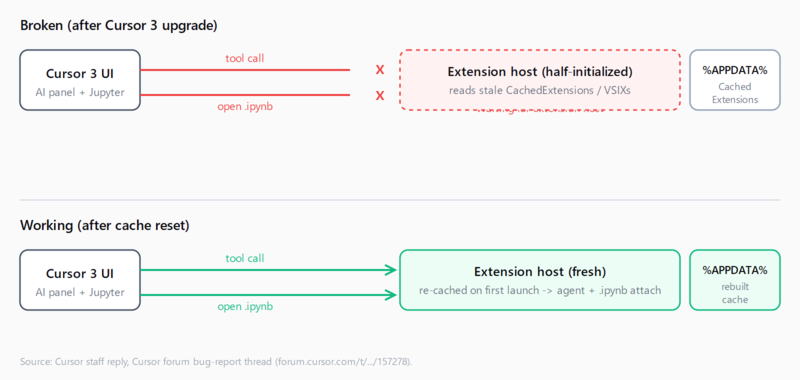
The two errors look unrelated, but they share a single root cause. When Cursor 3 starts, it loads extensions from a binary cache at %APPDATA%\Cursor\CachedExtensions and a parallel VSIX cache at %APPDATA%\Cursor\CachedExtensionVSIXs. The Cursor 3 upgrade changed the extension-host process boundary, but the cache it reads from disk was written by the older Cursor 2.x extension host. The mismatch leaves the host in a half-initialized state: it answers some IPC calls and drops others.
The AI panel sits on top of an "agent execution provider" that lives inside the extension host. When it tries to run a tool call and the host never responds, Cursor surfaces the timeout: "Agent Execution Timed Out - The agent execution provider did not respond in time. This may indicate the extension host is not running or is unresponsive." The console logs the same condition as ConnectError: [deadline_exceeded] Agent Execution Timed Out.
Jupyter is the other extension that talks heavily to the host. When you double-click an .ipynb file, the Jupyter extension asks the host to mount a notebook editor; the half-broken host accepts the request, never returns, and the tab sits on "Waiting for extension host" until you give up.
Clearing the extensions inside Cursor's UI - Settings, Extensions, Uninstall - does not touch CachedExtensions or CachedExtensionVSIXs. The cache files on disk are what has to go.
How do you fix cursor agent execution timed out by clearing the extension cache?
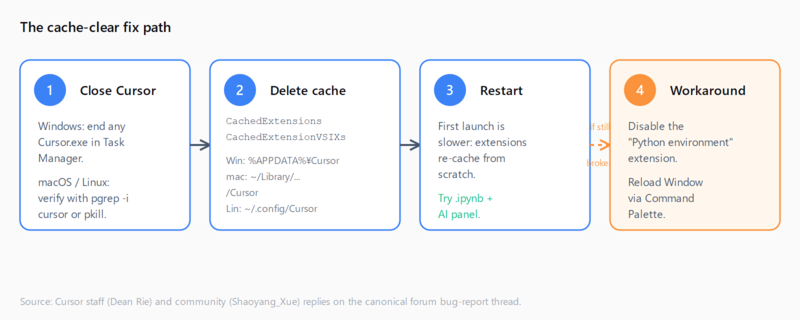
This is the official fix path Cursor's Dean Rie posted in the bug report thread. It resolves both the AI panel timeout and the blank Jupyter tab in a single pass for most users.
Step 1. Close Cursor completely. On Windows, also check Task Manager for any lingering Cursor.exe or code.exe processes spawned by the editor and end them - the file lock will block the delete otherwise. On macOS, Cmd-Q, then verify with pgrep -i cursor. On Linux, pkill -i cursor.
Step 2. Delete the two cache folders for your platform:
| OS | Path 1 | Path 2 |
|---|---|---|
| Windows | %APPDATA%\Cursor\CachedExtensions | %APPDATA%\Cursor\CachedExtensionVSIXs |
| macOS | ~/Library/Application Support/Cursor/CachedExtensions | ~/Library/Application Support/Cursor/CachedExtensionVSIXs |
| Linux | ~/.config/Cursor/CachedExtensions | ~/.config/Cursor/CachedExtensionVSIXs |
%APPDATA% on Windows resolves to C:\Users\<you>\AppData\Roaming. Paste the literal string into File Explorer's address bar and it will expand. Delete the two folders, do not move them - Cursor will recreate them on the next launch.
Step 3. Start Cursor. The first launch is slower than usual because the extension host has to re-download and re-cache every installed extension. Once the editor settles, open an .ipynb file and trigger an AI agent action. Both should now respond instead of hanging.
If you previously bookmarked the AppData layout for a different reason - for instance, while resolving an Cursor rules not loading issue - this is the same parent directory. Only the two cache subfolders need to go for this fix; leave User, logs, and the rest alone.
Fix 2: Should you disable the "Python environment" extension?
Some users report the AI panel comes back after the cache reset but .ipynb tabs still hang on "Waiting for extension host." The community workaround posted by user Shaoyang_Xue in the same forum thread is to disable the bundled "Python environment" extension, which competes with the Jupyter extension over kernel attach.
Open the Extensions panel (Ctrl-Shift-X on Windows and Linux, Cmd-Shift-X on macOS), search for "Python environment," and click Disable - not Uninstall. Reload the window with Ctrl-Shift-P -> Developer: Reload Window and reopen the notebook. The kernel attach should complete and cells should run.
This is a workaround, not a fix. The conflict tends to come back after a Cursor restart because Cursor re-enables bundled extensions during version migrations. Treat it as a daily-driver patch until the underlying conflict is resolved upstream.
Fix 3: How do you reset the entire Cursor profile?
If neither the cache reset nor the Python-environment toggle gets Jupyter and the AI panel back, the next escalation is a full profile reset. Close Cursor, then rename the parent profile folder:
Windows:  rename %APPDATA%\Cursor Cursor_backup
macOS:    mv ~/Library/Application\ Support/Cursor ~/Library/Application\ Support/Cursor_backup
Linux:    mv ~/.config/Cursor ~/.config/Cursor_backup
Start Cursor. It launches as if it were a fresh install: sign-in flow, no extensions, default settings. Reinstall only the extensions you actually use. If everything works, you can pull individual files (a settings JSON, a snippets file) out of Cursor_backup later and copy them in selectively. This costs you a few minutes of reconfiguration but rules out every stale-state class of bug at once.
Fix 4: When should you roll back to Cursor 2.6.22?
If you cannot afford to keep debugging, rolling back to the last 2.x release is the escape hatch Cursor staff explicitly named on the forum thread. Cursor 2.6.22 is the last build before the extension-host change that triggers the regression. Grab it from the staff-posted link in the forum thread, uninstall Cursor 3, and run the 2.x installer. Disable Cursor's auto-update in Settings until you are ready to retry the upgrade.
Rolling back has a real cost: you lose every Cursor 3 feature, including the context-usage breakdown shipped in 3.3. Treat this as the lever you pull when production work is blocked.
How do you verify the fix worked?
Open a fresh .ipynb file and run a cell. The kernel banner at the top should switch from "Connecting" to a Python interpreter name within a few seconds. Then trigger an AI agent action. The "Agent Execution Timed Out" toast should not appear; the agent should respond as it did pre-upgrade.
For a deterministic check, open Cursor's developer tools (Help -> Toggle Developer Tools, then the Console tab) and watch for the ConnectError string while you trigger the action. Silence in the console plus a working response in the panel is the all-clear.
Cursor's extension host is the same process the editor uses to talk to MCP servers and other tools, so if you also work in adjacent tooling like an MCP server in Claude Code on Windows or you ran into Cursor rules not loading, the same cache reset can clear other host-attach issues that look unrelated on the surface.
FAQ
Why does Cursor say "Agent Execution Timed Out" after upgrading?
The agent execution provider lives inside Cursor's extension host. When the host is half-initialized after a Cursor 3 upgrade because the on-disk cache was written by the old extension host, the provider never responds to tool calls and Cursor surfaces a timeout. Clearing CachedExtensions and CachedExtensionVSIXs forces a rebuild and the provider returns.
How do I clear Cursor's extension cache on Windows?
Close Cursor (verify with Task Manager), then delete %APPDATA%\Cursor\CachedExtensions and %APPDATA%\Cursor\CachedExtensionVSIXs. Paste the literal %APPDATA% string into File Explorer's address bar and it expands. Restart Cursor; first launch is slower because every extension re-caches.
Why won't .ipynb files open in Cursor 3?
Same root cause as the AI panel timeout. The Jupyter extension asks the half-broken extension host to mount a notebook editor and the host never returns. The cache reset above usually fixes it; if not, disable the "Python environment" extension and reload the window.
What is the "Python environment" extension and why does disabling it help?
It is a bundled Cursor extension that manages Python interpreter detection. In Cursor 3 it competes with the Jupyter extension over kernel attach and one of them loses. Disabling it (not uninstalling) lets Jupyter win the attach race. The conflict tends to come back after a Cursor restart, so treat this as a workaround.
Does this affect macOS and Linux?
Yes. The cache layout is the same shape, just under different parent paths: ~/Library/Application Support/Cursor/ on macOS and ~/.config/Cursor/ on Linux. Delete CachedExtensions and CachedExtensionVSIXs there and restart Cursor.
Should I roll back to Cursor 2.6.22?
Only if the cache reset, the Python-environment toggle, and a full profile reset all fail and you have notebook-heavy work blocked. Cursor 2.6.22 is the last build before the extension-host change that triggers the regression. Disable auto-update afterwards or Cursor will pull you forward to 3.x again.
Hit a different error? Browse the Automation Error Index for a searchable catalog of Cursor errors, each with a verified fix.