
Fix 'claude mcp add: unknown option --command' in the Claude Code CLI
No --command flag exists. Use -- to pass the command: claude mcp add myserver -- npx -y server. All options go before the server name.
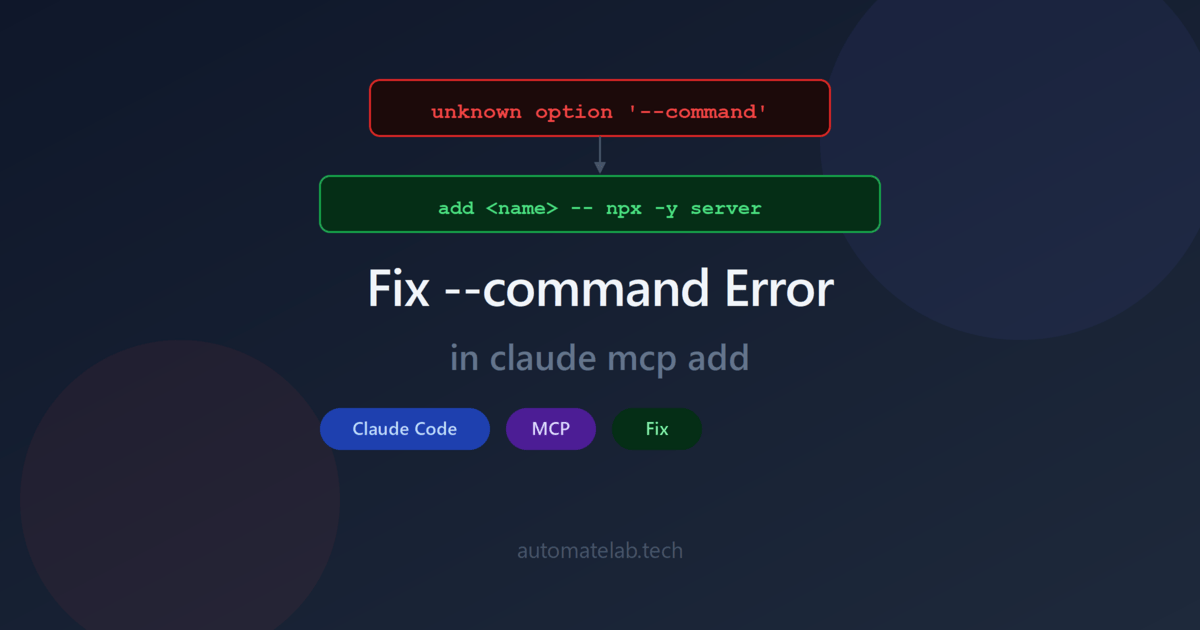
TL;DR: There is no --command flag in claude mcp add; for stdio servers the command goes after a -- separator, and all options like --transport and --scope must come before the server name, not after it.
The error claude mcp add: unknown option '--command' is the most common mistake when adding MCP servers to Claude Code. It appears in outdated documentation, LLM-generated setup instructions, and MCP server READMEs written before the CLI stabilised. This post explains exactly why it fires and the correct syntax for every server type. The Automation Error Index catalogs this and similar Claude Code CLI errors.
What causes "unknown option --command" in claude mcp add?
The error fires when you pass --command as a flag to the CLI, like this:
# These all fail with "unknown option --command"
claude mcp add my-server --command "node /path/to/server.js"
claude mcp add my-server --command npx @example/mcp-server
claude mcp add --command "python server.py" my-server
--command is not a flag in claude mcp add. It never was. The confusion has two sources:
- JSON config syntax leaking into CLI syntax. When you configure an MCP server in
.mcp.jsonor~/.claude.json, the JSON field for the executable is calledcommand:{"command": "npx", "args": ["server-name"]}. Many blog posts and READMEs show both formats side-by-side, and readers mentally translate the JSON keycommandinto the flag--command. - LLM-generated commands. AI assistants frequently hallucinate this flag when asked "how do I add an MCP server to Claude Code." The generated snippet looks plausible but fails immediately.
What is the correct claude mcp add syntax for stdio servers?
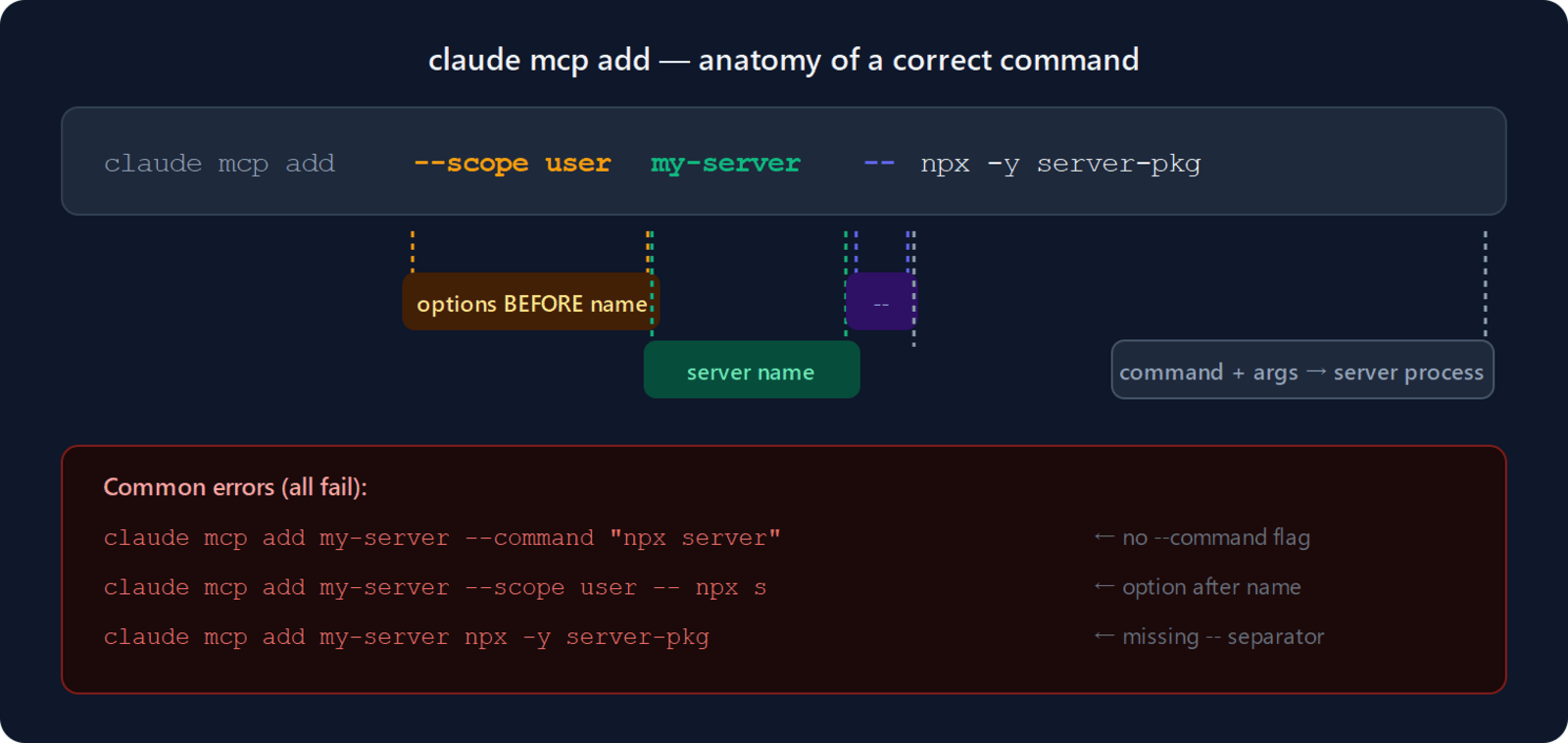
For stdio servers (local processes), the command and its arguments go after a double dash (--). Everything before -- is parsed by Claude Code; everything after -- is passed as-is to the spawned server process.
# Correct syntax
claude mcp add [options] <server-name> -- <command> [args...]

# Add an npx server
claude mcp add airtable -- npx -y airtable-mcp-server

# Add a Node script
claude mcp add my-tools -- node /path/to/server.js

# Add a Python server with an env var
claude mcp add --env OPENAI_API_KEY=sk-... gpt-tools -- python /path/to/server.py

# Add with user scope (available across all projects)
claude mcp add --scope user filesystem -- npx -y @modelcontextprotocol/server-filesystem ~/Documents
The -- separator is mandatory when you pass flags to the server command itself. Without it, Claude Code tries to parse the server's flags as its own, which triggers "unknown option" errors — a different but related problem. For a full reference on setting up local and remote servers, see the Claude Code MCP setup guide.
How do you fix option ordering errors in claude mcp add?
A separate but equally common error is placing options after the server name:
# Wrong — options after the server name trigger "missing required argument 'name'"
claude mcp add my-server --transport sse https://example.com/sse
claude mcp add my-server --scope user -- npx server

# Correct — options before the server name
claude mcp add --transport sse my-server https://example.com/sse
claude mcp add --scope user my-server -- npx server
This parser quirk was reported in Claude Code issue #2341 and was closed as "not planned." The CLI treats the first non-option token as the start of positional arguments, so options after the server name are never parsed. The fix is always: options first, then server name, then --, then command.
What is the correct syntax for HTTP and SSE servers?
Remote servers (HTTP and SSE) do not use the -- separator. The URL is a positional argument that follows the server name directly:
# HTTP server (recommended for remote servers)
claude mcp add --transport http notion https://mcp.notion.com/mcp

# HTTP with auth header
claude mcp add --transport http github https://api.githubcopilot.com/mcp/ \
  --header "Authorization: Bearer YOUR_TOKEN"

# SSE (legacy, prefer HTTP)
claude mcp add --transport sse asana https://mcp.asana.com/sse

# Add to project scope (saves to .mcp.json, shared with team)
claude mcp add --transport http --scope project sentry https://mcp.sentry.dev/mcp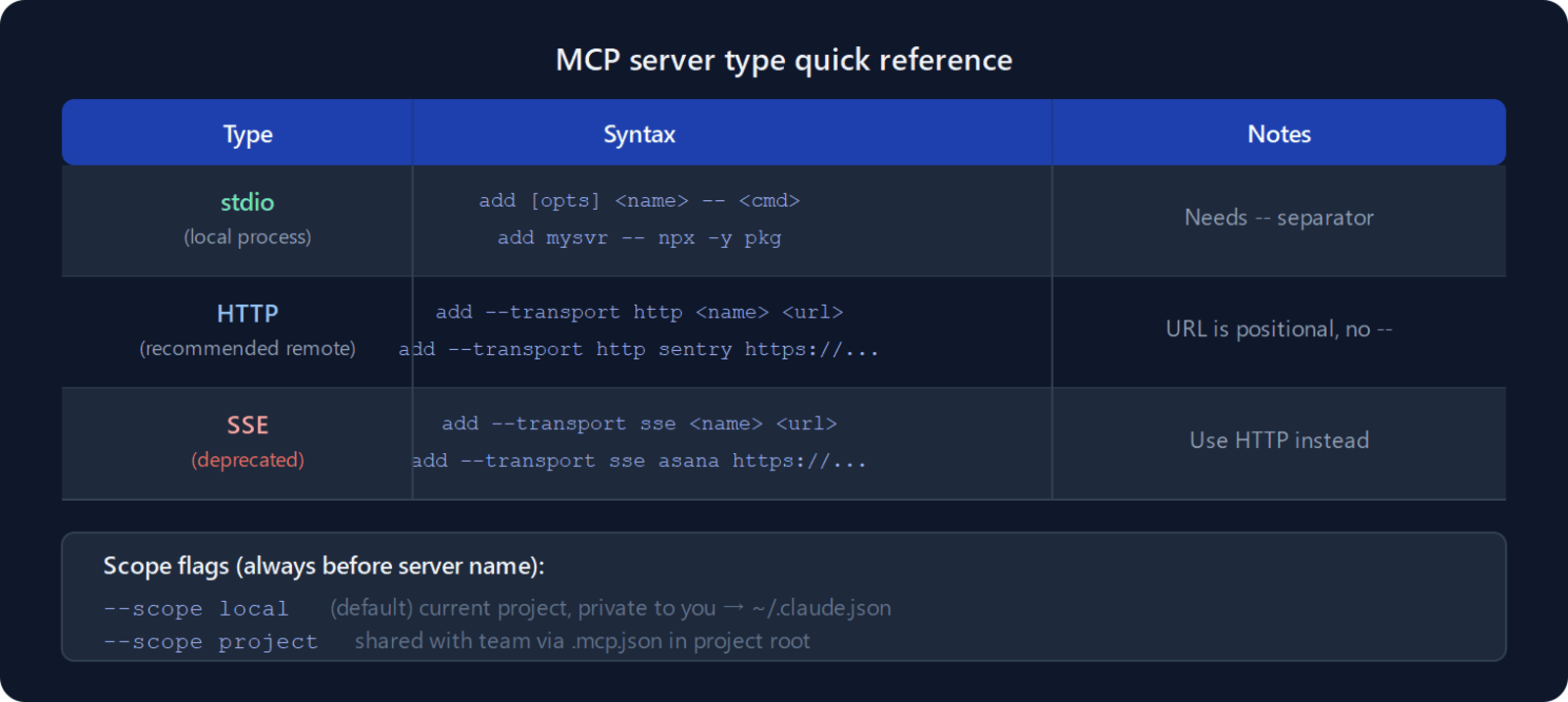
How do you verify a server was added correctly?
# List all configured servers and their scopes
claude mcp list

# Show details for a specific server
claude mcp get my-server

# Within a Claude Code session, check connection status
/mcp
If the server shows as "failed" in /mcp, the most common cause is a wrong executable path or a missing environment variable. Re-run the claude mcp remove my-server then claude mcp add command with the corrected values.
How do you fix the -y flag error with npx?
When adding an npx-based server, the -y flag is part of the npx command, not Claude Code. Without --, Claude Code tries to parse -y as its own flag and throws unknown option '-y'. Always use --. Windows users have an extra layer: npx-based stdio servers need a cmd /c wrapper — see setting up an MCP server in Claude Code on Windows for the full walkthrough.
# Wrong
claude mcp add playwright npx -y @playwright/mcp@latest

# Correct
claude mcp add playwright -- npx -y @playwright/mcp@latest
FAQ
Is there any way to use --command in claude mcp add?
No. The --command flag does not exist in the Claude Code CLI. The word "command" only appears as a JSON field name in .mcp.json configurations, never as a CLI flag. If you see --command in a tutorial or README, the syntax is outdated or incorrect — replace it with the -- separator pattern: claude mcp add <name> -- <command> [args].
What is the difference between --scope local, project, and user?
local (default) stores the server in ~/.claude.json for the current project only, private to you. project writes to .mcp.json in the project root and is checked into version control, shared with the whole team. user stores in ~/.claude.json across all your projects. Older versions of Claude Code used project for what is now local, and global for what is now user — if you see either of those terms, check which version you are running.
Can I add multiple environment variables to a stdio server?
Yes, repeat --env for each variable: claude mcp add --env KEY1=val1 --env KEY2=val2 my-server -- npx server. The env vars are stored in your scope's config file (~/.claude.json or .mcp.json) and injected into the server process at startup.
How do I remove an MCP server I added incorrectly?
Run claude mcp remove <server-name>. If you added it with --scope user or --scope project, you need to be in the same project directory when removing it, or specify the scope explicitly. Check claude mcp list first to confirm the server name and scope.
Why does claude mcp add succeed but /mcp show the server as failed?
claude mcp add only writes the configuration — it does not run the server. The server starts when Claude Code launches. Common reasons for a "failed" status: the command path is wrong, a required environment variable is missing, or the server process crashed on startup. Run claude mcp get <name> to see the stored command and check it directly in your terminal. If the server connects but tool calls fail with authentication errors, see the MCP token expired fix.