
How Claude Code Plan Mode Works (and When to Use It)
Plan mode restricts Claude Code to read-only research until you approve its plan - here's the exact permission model, the keyboard shortcut, and when the extra review step is worth the friction.
TL;DR: Claude Code's plan mode restricts the agent to read-only tools while it researches and drafts a plan, then calls ExitPlanMode so you approve the plan before any file changes happen.
Most Claude Code sessions start editing files within the first few tool calls. As of Claude Code's mid-2026 releases, plan mode delays that on purpose: it's the difference between an agent that reads your codebase and proposes a change, and one that starts rewriting files before you've seen its reasoning. The gap most explainers skip is what happens after you approve - approving a plan doesn't switch on editing in one generic sense, it routes you into a specific follow-up permission mode depending on which approval option you pick.
What does plan mode actually restrict?
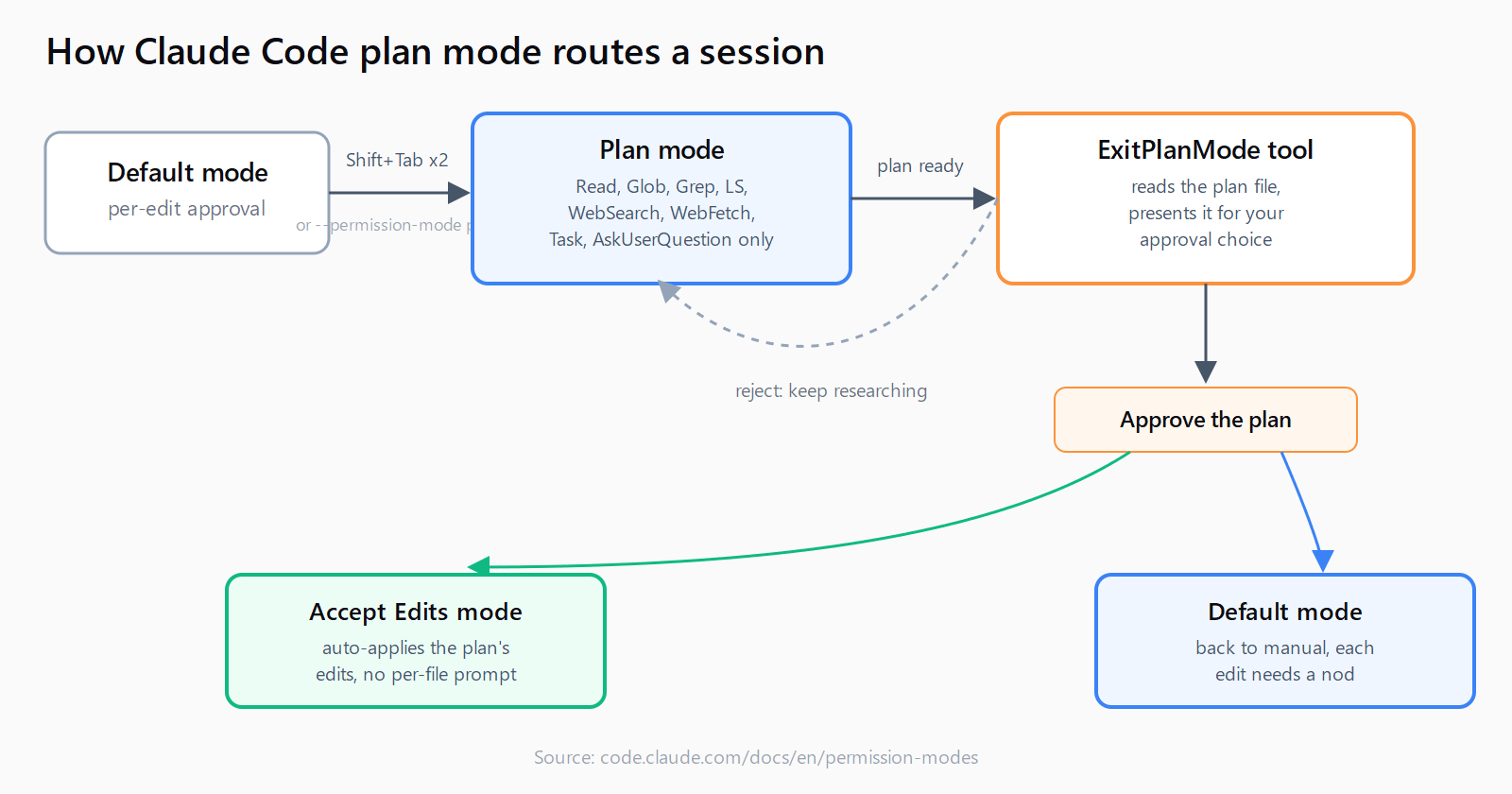
In plan mode, Claude Code's permission-modes documentation limits the agent to read-only and research tools: Read, Glob, Grep, LS, WebSearch, WebFetch, subagent dispatch via Task, and AskUserQuestion. Edit, Write, and any state-changing Bash call are blocked outright. The agent can still run read-only shell commands - git log, ls, cat - but anything that touches disk or a remote system waits until you approve.
This matters most on a codebase you don't fully trust yet, or a task where the "right" approach is genuinely unclear - a migration, a refactor that touches a dozen files, or a first pass through an unfamiliar repo. Plan mode forces Claude Code and MCP tooling to stay in research mode long enough to produce a plan you can actually read before anything changes.
How do you turn plan mode on?
There are three ways in, each suited to a different workflow:
- Cycle modes mid-session. Press
Shift+Tabto cycle throughdefault(Manual) toacceptEditstoplan. From the default starting mode, that's two presses to land on plan. - Prefix a single prompt. Start a prompt with
/planto run just that turn in plan mode without changing the session's default (requires Claude Code v2.1.0 or later). - Start the whole session in plan mode. Run
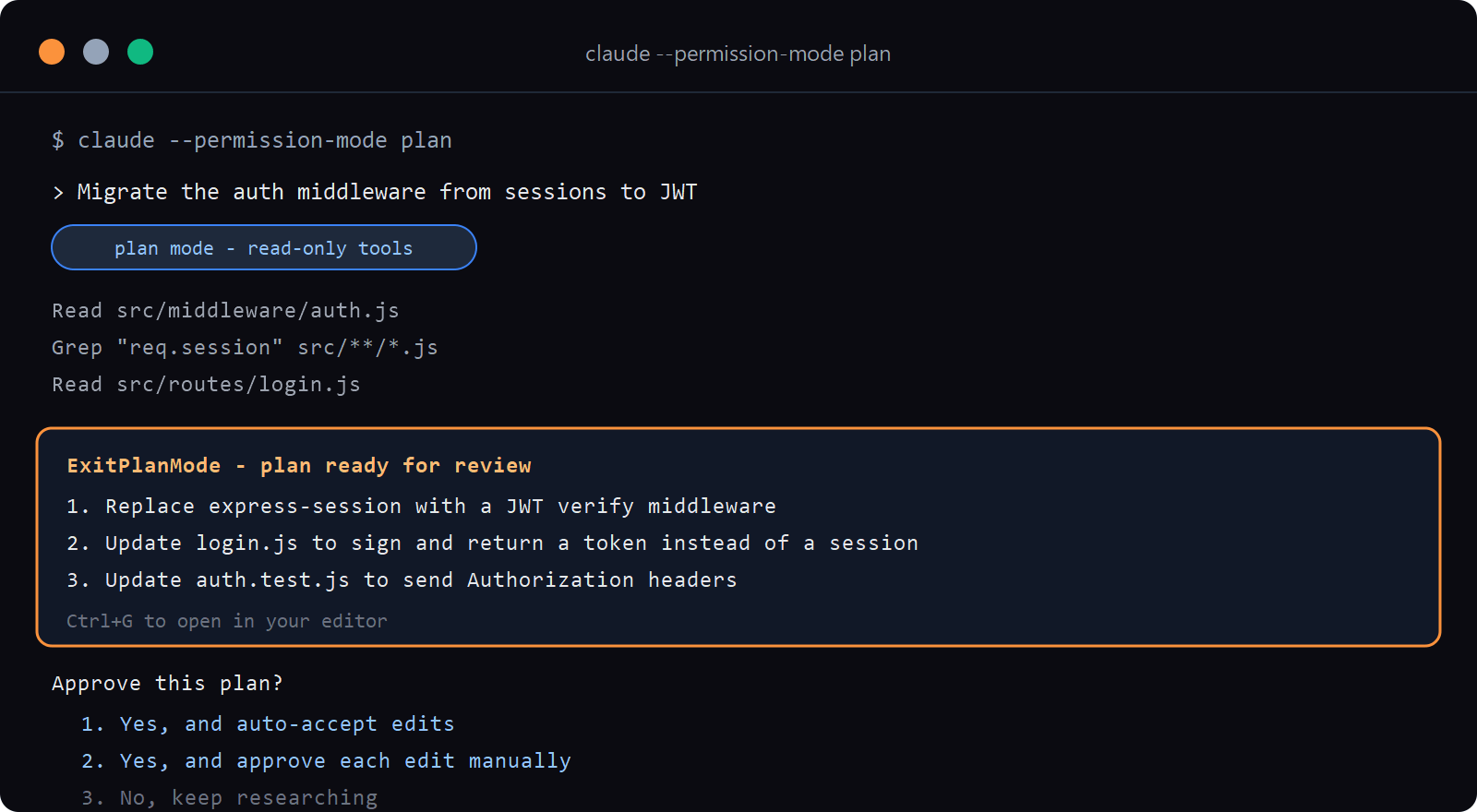
claude --permission-mode planfrom the CLI, or set it as the project default in.claude/settings.json:
{
  "permissions": {
    "defaultMode": "plan"
  }
}
The CLI flag is also the safer starting point if you're relying on Shift+Tab to toggle modes mid-session on top of a broadly-permissive flag. GitHub issue #32934 documents a case where exiting plan mode silently fails to transition when plan mode was toggled on after starting a session with --dangerously-skip-permissions - the session reports plan mode as still active with no way out via the UI. Starting the session with --permission-mode plan instead of toggling into it from a skip-permissions session avoids the bug entirely.
What happens when Claude finishes planning?
Once Claude has read enough of the codebase to propose a change, it calls the ExitPlanMode tool. This tool doesn't take the plan text as a parameter - it reads the plan already written to a plan file and signals that it's ready for your review. You'll see the plan rendered in the terminal, and Claude Code presents you with an approval choice.
This is the step most posts gloss over: which option you pick determines what mode you land in next, not just whether editing becomes possible. Approving with auto-accept drops you into acceptEdits mode, where Claude applies the plan's edits without asking per-file. Approving with manual review keeps you in the default mode, where each edit still needs a nod. Rejecting the plan sends Claude back to gather more context and propose again. If you want to read the plan somewhere other than your terminal scrollback, Ctrl+G opens it in your default text editor before you decide.
How is plan mode different from Ultraplan?
Plan mode is a same-session permission state - Claude reads your local files, drafts a plan, and waits. Ultraplan is a separate, heavier feature: a cloud-based extended planning run that spins up on Claude Code's web interface against a connected GitHub repository, intended for tasks that need much longer research before a plan is worth writing. Invoke it with /ultraplan <task>, or just include the word "ultraplan" in a normal prompt. It requires Claude Code v2.1.91 or later and a Claude Code on the web account tied to a GitHub repo - it isn't available in a plain local terminal session the way plan mode is.
If you're deciding between the two: reach for plan mode by default for anything you can review in a normal terminal session, and reach for Ultraplan when the task is big enough that you'd rather let planning run asynchronously against the full repo before you look at it. Choosing between local research modes and heavier tooling is also part of the broader Cursor vs Claude Code split in how each tool handles agent autonomy - Cursor's agent doesn't have a directly equivalent locked planning state.
When should you skip plan mode?
Plan mode adds a review step, which is friction you don't always want. Skip it for small, well-understood changes - a one-line config fix, a typo, a change you'd make yourself in under a minute. The read-only research pass costs tool calls and, on Claude Code's Pro and Max plans, counts against the same rolling usage window as everything else. For repetitive, low-risk tasks, acceptEdits or the default mode with per-edit approval gets you to the result faster without the extra round trip.
Reach for it instead on anything where the wrong first attempt is expensive to undo: schema migrations, changes that touch authentication or payment code, or a refactor spanning files you haven't read in months. The plan itself becomes a checkpoint you can diff against your own understanding of the codebase before Claude writes a single line.
FAQ
What's the keyboard shortcut for Claude Code plan mode?
Shift+Tab cycles through permission modes. From the default Manual mode, pressing it twice lands on plan mode; the current mode is shown in the terminal status line.
Can Claude edit files while plan mode is active?
No. Edit, Write, and any state-changing Bash call are blocked until you approve the plan and Claude Code switches to an editing mode.
How do I exit plan mode without approving anything?
Press Shift+Tab again to cycle to a different mode, or reject the proposed plan when Claude presents it - Claude will go back to research instead of switching to an editing mode.
Does plan mode work with subagents?
Yes - Task, the tool that dispatches subagents, is one of the tools explicitly allowed in plan mode, so a planning session can still delegate research to subagents.
Does starting Claude Code with a permission-skipping flag interfere with plan mode?
It can. Toggling plan mode on via Shift+Tab after starting with --dangerously-skip-permissions has been reported to get stuck unable to exit plan mode (GitHub issue #32934). Start the session with claude --permission-mode plan instead to avoid it.
Can I set plan mode as the default for a whole project?
Yes - add {"permissions": {"defaultMode": "plan"}} to the project's .claude/settings.json, and every new session in that project starts in plan mode.