
How to Install Claude Code on macOS, Linux, and Windows
One native-installer command per shell, the Windows PowerShell-vs-CMD gotcha, and how to verify the install actually worked.
TL;DR: Install Claude Code with one native-installer command: curl -fsSL https://claude.ai/install.sh | bash on macOS, Linux, or WSL, or irm https://claude.ai/install.ps1 | iex in Windows PowerShell; no Node.js needed, and the CLI auto-updates in the background.
The native installer is the path Anthropic recommends and tests first, but as of 2026 most search results still lead with the npm package instead - which needs Node 22+ and manual upgrades. The three platforms also split on one more thing most guides skip: which shell you're actually in on Windows, since pasting the wrong one-liner into the wrong prompt throws a specific, diagnosable error.
What do you need before installing Claude Code?
- macOS 13.0 or later, Windows 10 build 1809+ (or Windows Server 2019+), or a supported Linux distro - Ubuntu 20.04+, Debian 10+, or Alpine 3.19+.
- 4 GB or more of RAM on an x64 or ARM64 processor.
- A terminal - Bash, Zsh, PowerShell, or CMD all work.
- An active internet connection and an account on a Claude plan that includes Claude Code (Pro, Max, Team, Enterprise, or Console/API billing - the free claude.ai plan does not include it).
How to install Claude Code on macOS, Linux, or WSL?
Run the native installer directly in a terminal:
curl -fsSL https://claude.ai/install.sh | bashThis works identically on macOS, any supported Linux distro, and inside a WSL 2 distribution - the same command, no separate download. It finishes in under two minutes, does not require Node.js at all (the binary is native, not a Node script), and auto-updates itself in the background from then on. Homebrew users can run brew install --cask claude-code instead, though Homebrew installs do not auto-update - you run brew upgrade claude-code yourself. On Alpine and other musl-based distros, the installer also needs libgcc, libstdc++, and ripgrep installed first (apk add libgcc libstdc++ ripgrep), plus USE_BUILTIN_RIPGREP=0 set in settings.json.
How to install Claude Code on Windows?
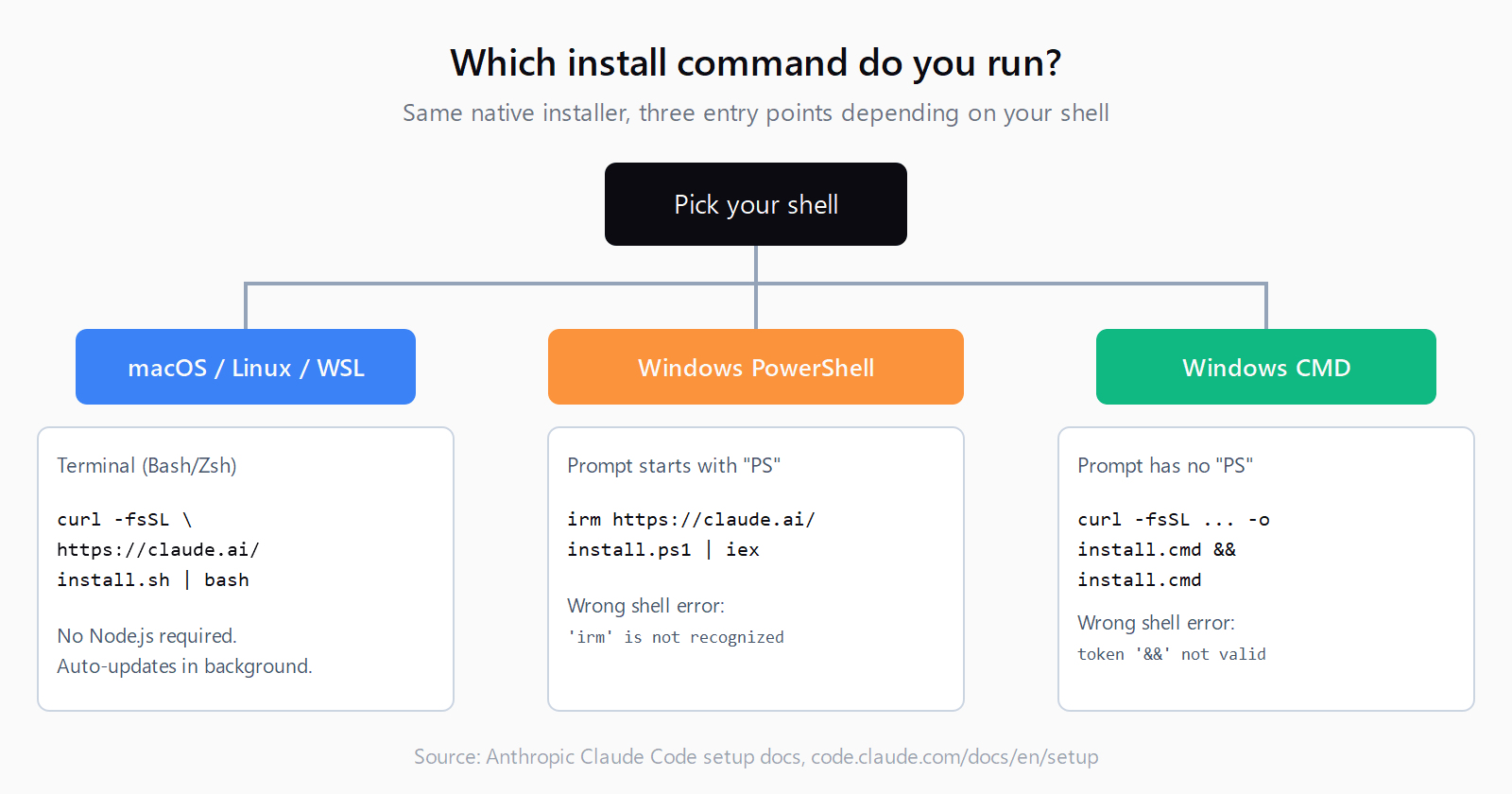
Open PowerShell and run:
irm https://claude.ai/install.ps1 | iexIf you're in CMD instead of PowerShell, use the CMD-specific command:
curl -fsSL https://claude.ai/install.cmd -o install.cmd && install.cmd && del install.cmdYou do not need to run either command as Administrator. Git for Windows is optional but recommended - with it installed, Claude Code runs shell commands through Git Bash; without it, Claude Code falls back to a PowerShell tool instead. WinGet works too: winget install Anthropic.ClaudeCode, though WinGet installs also require a manual winget upgrade Anthropic.ClaudeCode later.
The gotcha most Windows installs trip over is running the wrong command in the wrong shell - and Anthropic's own setup documentation gives the exact tell. If you paste the PowerShell command into CMD, you get 'irm' is not recognized as an internal or external command. If you paste the CMD command into PowerShell, you get The token '&&' is not a valid statement separator. Your prompt confirms which shell you're in too: PowerShell shows PS C:\Users\YourName>, CMD shows the same path without the PS prefix.
Should you install natively or inside WSL?
Both work; the choice depends on what you're building. Native Windows suits Windows-native projects and tools, and skips setting up a second OS. WSL 2 gives you a real Linux environment and adds sandboxed command execution, which native Windows does not support - pick it if you already work in a Linux toolchain or want that isolation. WSL 1 works as a fallback when WSL 2 isn't available, but loses the sandboxing benefit. Whichever you pick, install and launch claude from inside that environment's own terminal - a WSL install is invisible to a native PowerShell session and vice versa, since each writes to its own separate config file.
How to install Claude Code with npm instead?
If you already manage your tooling through npm and want Claude Code alongside it:
npm install -g @anthropic-ai/claude-codeAs of v2.1.198 this requires Node.js 22 or later - on an older Node version npm prints an EBADENGINE warning but still finishes the install, since the installed binary doesn't call Node at runtime. Never run this with sudo; a root-owned global npm directory breaks every future global install. To upgrade later, run npm install -g @anthropic-ai/claude-code@latest - not npm update -g, which can leave you on an older release than the one you meant to get.
How do you verify Claude Code installed correctly?
Run the version check:
claude --versionThen run the built-in health check, which confirms your configuration, permissions, and connectivity in one pass:
claude doctor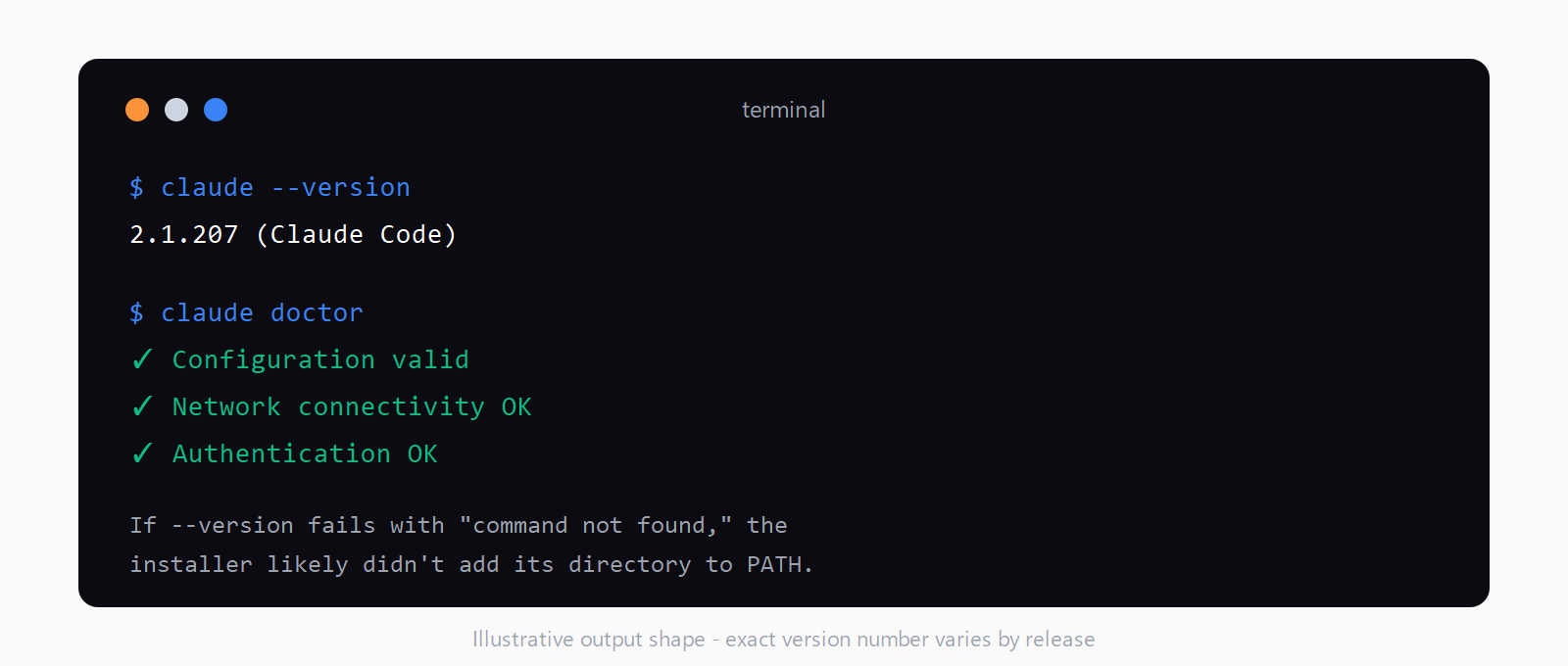
Start your first session with claude from inside the project folder you want Claude Code to work in, then follow the browser prompt to log in with your Pro, Max, Team, Console, or Enterprise account. First-session behavior - including plan mode, which restricts Claude Code to read-only research until you approve its plan - is worth reading before you start editing files for real. If your workflow needs extra tools beyond the built-ins, the next step is usually to set up an MCP server.
How do you update or uninstall Claude Code?
Native installs auto-update in the background and take effect on your next claude launch; run claude update to force it immediately. Homebrew, WinGet, and Linux-package-manager installs (apt/dnf/apk) do not auto-update by default - upgrade with brew upgrade claude-code, winget upgrade Anthropic.ClaudeCode, or your distro's normal package upgrade command. To remove a native install, delete the launcher and version directory: rm -f ~/.local/bin/claude && rm -rf ~/.local/share/claude on macOS/Linux/WSL, or the equivalent Remove-Item commands on Windows PowerShell.
How do you get Claude Code running in under two minutes?
- Run
curl -fsSL https://claude.ai/install.sh | bashif you're on macOS, Linux, or inside WSL. - Run
irm https://claude.ai/install.ps1 | iexif you're in Windows PowerShell. - Run the CMD one-liner instead if your prompt doesn't start with
PS. - Confirm the shell error message if either command fails - it tells you which shell you're actually in.
- Check the install with
claude --version, thenclaude doctor. - Launch
claudefrom your project folder and log in with your Pro, Max, Team, or Console account.
FAQ
Do I need Node.js to install Claude Code?
No. The native installer and the Homebrew, WinGet, and apt/dnf/apk packages all ship a standalone binary with no Node.js dependency. Node 22+ is only required if you choose the npm install path specifically.
Can I install Claude Code without using npm?
Yes - the native installer (curl on macOS/Linux/WSL, irm on Windows PowerShell) is Anthropic's recommended method and doesn't touch npm at all. Homebrew and WinGet are also npm-free options.
Should I install Claude Code natively on Windows or inside WSL?
Native Windows is simpler if your projects are already Windows-native. Choose WSL 2 if you need sandboxed command execution or already work in a Linux toolchain - it's the only option of the two that supports sandboxing.
Does Claude Code update itself automatically?
Only native installs auto-update by default, checking on startup and applying updates in the background. Homebrew, WinGet, and Linux package manager installs require you to run the upgrade command yourself.
How do I know if Claude Code installed correctly?
Run claude --version to confirm the binary resolves, then claude doctor for a full check of your configuration and connectivity. If claude --version returns "command not found," the installer likely didn't add its install directory to your PATH.
What Claude plan do I need to use Claude Code after installing?
Pro, Max, Team, Enterprise, or a Console (API) account with pay-as-you-go billing. See the full Claude Code pricing breakdown for what each tier actually includes.