
How to Add Google's Preferred Sources Button to Your Site
Google's new interactive preferred sources button ships as two lines of HTML. Where it goes, what the data-theme and data-lang attributes do, who qualifies, and what the preferred badge actually changes in Top Stories, AI Mode, and AI Overviews.
TL;DR: Add Google's preferred sources button by loading Google's publisher script and pasting <div google-add-preferred-source-btn></div> into your page; the "preferred" badge then shows for readers who confirm the selection.
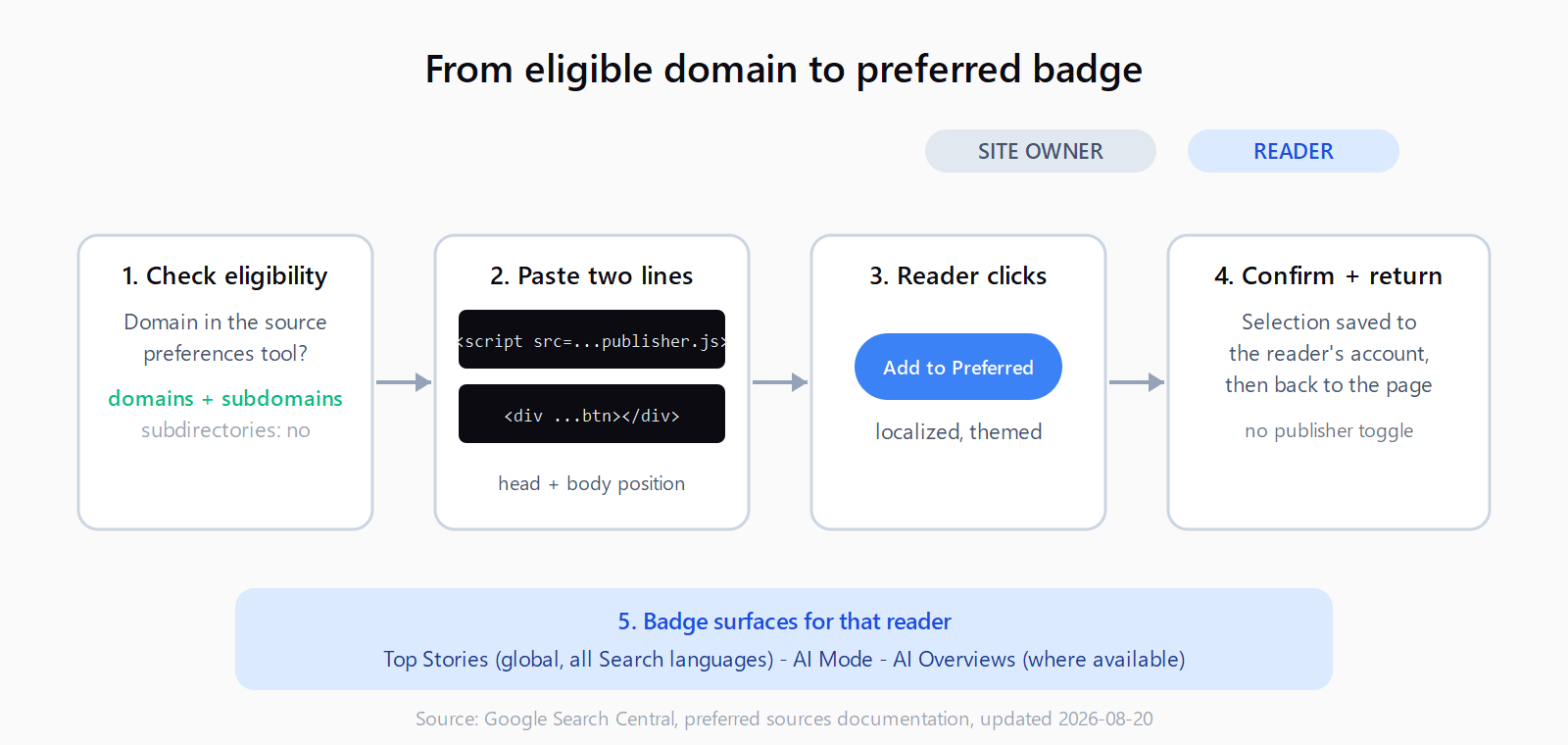
Google added button instructions to the preferred sources documentation on August 20, 2026. The changelog entry describes a custom, interactive button that guides readers into selecting a publication and brings them "right back to where they left off." Before that, a publisher could only point readers at the source preferences tool and hope they typed the domain in. The button closes that loop, but a few details decide whether it works at all.
What is Google's preferred sources feature?
Preferred sources is a user-side setting: a reader opens Google's source preferences tool, picks a publication, and from then on that publication's content is more likely to appear in their Top Stories with a "preferred" badge. In AI Mode and AI Overviews, content from a selected site can also carry the badge. The perk attaches to the reader's Google account rather than to the site: the publisher has nothing to submit and no toggle to flip. The feature is globally available for Top Stories in every language Google Search supports.
The button is a conversion lever, not a ranking lever. It does not replace the technical work that decides whether Google can surface your content at all, starting with per-bot crawler rules and extractable page structure. A reader clicking your button changes what they personally see; it changes nothing about how your pages compete for citations.
Is your site eligible before you write any code?
Only domain-level and subdomain-level sites can appear in the source preferences tool. Google's own example: https://www.example.com/ and https://code.example.com/ qualify, but the subdirectory https://www.example.com/blog does not. Check this before anything else - open the source preferences tool, type your domain, and see whether it resolves to a selectable card. If your publication lives in a subdirectory of someone else's domain, there is nothing to wire up yet; the button has no target.
How to add the standard button in two lines?
The recommended implementation is two lines of HTML. First, load Google's library - preferably in the <head> element:
<script async src="https://news.google.com/swg/js/v1/publisher.js"></script>Second, place this where the button should render in the body:
<div google-add-preferred-source-btn></div>That is the whole integration. The library scans the DOM for the attribute, renders a Google-styled button, localizes it to the reader's browser language, and drops the reader back at their exact scroll position once they finish. The script is served from news.google.com.
How to set the button theme and language?
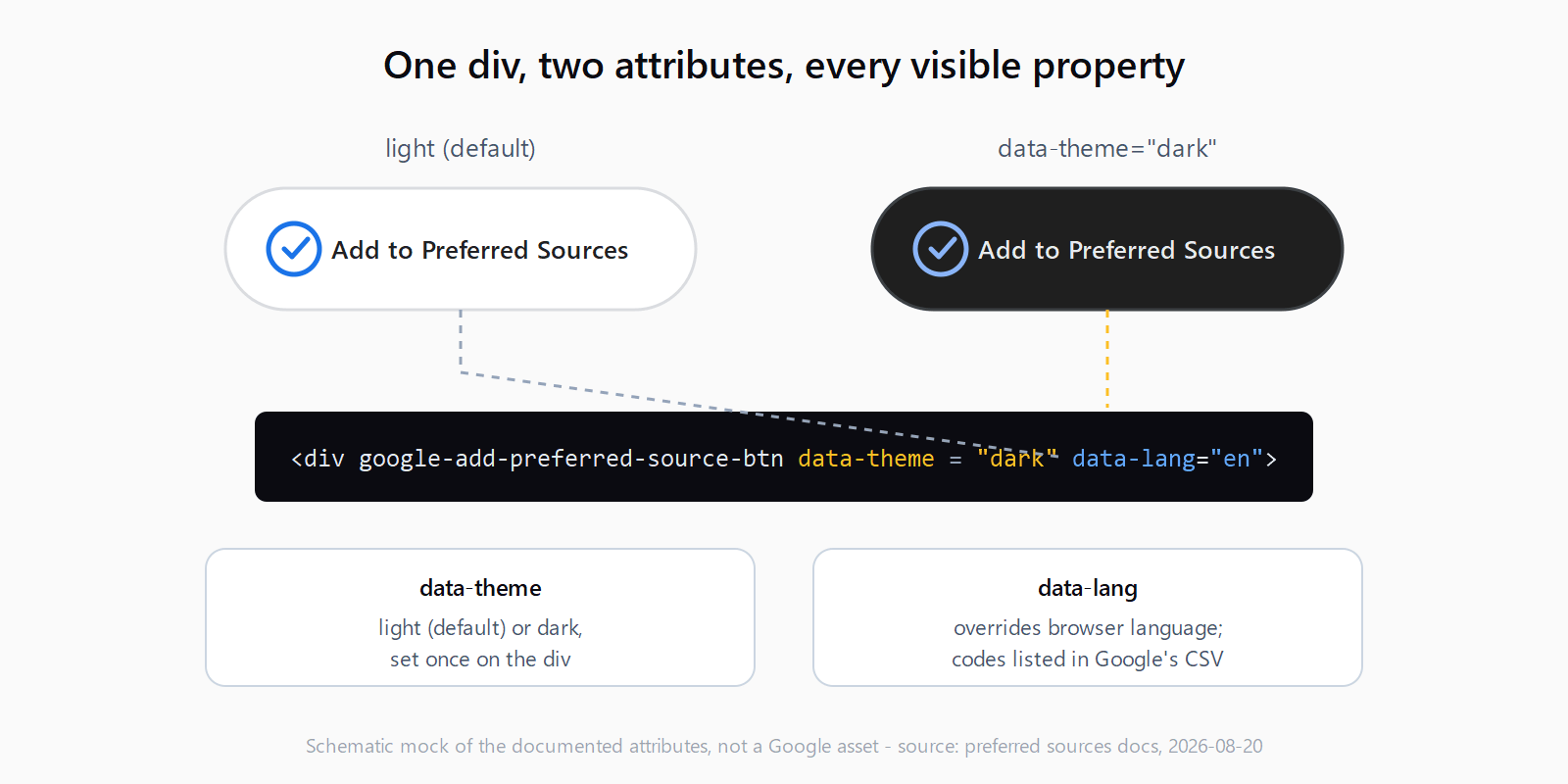
Two optional data attributes on the div. data-theme switches between the light default and dark:
<div google-add-preferred-source-btn data-theme="dark"></div>data-lang overrides the automatic browser-language detection with a specific language code, useful when a page's own language differs from the reader's browser settings:
<div google-add-preferred-source-btn data-lang="en"></div>Google publishes the supported codes as a downloadable CSV linked from the documentation. Match the button language to the page language rather than forcing one locale sitewide; a mismatched UI string is the kind of detail readers notice.
How does the preferred badge work in AI Mode and AI Overviews?
The badge behavior differs from Top Stories in two ways. First, it rolled out later: the Search Central changelog records preferred sources arriving in AI Mode and AI Overviews on May 27, 2026, whereas Top Stories has had the feature globally since April. Second, availability tracks wherever AI Mode and AI Overviews themselves are available, so the badge can lag the Top Stories rollout in some locales.
The badge also does not exempt content from the normal citation mechanics. AI Overviews still only draw from pages that pass standard AI Overviews eligibility checks, and structured answers still extract better than prose - FAQPage markup hands the models pre-parsed question-answer pairs rather than prose they have to compress. The button wins the selection; the content still has to earn the citation.
What if you need a custom button design?
The standard button renders Google's own design, which some brand teams will reject. You have two escape hatches. The first is programmatic: add preferred-sources-control="manual" to the script tag to stop auto-rendering, then bind the flow to any element you control:
<script>
  (self.PREFERRED_SOURCE = self.PREFERRED_SOURCE || []).push(
    function(preferredSource) {
      preferredSource.init({ theme: 'dark', lang: 'en' });
      document.querySelector('#myButton').addEventListener('click', () => {
        preferredSource.addPreferredSource();
      });
  });
</script>
ES module setups can import preferredSource directly from https://news.google.com/swg/js/v1/publisher.mjs and call the same two methods; Google maintains a live Preferred Sources demo covering both patterns. The second escape hatch is the deeplink, which is also the fallback for the next problem.
What if JavaScript is not an option?
CMS constraints, newsletter tools, and social platforms cannot run the library. The deeplink form sends readers straight to your domain inside the source preferences tool:
<a href="https://www.google.com/preferences/source?q=example.com"
   rel="nofollow noopener">Add as Preferred Source</a>
Replace example.com with your domain. The documentation suggests the same URL for social posts, email newsletters, and promotions, and offers a ZIP of official translated button artwork for image-based placements. The deeplink skips the "returns you to your page" convenience, but the selection flow is identical.
How to verify the button works?
Run the flow yourself in a normal browser session. Load the page and confirm the button renders in the theme and language you set. Click it: the selection flow should open without navigating away from your page, your domain should appear as the suggested selection, and confirming should return you to where you left off. Then open the source preferences tool separately and check the domain is listed under your selections. The documentation defines no site-side callback or reporting, so a manual pass is the verification method; repeat it once in a private window to confirm the selection persists per account.
How to ship the button end to end?
- Search your domain in the source preferences tool and confirm a selectable card appears.
- Add the publisher script tag to your template's head.
- Place the button div at the position where reader attention peaks, typically after the first screen of content.
- Set data-theme and data-lang to match your page's design and language.
- Click through the full flow once and confirm the selection in the tool.
- Add the deeplink to your newsletter template for readers the page button never reaches.
FAQ
Do I need the button to appear as a preferred source?
No. Google states explicitly that these promotion methods are not required to appear as a preferred source. The button raises the odds a reader completes the selection; it is not an eligibility requirement.
Does a subdirectory or subfolder qualify for preferred sources?
No. Only full domains and subdomains are eligible in the source preferences tool. A blog at example.com/blog cannot be selected independently of its parent domain.
Does the preferred badge show to everyone in AI Overviews?
No. In AI Mode and AI Overviews the badge appears only for users who selected your site as a preferred source, and only where those AI features are available. Top Stories coverage is broader: the feature is global in every supported language.
Can I customize how the button looks?
Yes, within limits. The advanced JavaScript implementation lets you trigger the flow from your own UI elements, and the deeplink works with any design, including the official translated badge assets. The standard button's appearance itself is Google's, by design.
Do I need Search Console verification for the button?
The documentation asks for none. The gate is appearing in the source preferences tool, which keys off your domain's presence in Google's systems. Verification changes nothing about the button; check eligibility with the tool itself.