
How to connect Salesforce to Zapier: full setup guide
Salesforce is a premium Zapier app. Paid plan and My Domain required. Spring '26 orgs also need an External Client App. Full setup guide with triggers, actions, and the five-token auth limit.
TL;DR: Connect Salesforce to Zapier via Apps > +Add connection > Salesforce, authenticate with OAuth, and note that a Zapier paid plan is required plus My Domain must be enabled in your Salesforce org.
Salesforce is one of the most-requested Zapier integrations and one of the trickiest to set up. Two things catch teams off guard: it is a premium app (paid Zapier plan only), and Salesforce's Spring '26 release changed the authentication model for enterprise orgs. This guide covers both the standard OAuth path and the admin-managed External Client App path.
What do you need before connecting Salesforce to Zapier?
Four prerequisites apply before you touch Zapier's interface:
- Zapier paid plan. Salesforce is a premium app; Free and Trial plans cannot create Salesforce Zaps. The Starter plan ($19.99/mo) is the entry point.
- Supported Salesforce edition. Essentials, Professional, Enterprise, Unlimited, and Performance editions all work. Starter and Platform editions are excluded.
- My Domain enabled. Salesforce requires My Domain to be deployed in your org before any OAuth connection can succeed. Custom domains are not supported - only the default Salesforce-issued My Domain URL works.
- External Client App (enterprise orgs, Spring '26+). As of the Salesforce Spring '26 release, External Client Apps replace Connected Apps for new setups in orgs where an administrator has enforced the policy. If your org requires this, the admin creates the External Client App first and shares the credentials before anyone connects.
How do you connect Salesforce to Zapier with standard OAuth?
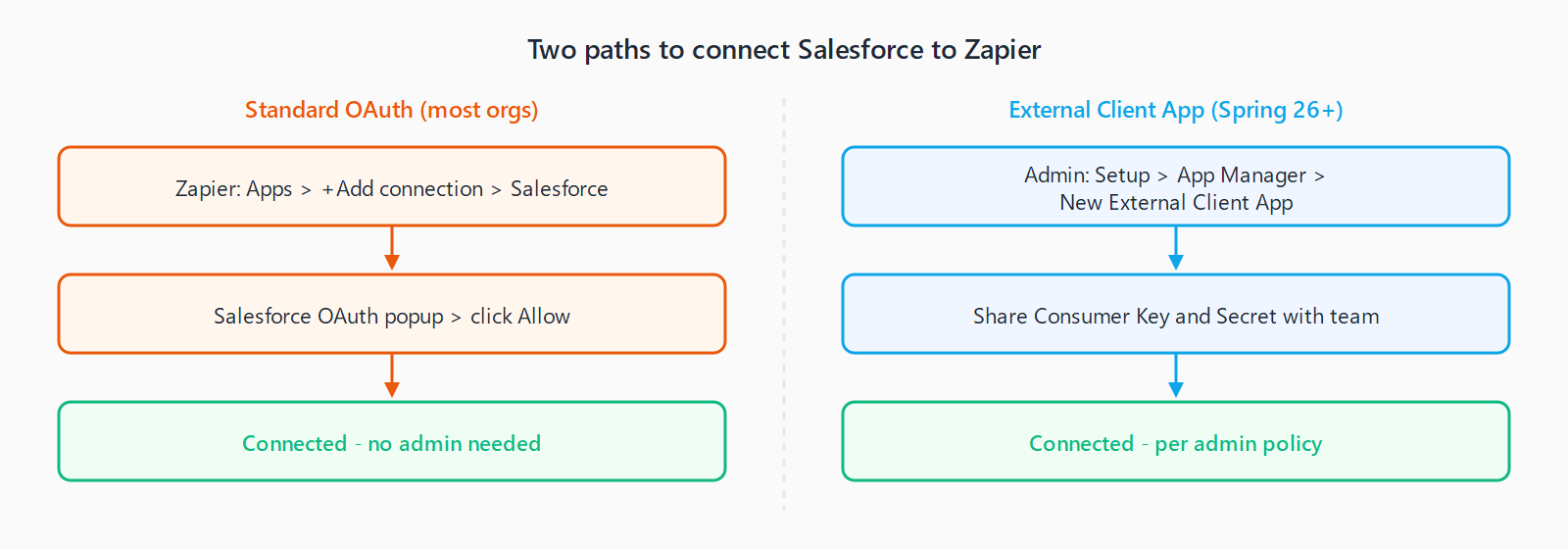
For orgs that have not enforced the External Client App policy, the standard OAuth path takes under two minutes:
- In Zapier, click your account name and navigate to Apps.
- Click +Add connection, search for Salesforce, and select it.
- Click Add connection again. A popup opens directing you to Salesforce's login screen.
- Log in with your Salesforce credentials and click Allow to grant Zapier access. The popup closes and the connection appears in your Apps list.
The connection name defaults to your Salesforce email address. Rename it in the Apps panel if you manage multiple Salesforce orgs or sandbox environments.
How do you set up the connection with an External Client App?
If your Salesforce administrator has enforced the External Client App requirement, the standard OAuth path fails with "this app is not authorized." The admin must complete this setup once per org:
- In Salesforce Setup, go to App Manager and click New External Client App.
- Fill in the app name (e.g. "Zapier"), set the callback URL to
https://zapier.com/dashboard/auth/oauth/return/SalesforceDevAPI/, and enable OAuth. - Add the required OAuth scopes:
api,refresh_token, offline_access. - Save the app and note the Consumer Key and Consumer Secret.
- Share the Consumer Key and Secret with team members who need to connect Zapier.
Users then connect via the same Apps > +Add connection path but enter the Consumer Key and Secret when prompted instead of going through the standard OAuth popup.
What Salesforce triggers and actions are available in Zapier?
The Salesforce integration offers a broad set of both triggers and actions. The most-used triggers:
- New Record - fires when any Salesforce object is created (Lead, Contact, Opportunity, Case, or any custom object).
- Updated Record - fires when a record is modified.
- Updated Field on Record - fires only when a specific field changes; returns the old and new field values side-by-side.
- New Outbound Message - real-time push from Salesforce rather than polling; lower latency but requires a Workflow Rule in Salesforce to configure.
Key actions for writing data back to Salesforce:
- Create/Update Record - upserts a record on any standard or custom object.
- Find Record by Query - accepts a full SOQL query to locate one or many records before acting on them.
- Launch Flow - executes a Salesforce Flow and passes optional input parameters, returning any output values to the Zap.
- Convert Lead - converts a Lead record into a Contact, Account, and optionally an Opportunity in one step.
For CRM automation use cases, the Make vs Zapier comparison covers which platform handles Salesforce integrations better depending on your data volume and flow complexity.
FAQ
Why does my Salesforce connection fail with "Authentication failed" after working for weeks?
Salesforce enforces a five-token limit per account: when a sixth OAuth token is issued to any app, the oldest one is silently revoked. If multiple team members share a Salesforce admin account to connect Zapier, earlier connections are invalidated without notice. The fix is to use individual Salesforce user accounts for each Zapier connection, or to use an External Client App with a dedicated integration user.
Does Zapier work with Salesforce Sandbox?
Yes. When creating a new connection, Zapier asks whether to connect to the production org or a sandbox. Sandboxes have their own separate My Domain and credentials. Use separate Zapier connections for production and sandbox to avoid accidental data cross-contamination.
What is the difference between a Salesforce trigger and a New Outbound Message trigger?
Standard Salesforce triggers (New Record, Updated Record) use polling - Zapier checks for changes every 1-15 minutes depending on your plan. New Outbound Message is a push trigger: Salesforce sends data to Zapier the moment the associated Workflow Rule fires, giving sub-minute latency. The trade-off is that Outbound Messages require setup inside Salesforce itself.
Can I use SOQL queries in Zapier Salesforce searches?
Yes. The Find Record by Query action accepts full SOQL statements, including WHERE clauses, ORDER BY, and LIMIT. This is the correct approach when you need to look up a Salesforce record by a field other than the standard ID. Keep SOQL queries simple - complex joins or large LIMIT values increase the risk of hitting Salesforce's API request limits.
Which Salesforce editions are compatible with Zapier?
Essentials, Professional, Enterprise, Unlimited, and Performance editions all work with Zapier. Salesforce Starter (formerly Essentials free tier) and Platform-only licences do not include the API access Zapier requires. If you are unsure of your edition, check under Setup > Company Information > Organization Edition in Salesforce.