
How to connect Google Calendar to Zapier
Connect Google Calendar to Zapier: triggers, actions, the rate limit gotcha, and the right way to add multiple attendees without overwriting.
TL;DR: Connect Google Calendar to Zapier via Apps > +Add connection > Google Calendar, authenticate with your Google account - no paid Zapier plan required for basic use - but bulk event creation or adding multiple attendees can hit Google's per-minute API rate limits without a Delay step in between.
Google Calendar is one of Zapier's best-supported free-tier apps, and the setup itself is fast. The complexity shows up in edge cases: rate limits on bulk operations, the difference between "New Event" and "Event Started" triggers, and how to correctly add multiple attendees without looping.
How do you connect Google Calendar to Zapier?
- In Zapier, navigate to Apps > +Add connection and search for Google Calendar.
- Click Add connection. Google's OAuth consent screen opens.
- Select the Google account that owns the calendar you want to automate.
- Click Allow to grant Zapier read/write access to your calendar. The popup closes and Google Calendar appears in your Apps list.
If you have multiple Google accounts (personal, work, external), connect each separately. Zapier can distinguish between connections; label them clearly (e.g. "GCal - Work" vs "GCal - Personal") to avoid routing events to the wrong calendar.
What Google Calendar triggers are available in Zapier?
- New Event - fires when a new event is created on the calendar. Does not fire for recurring event instances - only the first creation of the series.
- New Event Matching Search - fires for new events that match a keyword in the event title or description. Useful for routing events tagged with specific labels to different downstream actions.
- Event Started - fires when a calendar event begins. Useful for reminder workflows that kick off at meeting time.
- Event Cancelled - fires when an event is cancelled by the organizer.
What Google Calendar actions are available in Zapier?
- Create Detailed Event - creates an event with attendees, description, location, reminders, and conferencing (Google Meet). The most complete event creation action.
- Quick Add Event - creates an event from a natural-language string (e.g. "Team standup tomorrow 10am for 30 minutes"). Parses date, time, and duration from text.
- Update Event - modifies an existing event by ID. Used with a preceding Find Event step to locate the event before updating it.
- Delete Event - removes an event by ID.
- Find Event - searches for an event by title, date range, or calendar. Returns the event ID needed for Update and Delete actions.
How do you avoid Google Calendar rate limit errors in Zapier?
Google Calendar enforces rate limits of approximately 30 requests per minute per user per project. For personal accounts the limit is lower than for Google Workspace accounts (up to 1,000,000 requests per day). Most normal Zaps - creating or updating a single event when something happens in another app - never approach the limit.
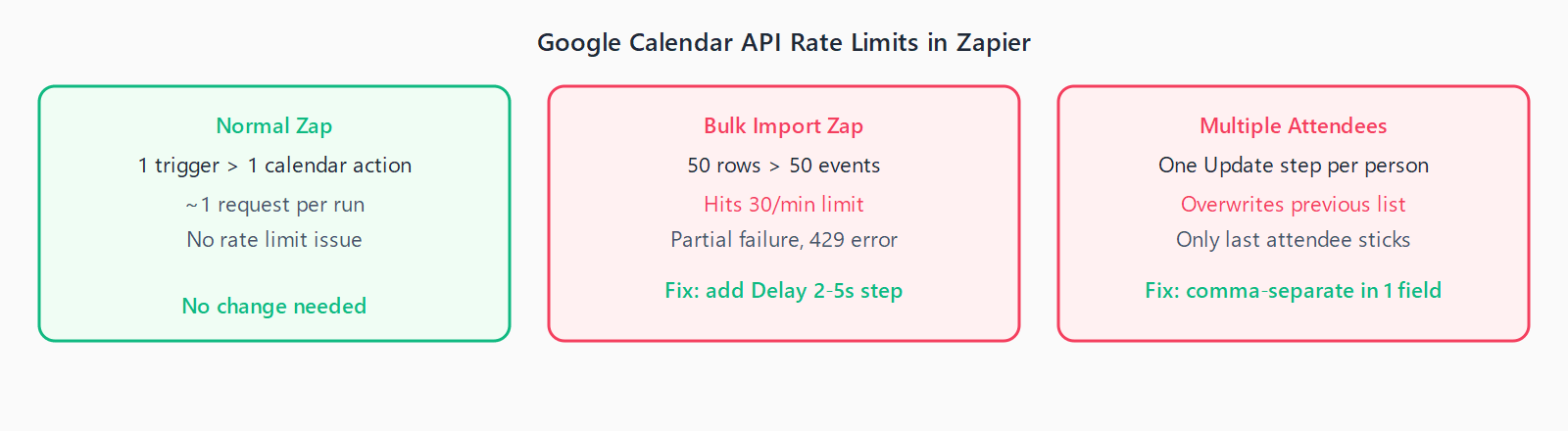
The limit becomes relevant in three cases:
- Bulk event creation from a spreadsheet or database. If your Zap loops through 50 rows and creates 50 events in rapid succession, it will likely trigger a 429 rate limit error partway through. Fix: add a Delay For step of 2-5 seconds between the trigger and the calendar action.
- Adding multiple attendees individually. The Create Detailed Event action accepts attendees as a comma-separated list - do not add them as separate action steps. Adding ten attendees in ten separate Update Event steps at once will hit the rate limit.
- Hourly recurring Zaps with many calendar lookups. A Zap that runs every hour and performs multiple Find Event searches can accumulate enough requests to hit the per-minute limit during bursts.
For workflows that do heavy calendar processing, the Make vs Zapier comparison covers whether Make's scenario-level execution model handles rate-limited APIs better than Zapier's step-by-step model.
How do you add attendees to a Google Calendar event in Zapier?
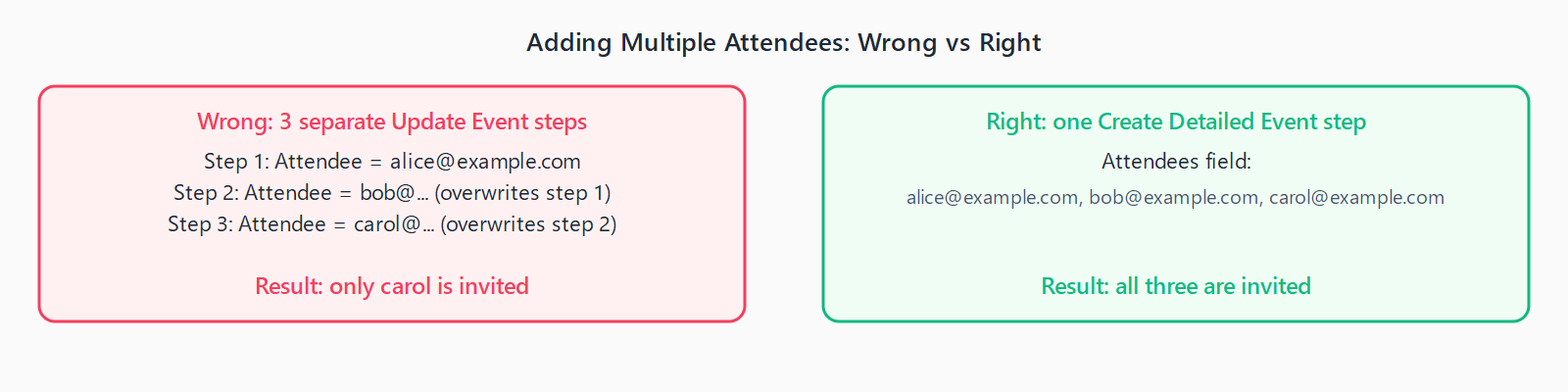
Pass all attendee email addresses as a single comma-separated value in the Attendees field of the Create Detailed Event action: alice@example.com, bob@example.com, carol@example.com. Google Calendar parses the list and sends invitations to each address in one API call.
Do not build attendee lists by running multiple Update Event actions in sequence - each update overwrites the previous attendee list rather than appending to it, and it wastes API quota. If your attendee list comes from another source (a form, a CRM), use a Formatter step to join the email addresses with commas before passing them to the calendar action.
FAQ
Can Zapier trigger from recurring calendar events?
The New Event trigger fires only once when the recurring series is created, not on each recurring instance. For per-instance triggers, use Event Started, which fires each time an instance begins. Alternatively, use Google Calendar's native notification features to send emails at event time and trigger a Zapier Gmail or Webhook Zap.
How do I sync events between two Google Calendars with Zapier?
Use New Event in the source calendar as the trigger and Create Detailed Event in the destination calendar as the action. Map title, start time, end time, description, and location from the trigger data. Be aware that this creates a new independent event in the destination - it does not stay in sync if the original event is updated.
Why does "Event Started" not fire at the exact event time?
Zapier's polling-based triggers check for changes every 1-15 minutes. Event Started is also polling-based, meaning it fires within 15 minutes of the event start, not at the exact second. For precise-timing workflows, use Google Calendar's built-in email notifications to trigger a Gmail Zap instead.
Can I create a Google Meet link automatically when creating an event?
Yes. The Create Detailed Event action includes a Add Google Meet Conferencing checkbox. Enable it and Google Calendar automatically generates a Meet link and includes it in the event and all attendee invites. No additional configuration is required.
Does Zapier work with shared Google Calendars?
Yes, as long as the connected Google account has write access to the shared calendar. When selecting the calendar in Zapier's action step, shared calendars appear in the dropdown alongside personal ones. Read-only shared calendars work for triggers but not for event creation or updates.