
How to connect QuickBooks to Zapier for automated bookkeeping
Connect QuickBooks Online to Zapier and automate invoicing, expense capture, and bookkeeping sync. Paid plan required.
TL;DR: Connect QuickBooks Online to Zapier via Apps > +Add connection > QuickBooks Online, authenticate with Intuit OAuth, and automate invoicing, expense capture, and bookkeeping - paid Zapier plan and a QuickBooks Online subscription required.
QuickBooks Online and Zapier together eliminate the most repetitive bookkeeping tasks: creating invoices from order data, pushing expenses from receipt apps, and syncing customer records across tools. The setup takes under five minutes once you have both accounts. The main gotcha to know up front is that some QuickBooks triggers are not truly instant - they poll on a schedule rather than pushing events in real time.
What do you need before connecting QuickBooks to Zapier?
Three requirements apply:
- QuickBooks Online subscription. QuickBooks Desktop is not supported by Zapier. Any paid QuickBooks Online tier works - Simple Start, Essentials, Plus, or Advanced.
- Zapier paid plan. QuickBooks Online is a premium app on Zapier. Free plans cannot create QuickBooks Zaps; the Starter plan at $19.99/mo is the entry point.
- QuickBooks admin access. The user connecting to Zapier must have admin-level permissions in the QuickBooks org to grant third-party OAuth access.
How do you connect QuickBooks Online to Zapier?
- In Zapier, click your account name and navigate to Apps.
- Click +Add connection, search for QuickBooks Online, and select it.
- Click Add connection again. A popup opens redirecting you to Intuit's login screen.
- Log in with your Intuit credentials, select the QuickBooks company to connect, and click Connect.
- The popup closes and the connection appears in your Apps list, labelled with your company name.
If you manage multiple QuickBooks companies, repeat the process to add a second connection - each company needs its own entry. Label them clearly (e.g. "QBO - Acme Corp" vs "QBO - Holding LLC") to avoid routing Zaps to the wrong entity.
What triggers and actions are available for QuickBooks in Zapier?
The most-used triggers for bookkeeping automation:
- New Invoice - fires when any new invoice is created in QuickBooks.
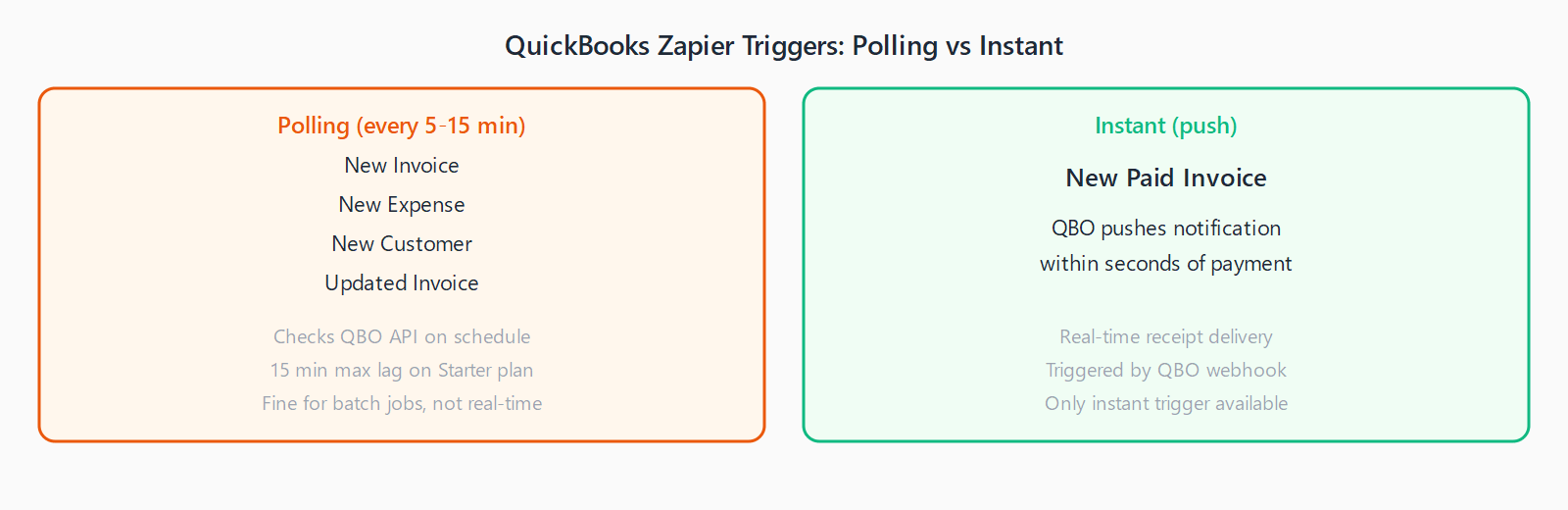
- New Paid Invoice (Instant) - the only instant trigger; fires within seconds when a payment is recorded against an invoice.
- New Expense - fires when a new expense record is added.
- New Customer - fires when a customer record is created.
The most-used actions for writing back to QuickBooks:
- Create Invoice - builds a new invoice with line items, customer, terms, and due date from Zap data.
- Create Customer - adds a new customer record from form submissions, CRM entries, or payment events.
- Create Expense - logs a new expense from receipt apps like Expensify or Hubdoc.
- Update Invoice - changes the status, amount, or notes on an existing invoice.
For end-to-end bookkeeping automation - for example syncing HubSpot closed deals into QuickBooks invoices - the Make vs Zapier comparison covers which platform handles multi-step financial workflows better at different data volumes.
Why are most QuickBooks triggers not instant?
QuickBooks Online's API does not emit webhooks for most record types. Zapier polls the QuickBooks API on a schedule - every 5 to 15 minutes depending on your plan - to check for new records. The only exception is New Paid Invoice, which is flagged as instant because QuickBooks does push a real-time notification when a payment is recorded.
For time-sensitive workflows (e.g. sending a receipt the moment payment arrives), use the New Paid Invoice instant trigger and build around it. For bulk processing jobs (nightly invoice generation, weekly expense sync), the polling behavior is fine and the delay is irrelevant.
FAQ
Does Zapier work with QuickBooks Self-Employed?
No. Zapier supports QuickBooks Online only (Simple Start, Essentials, Plus, Advanced). QuickBooks Self-Employed and QuickBooks Desktop use different APIs and are not available on Zapier as of 2026.
Can I sync expense receipts automatically from a receipt app?
Yes. Connect a receipt capture app (Expensify, Hubdoc, Dext) as the trigger and use Create Expense in QuickBooks as the action. Map vendor, amount, category, and date fields between the two apps. Most receipt apps support Zapier natively.
Why does my QuickBooks trigger not fire immediately after creating a record?
Most QuickBooks triggers are polling-based, checking every 5-15 minutes. The New Paid Invoice trigger is the only instant option. For all other triggers, build your Zap logic to tolerate a 15-minute lag rather than treating it as real-time.
How do I map Zap data to QuickBooks invoice line items?
The Create Invoice action accepts line item arrays. In Zapier's action editor, click +Add line item for each product or service. Map the product name, quantity, unit price, and tax code fields from the trigger data. For multi-item orders, use Zapier's line item feature or a Code step to transform the array before it reaches QuickBooks.
What happens if I hit QuickBooks API rate limits?
QuickBooks Online limits API requests per minute and per day. Zapier handles rate-limit responses by retrying automatically, but very high-volume Zaps (thousands of records per day) can accumulate retries that delay processing. If you are processing large batch jobs, run them off-peak or split the load across multiple Zaps with staggered triggers.