
How to Clear the Cursor Cache: Fix Stuck or Laggy AI
Stuck indexing, frozen chat, dead autocomplete? Clear Cursor's cache - the soft in-app reset first, then the on-disk folders, with the exact paths per OS.

TL;DR: Clearing Cursor's cache fixes stuck indexing, frozen chat, and laggy autocomplete - quit Cursor and delete the Cache and CachedData folders under its app-data directory, or delete workspaceStorage to force a clean re-index.
When Cursor's AI features go sluggish or stop responding - indexing stuck at a percentage, chat frozen, autocomplete silent - a corrupted cache is one of the most common causes. The fix is to clear it, but there is a soft version inside the app and a hard version on disk, and you want the soft one first. Here is when to clear the cache and exactly how.
When should you clear the Cursor cache?
Reach for a cache clear when the symptoms point at a stale or corrupted local state rather than a model or network problem. The usual signs are codebase indexing that sticks at a percentage and never finishes, CPU staying pinned after a project loads, chat that spins without replying, and autocomplete that has quietly stopped suggesting. If Cursor was fine yesterday and broke with no obvious change, suspect the cache before anything else. One quick check first: if chat returns an error rather than just hanging, or every AI feature fails at once, the problem is more likely a model outage or an expired sign-in than a corrupted cache - confirm Cursor's status and that you are still logged in before deleting anything. If the problem is instead that your rules stopped applying, that is a different issue - see Cursor rules not loading.
How do you clear the cache from inside Cursor first?
Start with the least destructive option, because it keeps your settings and sign-in intact. Two in-app steps fix most cases:
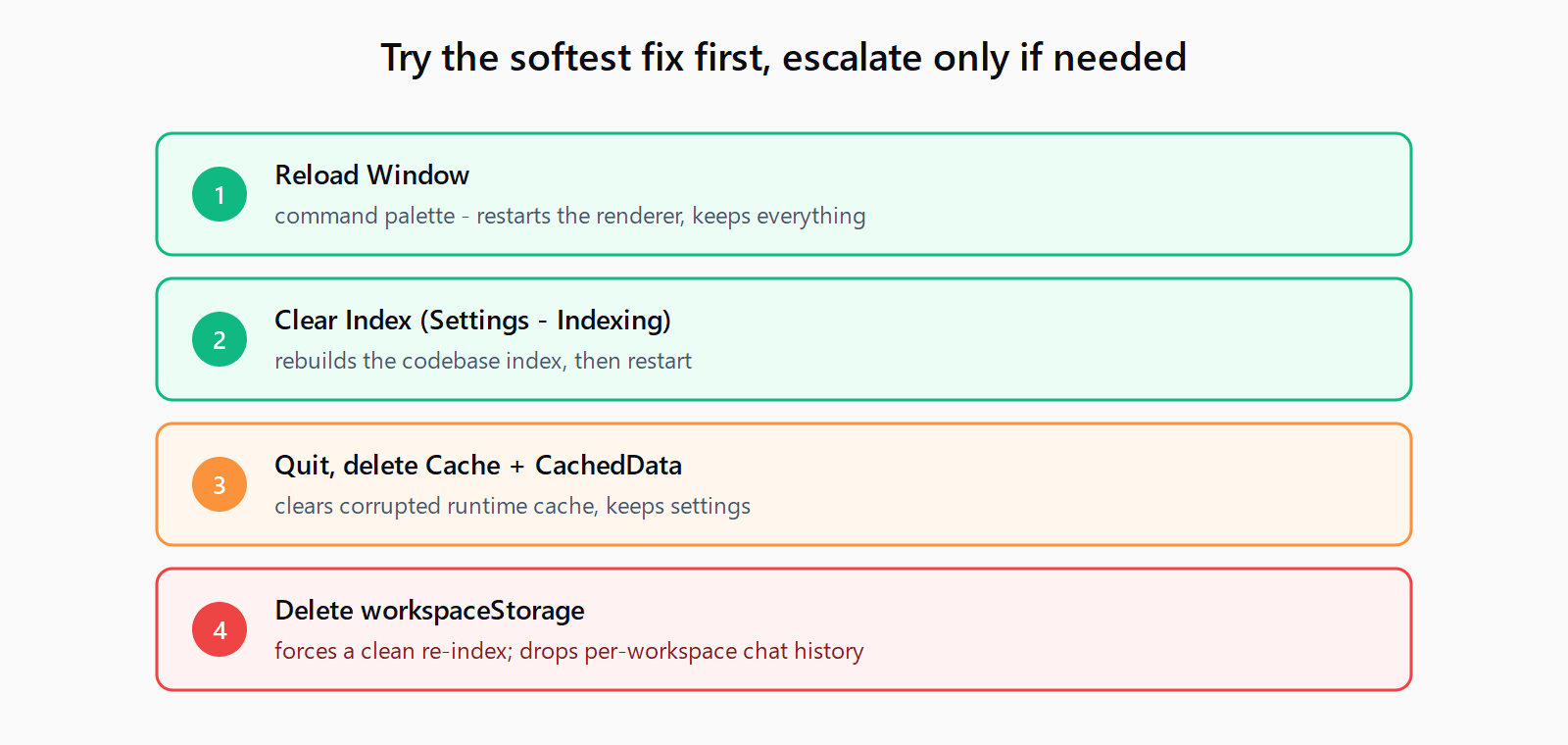
- Reload the window: open the command palette with Ctrl+Shift+P (Cmd+Shift+P on macOS) and run "Reload Window." This restarts the renderer without a full quit and clears transient state.
- Clear the index: go to Settings, then Indexing, and choose "Clear Index," then restart Cursor. This rebuilds the codebase index that drives chat and autocomplete context.
If indexing is stuck or autocomplete is still dead after both, move on to clearing the on-disk cache.
Where are the Cursor cache folders?
Cursor stores its cache in the standard per-user app-data location for its platform. Quit Cursor completely before touching these:
| OS | Cache folders | Workspace storage |
|---|---|---|
| Windows | %APPDATA%\Cursor\Cache and %APPDATA%\Cursor\CachedData | %APPDATA%\Cursor\User\workspaceStorage |
| macOS | ~/Library/Application Support/Cursor/Cache and .../CachedData | ~/Library/Application Support/Cursor/User/workspaceStorage |
| Linux | ~/.config/Cursor/Cache and ~/.config/Cursor/CachedData | ~/.config/Cursor/User/workspaceStorage |
On Windows, %APPDATA% resolves to C:\Users\<you>\AppData\Roaming - paste the path into the File Explorer address bar to jump straight there.
How do you clear the cache and force a re-index?
Deleting the Cache and CachedData folders clears corrupted runtime cache without losing settings; deleting workspaceStorage additionally forces a clean codebase re-index, which is the fix when indexing is stuck. Quit Cursor first, delete the relevant folders through your file manager (or your shell of choice), then relaunch - Cursor recreates them on startup. Expect the first launch after clearing to be slower while the index rebuilds. Deleting workspaceStorage discards per-workspace state such as the local chat history for that project, so export anything you want to keep before you delete it.
What if clearing the cache doesn't fix the lag?
If a clean cache and a fresh index do not help, the slowdown is probably not cache-related. Common culprits are an oversized workspace that should be trimmed with a .cursorignore file, a misbehaving extension, or an agent task that is genuinely agent execution timing out rather than hanging. A full reset - reinstalling Cursor after removing its app-data folder - is the last resort. For other editor and agent errors, the catalog of Cursor and editor errors lists fixes by message.
How do you clear the Cursor cache safely in five steps?
- Run "Reload Window" from the command palette and see if the lag clears.
- If not, open Settings, then Indexing, and choose "Clear Index," then restart.
- Still stuck: quit Cursor completely.
- Delete the Cache and CachedData folders under Cursor's app-data path, plus workspaceStorage for a full re-index.
- Relaunch Cursor and let the index rebuild before judging performance.
FAQ
Will clearing the Cursor cache delete my settings or extensions?
No. Deleting the Cache and CachedData folders only removes runtime cache; your settings, extensions, and sign-in stay intact. Deleting workspaceStorage removes per-workspace state like a project's local chat history.
Why is Cursor indexing stuck?
A corrupted index in workspaceStorage is the common cause. Clearing the index from Settings, or deleting the workspaceStorage folder and restarting, forces a clean re-index that usually unsticks it.
Where is the Cursor cache on Windows?
Under %APPDATA%\Cursor, which resolves to C:\Users\<you>\AppData\Roaming\Cursor. The relevant folders are Cache, CachedData, and User\workspaceStorage. Cursor’s own troubleshooting guide documents these directories, and a tracked forum report confirms old CachedData folders accumulate across Cursor versions with no automatic cleanup.
Do I need to quit Cursor before deleting the cache?
Yes. Quit Cursor completely first, or the files will be locked and may be rewritten immediately. Cursor recreates the folders cleanly on its next launch.
How often should I clear the Cursor cache?
Only when you see symptoms - stuck indexing, frozen chat, or dead autocomplete. It is a troubleshooting step, not routine maintenance, so there is no need to do it on a schedule.