
How to export and import n8n workflows (JSON, CLI, and UI)
Three ways to export and import n8n workflows: UI download, CLI bulk export, and node copy-paste. Plus the credential re-linking step most guides skip.
TL;DR: Export n8n workflows as JSON via the UI three-dot menu, the CLI (n8n export:workflow), or copy-paste between nodes - but be aware that exported JSON contains credential references, not secrets, so importing into a different instance silently fails at runtime until credentials are re-linked.
n8n's export and import system is straightforward until the first time you move a workflow between instances and it runs with no output, no error, and no obvious explanation. The cause is almost always credentials: the JSON carries credential names and IDs, not the actual API keys. The target instance has no idea what they point to.
How do you export an n8n workflow from the UI?
- Open the workflow in n8n's editor.
- Click the three-dot menu (top-right corner of the editor).
- Select Download. n8n saves a
.jsonfile to your browser's downloads folder.
The downloaded JSON contains the complete workflow graph: all nodes, their parameters, connections between nodes, and credential references. It does not contain credential secrets. The file is named after the workflow; spaces are replaced with underscores.
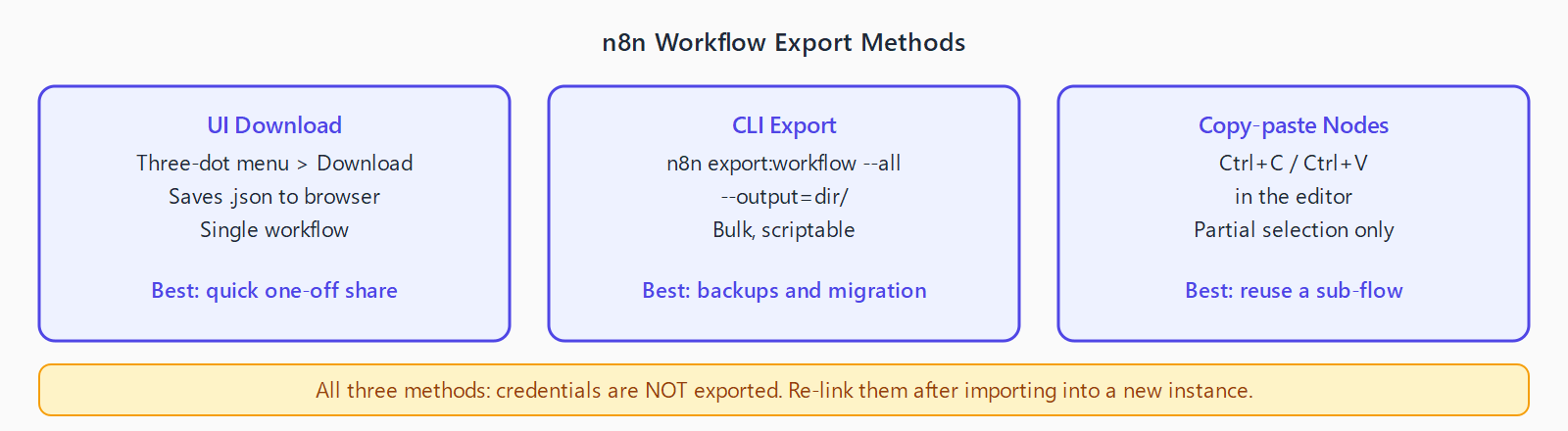
--all flag is the right choice for migration and scheduled backups. All three methods strip credentials - re-link them after importing into a new instance.To export all workflows in bulk, use the CLI instead of the UI.
How do you export n8n workflows with the CLI?
The n8n export:workflow command supports both single-workflow and bulk export:
# Export one workflow by ID
n8n export:workflow --id= --output=my-workflow.json

# Export all workflows to a directory
n8n export:workflow --all --output=workflows/

# Export with pretty-printing (default is compact)
n8n export:workflow --all --output=workflows/ --pretty
The --all flag is the correct approach for backups and migration. Each workflow saves to a separate file in the output directory, named by the workflow's ID.
For teams that version-control their workflows, the "Back Up Workflows to GitHub" community template automates this on a schedule - it exports all workflows and commits any changes to a Git repository without manual CLI runs.
How do you import a workflow into n8n?
Three import paths exist:
- UI file import: In the editor, open the three-dot menu and select Import from file. Select the JSON file. The workflow opens in the editor and must be saved before it activates.
- UI URL import: Select Import from URL from the same menu. Paste a raw JSON URL (GitHub raw file URL, Gist, or any HTTPS endpoint returning JSON). Useful for importing from the n8n template library without downloading.
- CLI import:
n8n import:workflow --input=my-workflow.jsonorn8n import:workflow --separate --input=workflows/for directories.
What is the credential problem and how do you fix it?
When a workflow is imported to a new instance, every node that had a credential attached shows a red "Credential missing" badge. The node knows the credential was named (e.g. "My Slack Account") but that name does not exist in the new instance's credential store.
The fix: open each flagged node, click the credential dropdown, and either select an existing credential with the correct scope or create a new one. There is no automated credential migration path - credentials are deliberately not exported for security reasons.
A subtler problem: if the new instance has a credential with the same name as the exported one, n8n silently links them. If that credential has different API keys or points to a different workspace, the workflow runs but behaves incorrectly. Always verify credential linkage after importing into an instance that already has credentials configured.
For workflows that involve common n8n nodes, the n8n nodes catalog lists required credential types per node, helping you identify what needs to be set up before the first run.
What happens to workflow IDs on import?
When importing a JSON that was exported from a different instance, n8n assigns the workflow the same ID that was in the JSON. If a workflow with that ID already exists on the target instance, the import overwrites it. This is the correct behavior for restoring a backup, but the wrong behavior when you intend to import as a new copy.
To import a workflow as a new copy without overwriting, delete the "id" field from the JSON before importing. n8n generates a fresh ID on creation and treats it as a new workflow.
FAQ
Can I copy individual nodes between workflows?
Yes. Select one or more nodes in the editor, press Ctrl+C (or Cmd+C on macOS), open the destination workflow, and press Ctrl+V. The pasted nodes keep their parameters and credential references. This is the fastest way to reuse a sub-workflow pattern without exporting the entire workflow.
How do I automate workflow backups?
The community template "Back Up Workflows to GitHub" exports all workflows on a schedule and commits any changed files to a GitHub repository. Import it, configure the GitHub credential and repository, and activate it. The workflow uses the n8n CLI under the hood via the Execute Command node.
Do imported workflows run immediately?
No. Imported workflows arrive in Inactive state. Toggle the workflow to Active in the editor's top-right corner to register its webhook URLs and start the trigger. For webhook-based workflows, the webhook URL changes with each new instance or after recreating the trigger node - update any external services that call it.
Can I import a workflow exported from a newer n8n version into an older one?
Sometimes, but not reliably. Node parameters and operation names change between major versions. If the JSON references a parameter that does not exist in the older version, n8n either silently drops the parameter or throws a validation error on import. The safer migration path is to upgrade the target instance before importing.
How do I share a workflow without exposing internal details?
Export the JSON, open it in a text editor, remove or blank out any hardcoded URLs, email addresses, resource IDs, or placeholder values that reference your internal environment. Credential references are already non-sensitive (they carry names, not secrets), but resource IDs (Notion database IDs, Airtable base IDs) can identify private data. Strip them before sharing.