
How to connect Slack to Zapier (triggers, actions, and tips)
Connect Slack to Zapier: triggers (New Message, Reaction), actions (Send Message, DM), and the Thread TS filter that prevents most Slack Zap failures.
TL;DR: Connect Slack to Zapier via Apps > +Add connection > Slack, select your workspace, grant permissions - and note that Slack does not differentiate parent messages from thread replies, so filtering on thread messages requires an extra IF step.
Slack is one of Zapier's most-connected apps and one of its most misunderstood. The connection itself is frictionless (no paid plan required for basic use), but the trigger behavior has a persistent gotcha that breaks notification workflows: Zapier cannot tell a channel message from a thread reply without manual filtering.
How do you connect Slack to Zapier?
- In Zapier, navigate to Apps > +Add connection and search for Slack.
- Click Add connection. A popup opens asking which workspace to connect.
- Select your workspace and click Allow to grant Zapier permission to read messages and post.
- The popup closes and the connection appears in your Apps list.
For team workspaces, you typically need to be a workspace admin or have permission to add apps. Some Enterprise Grid organizations require admin approval before third-party apps can connect. If the popup fails to load, check that your browser's popup blocker is not suppressing the Intuit-signed window.
What Slack triggers are available in Zapier?
The most commonly used Slack triggers:
- New Message Posted to Channel (Instant) - fires when any message appears in a specific channel, including bot messages and thread replies.
- New Saved Message - fires when you save a message using Slack's save feature.
- New Reaction Added - fires when any reaction emoji is added to a message in the specified channel.
- File Uploaded to Channel - fires when a file is shared in the channel.
- New Mention - fires when your Zapier-connected user is @mentioned.
What Slack actions are available in Zapier?
- Send Channel Message - posts a message to a public or private channel.
- Send Direct Message - sends a DM to a specific user.
- Create Channel - creates a new Slack channel programmatically.
- Set Channel Topic - updates the topic of any channel the connected user can access.
- Add Reminder - sets a Slack reminder for yourself or another user.
For cross-platform workflows - connecting Slack to CRMs, ticketing systems, or project management tools - the Make vs Zapier comparison covers when Zapier handles multi-app notification chains better than Make.
How do you filter out thread replies in Zapier?
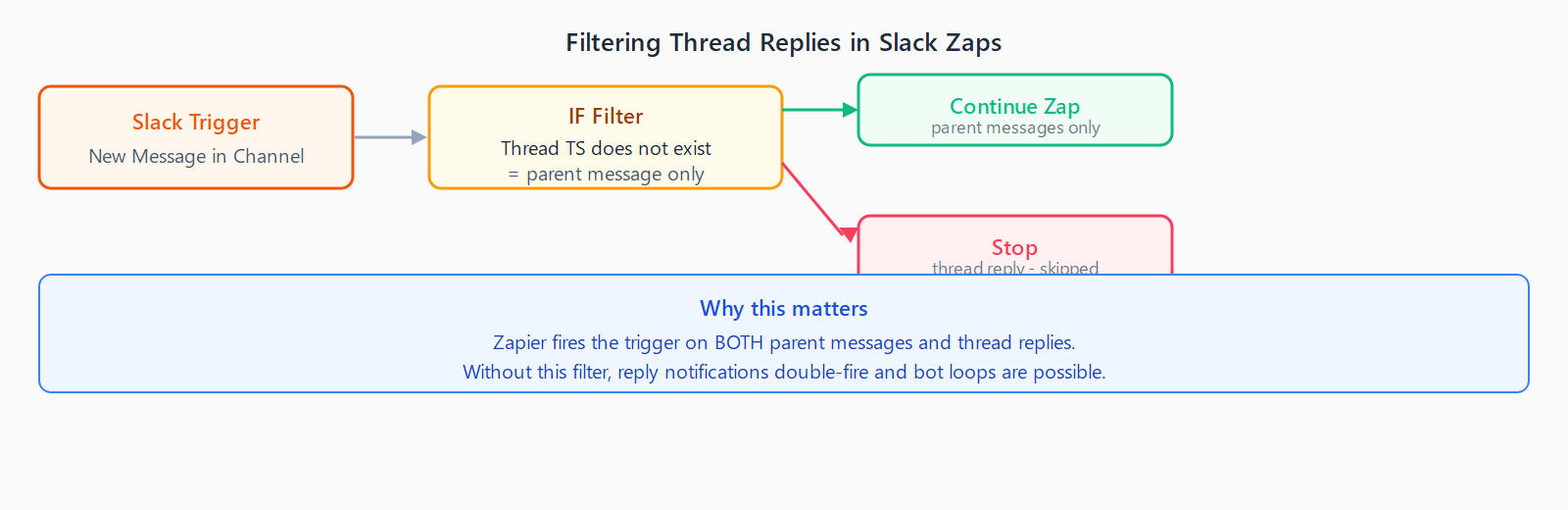
The "New Message Posted to Channel" trigger fires on both parent channel messages and thread replies. Slack does not expose a separate trigger for each. The payload includes a thread_ts field on thread replies (the timestamp of the parent message) that is absent on parent messages.
To trigger only on parent messages: add an Filter step immediately after the Slack trigger with the condition Thread TS does not exist. Zapier will only continue past that step when the incoming message is a direct channel post, not a reply.
To trigger only on thread replies: flip the condition to Thread TS exists.
What tips make Slack Zaps more reliable?
- Exclude bot messages explicitly. If a Zap posts to a channel and the same Zap triggers on new messages in that channel, it will loop on its own output. Filter on
Bot ID does not existto skip messages from bots. - Use thread replies for responses. When posting a follow-up to a specific message, pass the parent message's timestamp to the Thread Timestamp field in the Send Channel Message action. This keeps the reply in the thread instead of cluttering the channel.
- Test with a private channel first. New Slack Zaps will fire on every message in the connected channel during testing. Run initial tests in a dedicated private channel to avoid spamming your team.
FAQ
Can Zapier trigger from a Slack slash command?
Not directly with the built-in Slack triggers. The most common workaround is to use a Slack Workflow (native Slack automations) to send a message to a dedicated channel when the slash command fires, then trigger the Zap on that channel message. Alternatively, build a Zapier Webhook and configure the slash command to POST to it.
Does Zapier work with Slack Connect channels (shared with external orgs)?
Yes, as long as the Zapier-connected user is a member of the Slack Connect channel. The trigger and action treat Slack Connect channels the same as internal channels.
Why does my Slack trigger fire twice for the same message?
This usually means two Zaps are watching the same channel, or a bot posting to the channel is triggering the Zap on its own output. Check the Zap history for the sender's user ID. If it matches the bot connected to Zapier, add a Bot ID does not exist filter as described above.
Can I send Slack messages with formatting like bold or bullet lists?
Yes. Slack uses its own markdown variant for formatting: *bold*, _italic_, ~strikethrough~, and > for blockquotes. Pass these directly in the message body field of the Send Channel Message action. Full bullet lists require the Block Kit JSON format, which Zapier supports in the "Blocks" field of the Send Channel Message action.
How do I send a scheduled Slack message with Zapier?
Use Zapier's Schedule by Zapier as the trigger (daily, weekly, or custom intervals) and Slack > Send Channel Message as the action. Combine with a Formatter step if you want dynamic content like today's date in the message body.