
Add MCP Tools to a Make AI Agent (Add MCP Button)
Make AI Agents can finally call external MCP server tools next to native modules - here is where the Add MCP button lives and how the connection works.
TL;DR: Make's "Add MCP" button (June 2026) lets a Make AI Agent use an external MCP server's tools alongside native modules - open the agent, click Add in the MCP section, create or choose a connection, toggle tools, and Save.
Until mid-2026 a Make AI Agent could only call native Make modules as its tools. The new MCP support removes that wall: point the agent at any Model Context Protocol server - your own, a vendor's, or one you host in an MCP server elsewhere - and its tools join the agent's toolbox next to the Make modules it already has. This walkthrough covers exactly where the button lives and how the connection works, based on Make's own MCP tools for AI Agents documentation.
What does adding MCP tools to a Make AI Agent do?
The Model Context Protocol is an open standard for connecting an AI client to external tool servers over JSON-RPC. A Make AI Agent is the client; the MCP server is the toolbox. When you attach one, the agent can call the server's tools during its reasoning loop, decide between them and native Make modules on its own, and combine results in a single run.
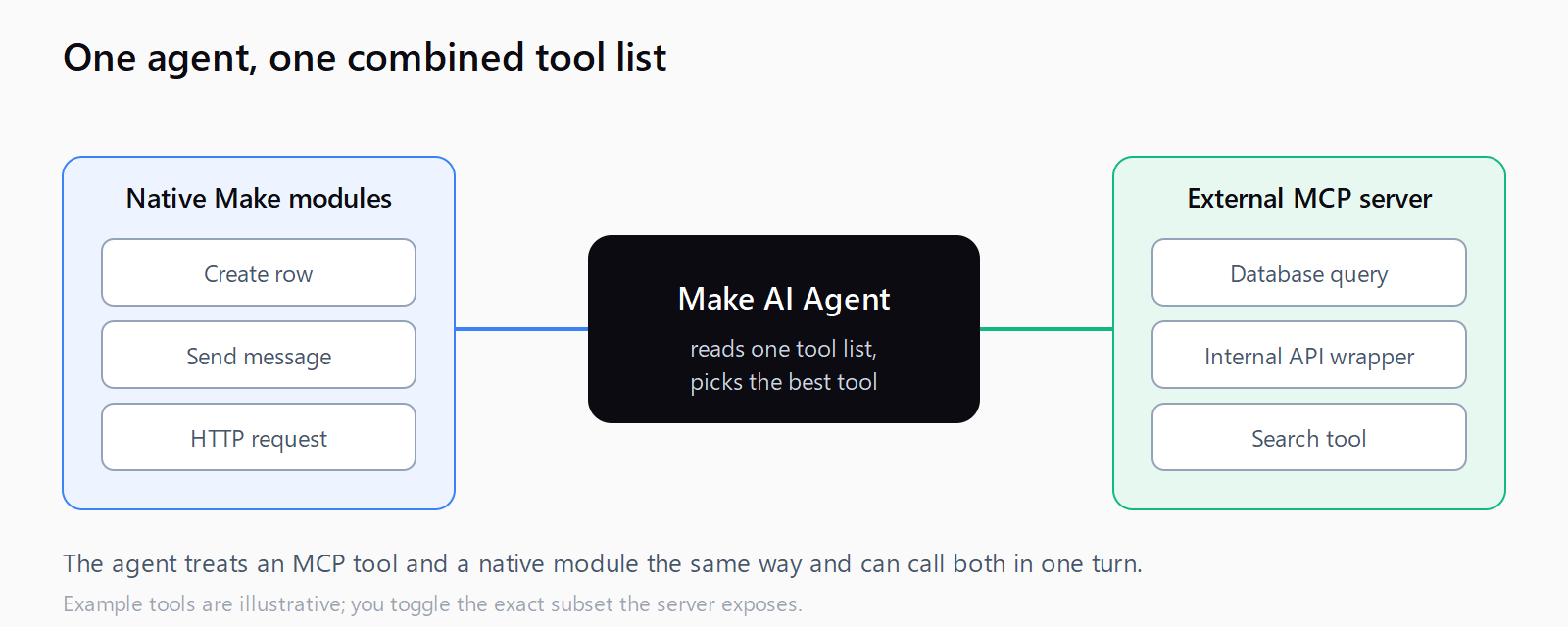
That matters when the capability you need already lives on an MCP server - a database query tool, a company-internal API wrapper, a search tool - and you would rather not rebuild it as a Make scenario. The agent treats an MCP tool and a native module the same way: both are just tools it can choose to call. If you have compared no-code AI agent builders, this is the feature that moves Make from a closed toolbox to an open one.
How do you add an MCP server to a Make AI Agent?
The button lives inside the agent builder, not in a scenario. The flow is short:
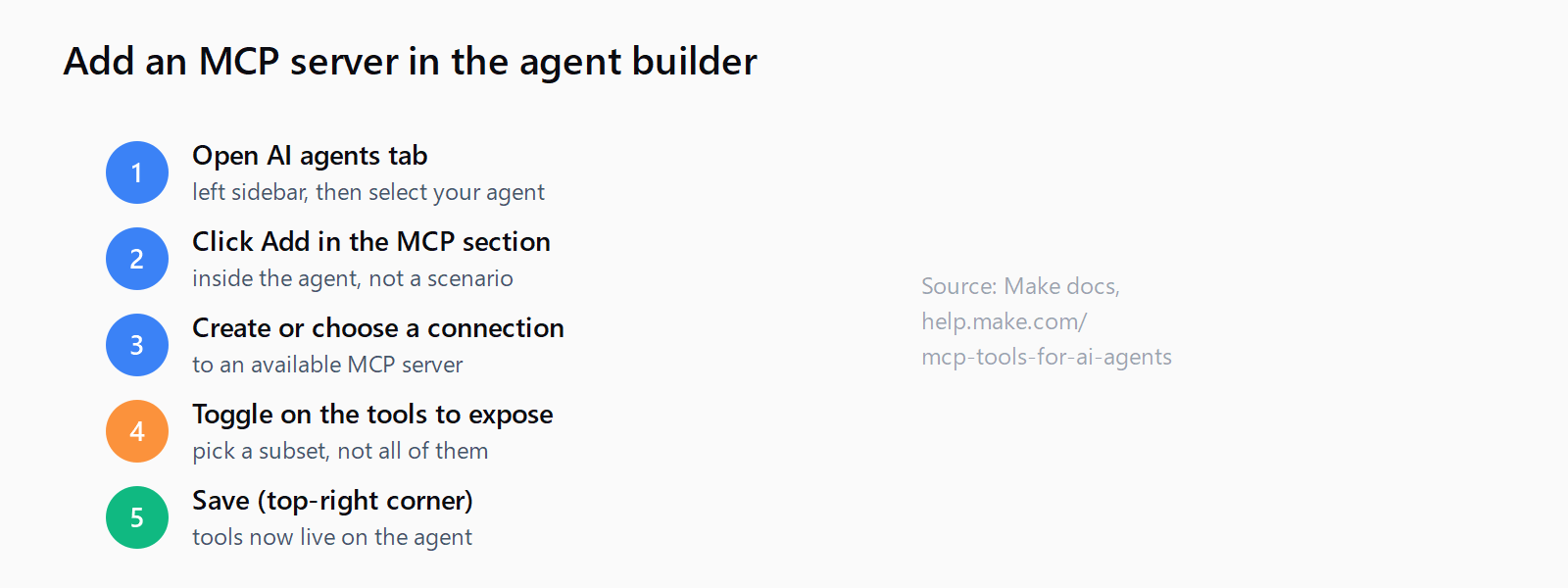
- Open the AI agents configuration tab in the left sidebar and select the agent you want to extend.
- Find the MCP section of the agent and click Add.
- Either create a connection to an available MCP server or choose an existing connection if you have already set one up.
- Toggle on the tools the agent should be allowed to use - you pick from the tools the server exposes rather than taking all of them.
- Save your changes locally, then click Save in the top-right corner to persist the agent.
You do not touch a scenario at any point. The MCP tools become part of the agent definition, so every scenario that runs this agent inherits them automatically.
How do the MCP tools appear alongside native Make modules?
After you save, the agent's tool list shows the enabled MCP tools next to its native Make modules, with no visible distinction in how the agent reasons about them. During a run the agent reads its full tool list, matches the user's request to the best tool, and calls it - whether that tool is a Make module or one served over MCP. Mixing the two in a single reasoning run is exactly what the feature is for: the agent can pull a record with a native module and enrich it with an MCP tool in the same turn.
How do you enable, edit, or remove MCP tools later?
Each attached MCP entry carries its own controls in the agent builder:
- Enable or disable individual tools from the dropdown, so you can narrow the agent's reach without deleting the connection.
- Edit the connection via the gear icon to update the underlying MCP server details.
- Remove the MCP tool with the delete icon when the agent no longer needs it.
Because the connection is separate from the tool toggles, you can reuse one MCP server connection across several agents and expose a different subset of its tools to each. Disabling a tool is reversible and instant; deleting the connection removes every tool it provided.
When should you use MCP tools instead of native Make modules?
Reach for MCP when the tool already exists as a server and rebuilding it in Make would be redundant, when the logic is complex enough that a hand-written server is cleaner than a scenario, or when the same tool must serve several agents or platforms. Stay with native modules when the action is a simple app operation Make already supports out of the box - creating a row, sending a message - because a native module needs no external server to maintain. Many agents end up mixing both, which is exactly what the Add MCP feature is built to allow. If you are still designing the agent itself, our guide to wiring a Make AI agent from scenarios and prompts pairs well with adding MCP tools on top.
FAQ
When did Make add the "Add MCP" button?
Make announced MCP tools for AI Agents in June 2026. Before that, Make AI Agents could only use native Make modules as tools.
Where is the Add MCP button in Make?
It is in the AI agents configuration tab, inside the selected agent's MCP section - not in a scenario. Click Add there to attach an MCP server.
Can a Make AI Agent use MCP tools and native modules at the same time?
Yes. That is the purpose of the feature. The agent sees MCP tools and native Make modules as one combined tool list and can call both within a single reasoning run.
Do I have to enable every tool an MCP server exposes?
No. You toggle on only the tools you want the agent to access, and you can enable or disable each one later from the dropdown without removing the connection.
Can I reuse one MCP connection across multiple agents?
Yes. The connection is separate from the per-agent tool toggles, so one MCP server connection can serve several agents, each with its own enabled subset of tools.