
n8n Loop node only processes the first item: how to fix it
The Loop Over Items node only processes one batch when processing nodes aren't wired back to its input. Here's the exact fix, plus the Merge node pattern for conditional branches.
TL;DR: Loop Over Items stops after one batch because the loop-back wire is missing; connect your last processing node's output back to Loop Over Items, or skip the node entirely - n8n iterates all items automatically without it.
The "first item only" symptom is the top Loop Over Items complaint on the n8n community forum. It appears in two situations: users who need the node for rate limiting but wired it wrong, and users who added it because they thought n8n required explicit iteration - when it doesn't. Both cases have clean fixes. If you're tracking down a different n8n failure, the Automation Error Index catalogs common n8n errors by node and error type.
Do you actually need the Loop Over Items node?
Every n8n node processes each incoming item in sequence without any extra configuration. Drop an HTTP Request node into a workflow with 50 items, and it makes 50 requests - one per item. You do not need Loop Over Items for that to happen.
Loop Over Items (formerly called "Split in Batches") exists for one job: pacing. Use it when an API enforces a rate limit - for example, 10 requests per 10 seconds - or when you need a deliberate pause between batches to avoid getting blocked. A thorough breakdown of when each execution mode applies is in n8n Code node: Run Once for All Items vs Each Item, which covers the same data-flow logic at the node level.
If your workflow isn't hitting rate-limit errors, remove the Loop Over Items node and let n8n iterate natively. The symptom you're seeing - "first item only" - is a misconfiguration of a node you may not need.
How does the Loop Over Items node actually work?
The node has two outputs: Loop and Done. It maintains an internal counter. Each time data arrives at its input port, the node sends the next batch out through Loop. When the counter reaches the final batch, it routes that output through Done instead.
The implication: the node must receive data back at its input to advance the counter. If your processing nodes feed their result forward to a downstream node instead of returning it to Loop Over Items, the counter never increments. The node processes the first batch, receives no return signal, and exits through Done - one iteration, done.
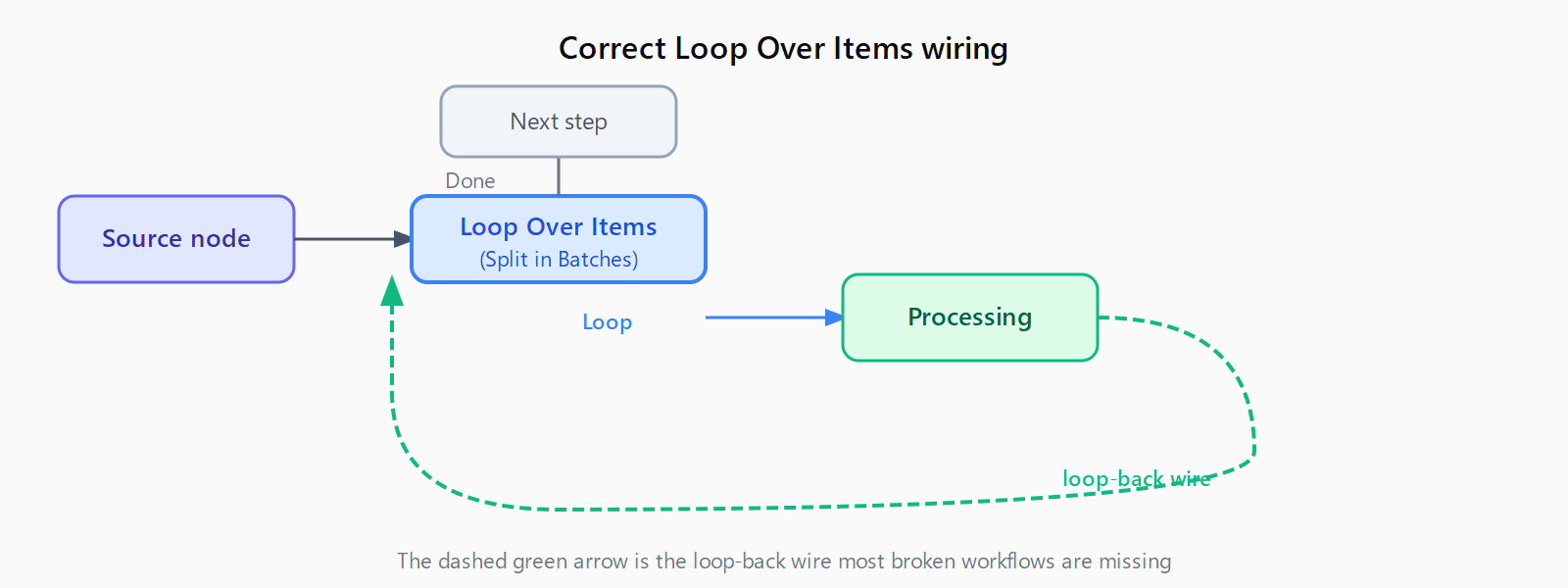
The correct wiring is a closed cycle:
- Source node (your full item list) connects to the Loop Over Items input.
- Loop Over Items Loop output connects to your processing node(s).
- Your last processing node's output connects back to the Loop Over Items input.
- Loop Over Items Done output connects to the next step in your workflow.
Step 3 - the return connection - is the wire most broken workflows are missing.
How do you fix a Loop Over Items node that stops after one batch?
Open the workflow and find the Loop Over Items node. Trace where the last processing node's output arrow goes. If it points to a new downstream node instead of back to Loop Over Items, that's the bug.
To fix it: drag a new connection from the last processing node's output port to the Loop Over Items node's input port. n8n accepts this return wire and renders it as a curved arrow. Run the workflow again; the node now advances through every batch and exits through Done only after the last one completes.
One additional setting worth checking: the batch size. The default is 1, meaning the node sends one item per loop pass. For rate-limited APIs that allow, say, 20 requests per second, set the batch size to 20. For unconstrained operations like writing to a local database, a higher batch size (100-500) reduces the number of loop passes and speeds up execution.
What if there is an If node inside the loop?
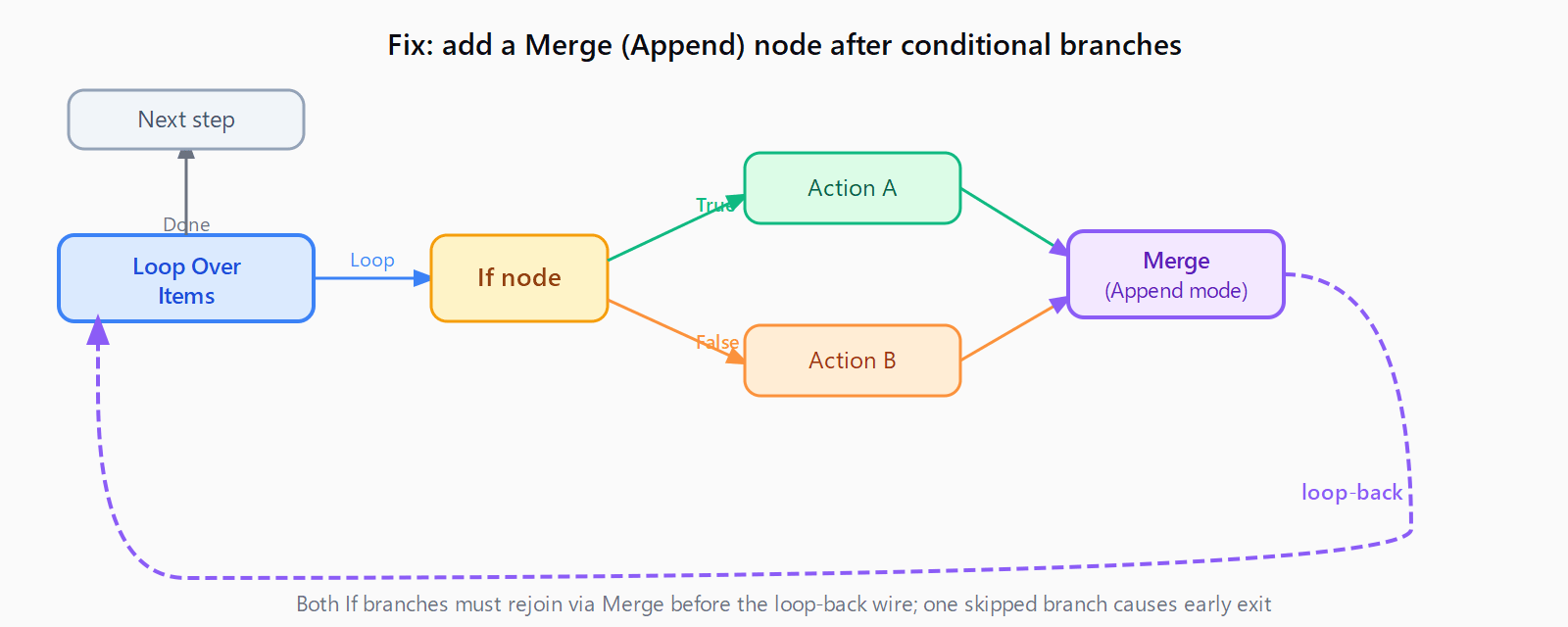
A conditional branch splits items into two streams. If only one branch connects back to Loop Over Items, the items on the other branch disappear from the counter's view. The loop exits early - sometimes after the first batch, sometimes after an unpredictable number.
Fix: add a Merge node set to Append mode after the If node. Connect both the true output and the false output to the Merge node's two inputs. Then wire the Merge node's output back to the Loop Over Items input. This restores a 1:1 input/output ratio so every item advances the counter.
To verify the fix worked, check the item count on the Done output after a test run - it should equal the total number of items you started with. A lower count means at least one branch is still bypassing the Merge.
How do you add a rate-limit delay inside a Loop Over Items workflow?
For API rate limiting, add a Wait node between your processing node and the loop-back connection. Set the wait duration to the interval the API requires - for example, one second for a 60-requests-per-minute ceiling. The loop pauses at the Wait node each iteration, then feeds back into Loop Over Items to start the next batch.
Full sequence: source node - Loop Over Items (Loop output) - HTTP Request - Wait - Loop Over Items (input). The Done output carries all collected responses to the rest of your workflow.
Some nodes handle rate limiting internally. The Google Sheets node, for instance, has a built-in retry-on-rate-limit option that fires before you ever need a manual Wait node. A detailed walkthrough of that case is in how to fix n8n Google Sheets quota rate-limit errors. If your target API has its own built-in throttle mechanism, check the node's parameters before adding a Wait node by hand.
FAQ
Why does the Loop Over Items node exit through Done after only one batch?
The node's internal counter advances only when data returns to its input port. If processing nodes send their output forward to a new node instead of back to Loop Over Items, the counter never increments and the node exits through Done immediately after the first pass.
Do I need Loop Over Items to process a list of items in n8n?
No. Every n8n node processes each item in the incoming list automatically, in sequence. Loop Over Items is only needed when you want to pace execution - for rate-limited APIs or web scraping where too-fast requests get blocked. Remove the node if you're not hitting rate limits.
What is the difference between the Loop and Done outputs on the Loop Over Items node?
Loop emits each batch for your processing nodes to handle, then waits for data to return to the input before emitting the next one. Done emits a single output after all batches are complete. Connect your processing chain to Loop; connect the next stage of your workflow to Done.
How do I use Loop Over Items when there is a conditional branch inside the loop?
Add a Merge node (set to Append mode) after the If or Switch node. Connect both branch outputs to the Merge node, then wire the Merge output back to Loop Over Items. Without the merge, items on the skipped branch bypass the counter and the loop exits early.
What batch size should I set on the Loop Over Items node?
Match the batch size to your API's per-interval request limit. If the API allows 10 calls per second, set batch size to 10 and add a one-second Wait node. For operations with no rate limit, use a larger batch size (100 or more) so the loop completes in fewer passes.
When should I use the Reset option on Loop Over Items?
Enable Reset only when the same loop must run multiple times within a single workflow execution - for example, inside a webhook trigger that fires in a recurring loop. Reset clears the node's internal counter on each new execution. Leave it off for standard one-pass loops; with Reset enabled, the node re-processes items each time it receives new input, which can cause unexpected repeated runs.