
How to Fix Zapier's Discord Integration 2.0 Endless Reconnect Loop
Zapier's Discord integration 2.0 traps some accounts in a reconnect loop that the standard Reconnect button can't break. Here's the delete-and-recreate fix, the three-dots-menu alternative, and how to tell it apart from a separate permissions error.
TL;DR: Zapier's Discord integration 2.0 traps some accounts in a "connection is expired, reconnect" loop because the standard Reconnect button re-authorizes the same broken connection object; delete the Discord connection entirely and create a new one instead.
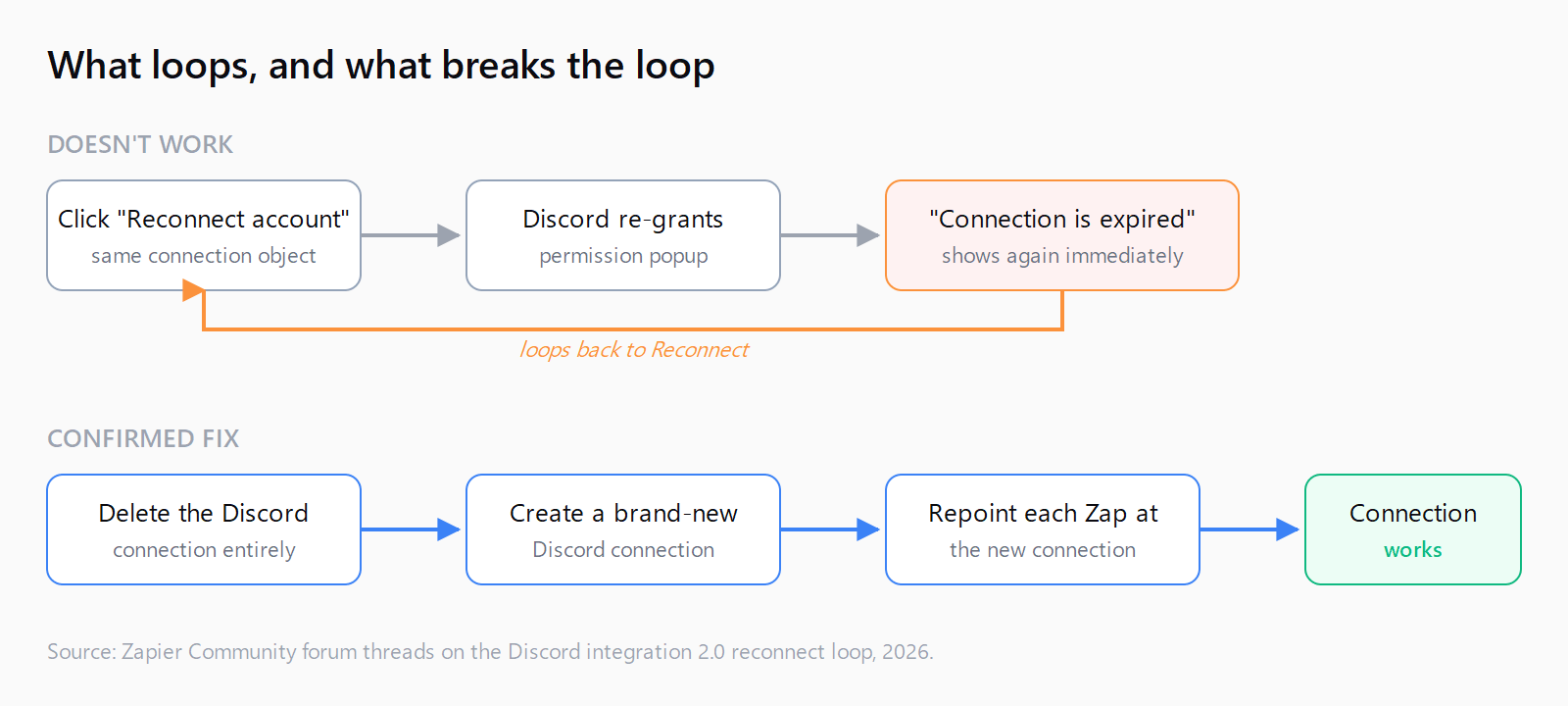
The loop shows up right after Zapier's forced migration to Discord integration 2.0 (rollout late December 2025), and as of mid-2026 it's still the same fix: you click Reconnect, grant Discord permissions again, and land straight back on "This account connection is expired. You'll need to reconnect the account before continuing." Most advice stops at "try reconnecting," which is exactly the step that doesn't work here.
Why does Zapier's Discord reconnect loop happen?
Zapier's Discord integration 2.0 replaced the OAuth flow behind existing Discord connections, and clicking the plain "Reconnect account" button on an affected connection keeps landing back on the same expired-connection message instead of completing. Zapier's Community Manager confirmed on the support forum that the fix bypasses the authentication loop by establishing a fresh connection that's fully compatible with Discord, rather than trying to repair the old one - which points to the old connection record itself being the broken part, not anything the reader is doing wrong. One user reported the bug affecting more than 30 separate Discord connections in a single account, so this isn't an isolated misconfiguration - it's a migration bug that hits any Zap using the old connection object.
How do you fix the Zapier Discord reconnect loop?
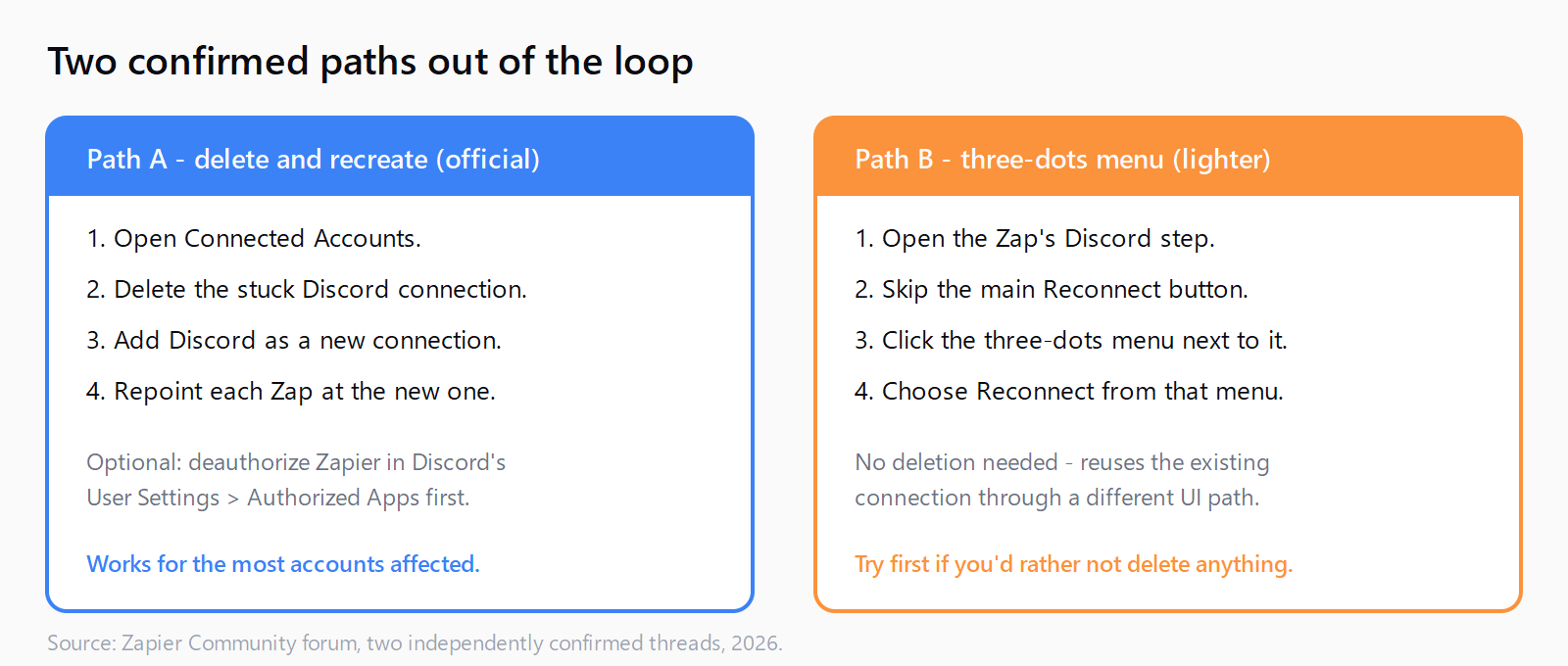
- Open Connected Accounts. In Zapier, go to your account settings and open the Connected Accounts page (or, from inside a Zap, open the Discord step's Setup panel and click Change next to the account field).
- Delete the existing Discord connection. Find the stuck Discord connection and remove it entirely - don't click Reconnect on it.
- Create a brand-new Discord connection. Add Discord again as if connecting for the first time, complete Discord's authorization screen, and grant the bot the permissions your Zap needs.
- Repoint the Zap at the new connection. Open each affected Zap's Discord step and select the new connection from the account dropdown, then re-test the step before turning the Zap back on.
Optional cleanup that helps some accounts complete the handshake: in Discord, go to User Settings > Authorized Apps, find Zapier, and click Deauthorize before creating the new connection in Zapier. That clears any stale grant on Discord's side that might otherwise get reused.
What if deleting and recreating the connection doesn't work?
A second confirmed path works for some accounts without deleting anything first: open the Zap's Discord step, use the three-dots menu next to the connection - not the main Reconnect button - and choose Reconnect from that menu. One user marked this the accepted answer on a separate thread after the standard reconnect button failed repeatedly, and two other posters confirmed it worked for them too.
If both paths fail, try the reconnection in a private/incognito browser window - a cached Discord login session can interfere with the OAuth handshake on Discord's side. If the loop still won't break after a fresh connection, an incognito attempt, and a Discord-side deauthorize, the account needs Zapier Support to inspect connection logs directly; at least one reporter found every self-serve method failed and needed that escalation.
One tell for which stage you're at: a 400 error in the browser's network console while the error banner is showing means the connection handshake itself is still failing - keep working the fixes above. If the banner clears but the Zap then fails with an insufficient-permissions error on sending a Discord message, that is a separate, later-stage problem: the new connection is authenticated, but the Zapier bot needs re-inviting to the specific server or channel with message-send permissions. Don't restart the delete-and-recreate cycle for that one - check the bot's role and channel permissions in Discord instead.
Do you lose your existing Zaps by deleting the connection?
No. Deleting a Discord connection removes the authentication record, not the Zaps built on it. Each affected Zap keeps its trigger, actions, and field mappings - it just shows the Discord step as needing a new account selected, which is the repoint step above. Zaps stay off (or fail their next run) only until you've picked the new connection in each one. Other chat-app connections in Zapier, like when you connect Slack to Zapier, use the same separate-connection-object model, so the same delete-and-recreate move applies if a Slack connection ever gets stuck the same way.
For a broader look at how Zapier's account-connection model works elsewhere, the same pattern - delete a stale connection rather than fight a reconnect prompt - shows up in connecting Zapier to Notion, where an API migration on Notion's side forces a similar reconnect. It's a different root cause here (a Zapier-side integration rewrite, not a Notion API change), but the same "delete, don't repair" instinct applies whenever a Zapier connection object survives a vendor's integration overhaul.
How do you test all four steps in five minutes?
- Open Connected Accounts and locate the stuck Discord connection.
- Delete that connection instead of clicking Reconnect.
- Add Discord as a new connection and complete Discord's authorization screen.
- Repoint every affected Zap's Discord step at the new connection and re-test each one.
FAQ
Why does clicking "Reconnect account" put me in a loop instead of fixing it?
The standard Reconnect button re-authorizes the same connection record that Discord integration 2.0 already broke, so the handshake fails the same way every time. Deleting the connection and creating a new one avoids reusing that broken record.
How do I fully delete a Discord connection in Zapier?
Open Connected Accounts in your Zapier account settings, find the Discord connection, and remove it - or open the affected Zap's Discord step, click Change next to the account, and delete it from there.
Do I also need to remove Zapier from my Discord server?
Not usually. Removing Zapier's authorization in Discord's User Settings > Authorized Apps is an optional extra step some users found helpful, but the core fix is deleting and recreating the connection on Zapier's side.
Does using an incognito window actually fix the reconnect loop?
It has worked for some accounts by avoiding a cached Discord login session that interferes with the OAuth handshake. Treat it as a secondary option if the delete-and-recreate fix alone doesn't complete the connection.
What if I hit a different Zapier connection or payload error?
Check the Automation Error Index for a searchable catalog of Zapier errors with verified fixes, including the separate Zapier payload size error that trips up large Discord or webhook responses.
Does this affect Zaps that use Discord as a trigger, not just an action?
Yes. The reconnect loop is tied to the underlying connection object, not the step type, so both Discord triggers (like New Message) and Discord actions (like Send Channel Message) fail the same way until the connection is replaced.