
Fix UiPath Studio CS0246 "GlobalVariablesNamespace" publish error
CS0246 GlobalVariablesNamespace fires at Publish even when Studio runs the project clean. The fix has four paths: re-add the namespace, prefix references, restore the .local folder, or move the project off a non-NTFS path. Match your variant from the table.

TL;DR: The CS0246 GlobalVariablesNamespace error fires during library compilation at publish time, even though the project runs fine in the Studio designer.
The fix is to open the Imports panel, re-add GlobalVariablesNameSpace (and GlobalConstantNameSpace if it is also missing), then run Manage Project Dependencies -> Remove Unused to drop any orphan references the panel cannot resolve. If the error only appears inside a UiPath CLI or Azure DevOps pack step, the .local folder under the project root is the missing piece - it must be checked into the repo with the auto-generated global-variables DLL inside.
This post covers the four distinct paths that produce a CS0246 GlobalVariablesNamespace failure, the one-line check to tell them apart, and the gotcha that the top forum results miss: project location on disk.
What does CS0246 actually mean in UiPath Studio?
CS0246 is a Roslyn (C# compiler) error that says the type or namespace you referenced does not exist in any assembly the compiler can see. UiPath Studio runs the Roslyn compiler under the hood whenever it packs a project - either at Publish from the ribbon, or when the UiPath CLI (uipcli pack) is invoked from a build pipeline. If the compiler cannot resolve GlobalVariablesNamespace, the pack step exits non-zero with the verbatim string:
error CS0246: The type or namespace name 'GlobalVariablesNamespace' could not be found
(are you missing a using directive or an assembly reference?)
The reason the Studio designer doesn't flag it is that the live editor uses a separate, more lenient resolution path that includes the in-memory project state. The pack step rebuilds the project from disk, and that's where the missing reference shows up.
How do you tell the CS0246 variants apart?
Four distinct setups produce this error, and each has a different fix. Match yours from this table before applying anything below.
| Where the error fires | Likely root cause | Where to fix it |
|---|---|---|
| Studio Publish on a process / library | GlobalVariablesNameSpace dropped from Imports panel after a Studio update or template swap | Imports panel + Remove Unused |
| Studio Publish, but only after editing a global variable | Stale in-memory reference; designer didn't write the namespace back to the .xaml | Save all + close / reopen Studio, then re-add the namespace |
| UiPath CLI pack inside Azure DevOps / GitHub Actions | The project's .local folder (and the global-variables DLL inside it) was excluded from the repo | Add .local/ to the repo, commit the DLL, re-run |
| Coded workflow project, fails on every publish | Project lives on a non-NTFS path - OneDrive, Parallels share, network mount | Move the project under C:\ on a native Windows filesystem |
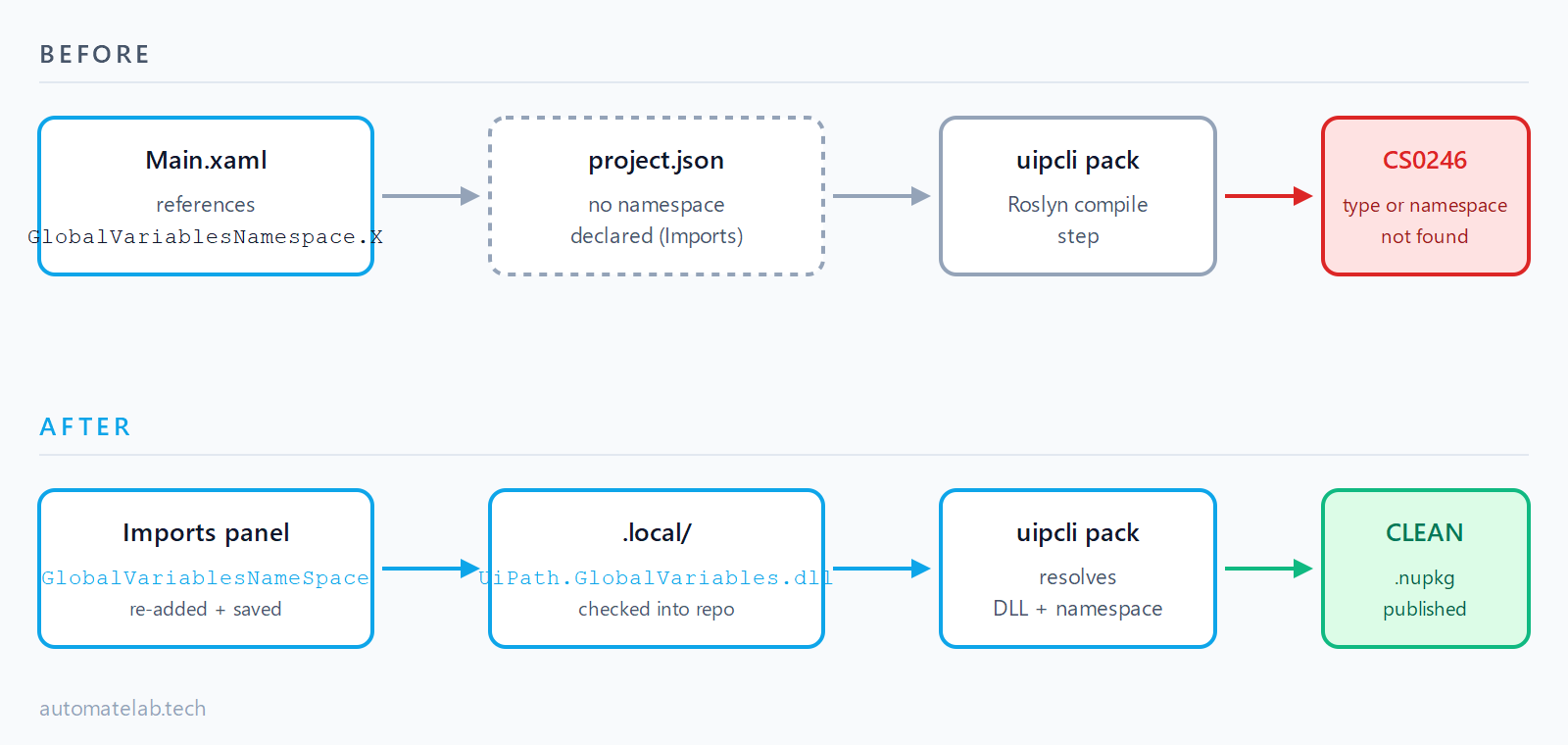
.local folder restore the assembly reference.Fix 1: How do you re-add the namespace from the Imports panel?
This is the fix that closes the largest share of CS0246 reports. Studio drops GlobalVariablesNameSpace from the Imports panel under three conditions: a Studio version upgrade that touched the global-variables subsystem, a project copied from one workstation to another, or a global variable edited and saved while a stale in-memory reference was still hanging around (this is the underlying behaviour described in the StudioX "Global variables assembly is missing" thread).
Steps:
- In Studio, open Design -> Imports (the panel docked at the bottom).
- Click the empty row at the top of the panel and start typing
GlobalVariablesNameSpace. It should appear in the autocomplete dropdown - click it. - Repeat for
GlobalConstantNameSpaceif your project uses constants. - Save the project (
Ctrl+S), close Studio, and reopen it. The close/reopen step is what flushes the stale designer state - skipping it leaves the in-memory reference unresolved on the next publish. - Run Manage Project Dependencies -> Remove Unused. This drops any global variable or constant entry that has no consumer left in the project.
- Try Publish again.
If the namespace is not in the Imports autocomplete at all, the project doesn't have a global variable defined yet - the .xaml is referencing one that was deleted. Open Project -> Global Variables, confirm the variable exists, and add it back if it's missing.
Fix 2: How do you prefix references with the full namespace?
The official UiPath KB on the GlobalConstantsNamespace variant recommends rewriting bare references to use the full namespace prefix - GlobalVariable.variableName instead of variableName, and GlobalConstant.constantName instead of constantName. This works because the compiler can resolve the type-qualified name even when the bare name is shadowed or unresolved at the .xaml level.
Use this fix when:
- You can't safely run Remove Unused (it would delete variables you still need elsewhere).
- The project is opened by multiple developers on different Studio versions and you want a fix that doesn't depend on the Imports panel state.
- You see the error on
GlobalConstantsNamespacerather than (or in addition to)GlobalVariablesNamespace. Constants are more sensitive to bare references because they get inlined more aggressively.
Open each .xaml file flagged in the publish output, find every reference to a global symbol, and prefix it. Save and republish. Like any tool that runs fine locally but fails on a fresh load, the Studio designer will keep working once you make the change - the publish step is what verifies it.
Fix 3: How do you restore the .local folder for CLI and Azure DevOps?
This is the fix in the official UiPath KB on the CLI variant, and it has nothing to do with anything you can change in Studio. UiPath generates a hidden assembly for global variables on first publish and stores it inside a .local folder at the project root. If your .gitignore excludes hidden folders (a common default), the DLL never makes it to the repo, and the pipeline's uipcli pack step fails CS0246 every time.
- On the developer workstation, open the project folder in File Explorer with hidden files visible. Confirm a
.localfolder exists alongsideproject.json. - Inside
.local, locate the global-variables DLL (the file name follows theUiPath.GlobalVariables.*.dllpattern). - Edit
.gitignorein the project root to allow the folder: add!.local/as a negation rule. Stage and commit the folder and the DLL. - Re-run the pipeline. The pack step should now find the assembly and CS0246 should not fire.
If your team's git policy disallows committing build artifacts, the alternative is to add a pipeline pre-step that runs uipcli restore before uipcli pack - this is the same publish-time compile errors path used elsewhere when an automation tool throws a publish-time error that only the build environment exposes.
Fix 4: Why should you move the project to a native Windows path?
This is the gotcha. If your project uses coded workflows (the .cs files under CodedWorkflows/) and lives on a non-NTFS path - a Parallels Desktop share from macOS, a OneDrive-synced folder, a network mount, or a path with non-ASCII characters - the auto-generated assembly resolution can fail intermittently. Studio's designer hides the failure because it falls back to in-memory state. The publish step doesn't, and you get CS0246 on every attempt.
The resolved CodedWorkflow CS0246 thread is the canonical example - the developer was running Windows 11 inside Parallels Desktop with the project under the macOS Documents folder shared in. Moving the project to C:\Users\<name>\Documents\UiPath\<project> on the native Windows side fixed it. This is one of those compile-time errors that only fire under specific runtimes - the path is the runtime variable.
Quick check: if your project path starts with \\Mac\, \\wsl$\, Z:\ (a mapped drive), or contains OneDrive, copy the entire project folder to a local C:\ path and reopen it from there before troubleshooting any of the other fixes.
How do you verify the fix worked?
Run Publish again from Studio (or trigger the pipeline). A clean publish output ends with:
Project published successfully.
Package: <name>.<version>.nupkg
If CS0246 still fires, open the publish output (Studio: View -> Output; CLI: the build log). The full path of the .xaml file that triggered the compile error appears immediately above the CS0246 line. Open that file in Studio, find the bare reference, and prefix it (Fix 2) - this is the most surgical recovery when none of the other fixes alone closes the issue.
FAQ
What does CS0246 mean in UiPath Studio?
CS0246 is a C# compiler error that fires when the Roslyn compiler cannot find the type or namespace you referenced in any loaded assembly. In UiPath, it fires during the library compilation step that runs as part of Publish or uipcli pack. The Studio designer uses a more lenient resolver that hides the issue, which is why the project runs but won't publish.
Why does my project run in Studio but fail when I publish?
The designer keeps an in-memory project state that includes references the on-disk .xaml may not actually declare. The publish step rebuilds the project from disk only, so it surfaces the missing namespace. Saving, closing, and reopening Studio is what flushes the in-memory state into the .xaml.
How do I re-add GlobalVariablesNameSpace from the Imports panel?
Open Design -> Imports, click the empty row at the top, and type GlobalVariablesNameSpace. The autocomplete dropdown should offer it - click to add. If it isn't in the dropdown, the project has no global variables defined; create one under Project -> Global Variables first.
What is the .local folder in a UiPath project?
It's a hidden folder UiPath creates at the project root on first publish. It holds the auto-generated DLL that backs GlobalVariablesNamespace and GlobalConstantsNamespace. If the folder is excluded by .gitignore, CI/CD pack steps will fail CS0246 because the DLL is not in the build context.
How do I fix CS0246 in a UiPath CLI or Azure DevOps pipeline?
Confirm the project's .local folder is checked into the repo with the global-variables DLL inside. Add !.local/ as a negation rule in .gitignore if needed, commit the folder, and re-run the pipeline. Alternatively, add a uipcli restore pre-step before uipcli pack.
How do I prefix a global variable with its namespace?
Open the .xaml file referenced in the error, find the bare reference (e.g. variableName), and replace it with the type-qualified form (GlobalVariable.variableName). For constants, use GlobalConstant.constantName. Save and republish.
Hit a different error? Browse the Automation Error Index for a searchable catalog of UiPath errors, each with a verified fix.