
How to fix the Cursor Connection Error when the agent stops working
The same 'Connection failed' error hides four different causes. Here's how to diagnose which one is hitting you and apply the right fix.
TL;DR: Most Cursor "Connection failed" errors in Agent mode fix with one change: switch HTTP Compatibility Mode to HTTP/1.1 in Settings > Network, restart, and if the error persists start a new chat session.
The error appears mid-agent-run and is frustratingly generic: "Connection failed. Please try again, or contact support if the issue persists." Nothing tells you whether the problem is your network, your Cursor session, or the API endpoint itself. Each cause needs a different fix, so shotgunning restarts wastes time.
What causes the Cursor connection error?
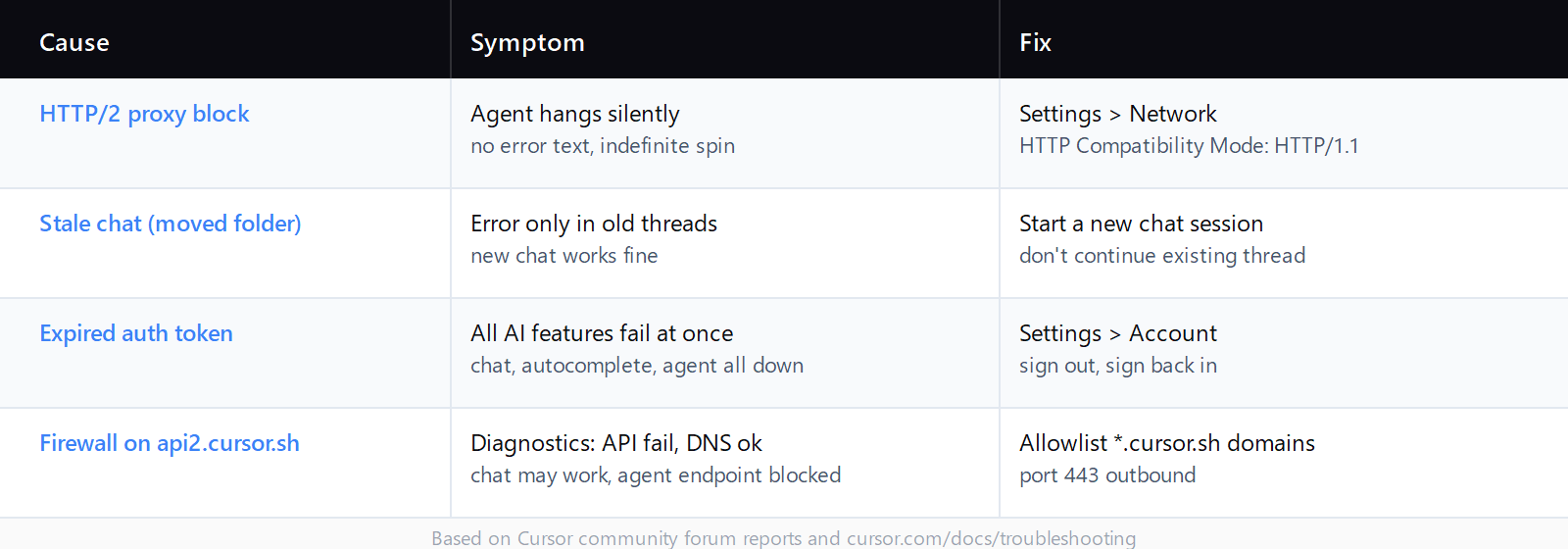
Cursor's agent sends requests to several endpoints: api2.cursor.sh for AI calls, a separate chat streaming endpoint, and DNS/SSL infrastructure. The same "Connection failed" message appears when any of them fails - which is why the same error can have four different root causes:
- HTTP/2 blocked mid-stream. Corporate VPNs and proxies often support HTTP/2 for standard traffic but break it under sustained load. The agent hangs indefinitely rather than failing fast, because HTTP/2 multiplexing keeps the connection "open" while returning nothing.
- Stale chat session after a project folder move. If you moved or renamed the project directory, old chat threads still reference the old file paths. When the agent tries to load those resources, it fails and surfaces a connection error instead of a file-not-found message.
- Expired auth token. Cursor's authentication tokens expire silently. You stay signed in visually, but the API calls fail with an authorization error that gets wrapped in the generic connection message.
- Firewall blocking
api2.cursor.sh. Cursor uses several domains (*.cursor.sh,*.cursor-cdn.com,*.cursorapi.com). A firewall or security appliance can block one while letting others through, so chat works but the agent endpoint fails.
How do you fix the Cursor connection error?
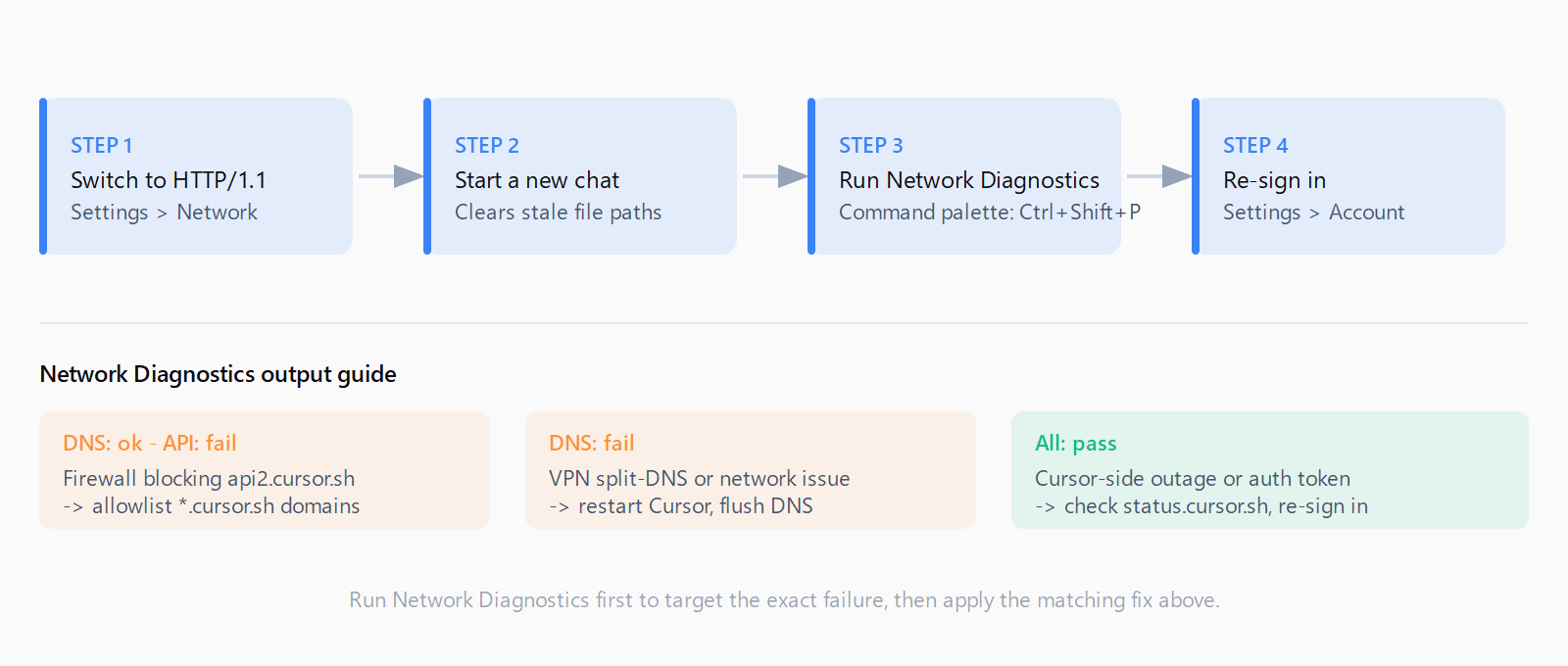
Work through these in order from least disruptive to most. Most users resolve it at step 1 or 2.
Step 1: Switch to HTTP/1.1
Open Cursor Settings (Ctrl+, on Windows/Linux, Cmd+, on macOS), navigate to Network, and change HTTP Compatibility Mode to HTTP/1.1. Restart Cursor. This is the fix for corporate VPN and proxy environments and resolves the majority of agent connection errors according to the Cursor troubleshooting docs.
Step 2: Start a new chat
If the error appeared after you moved or renamed the project directory, don't continue the existing chat thread - open a new one. Old sessions hold references to file paths that no longer exist, and the agent errors out trying to resolve them. This is confirmed by multiple reports in the Cursor community forum.
Step 3: Run Network Diagnostics
Open the command palette (Ctrl+Shift+P / Cmd+Shift+P), type Cursor: Network Diagnostics, and run it. The tool checks DNS resolution, SSL, the API endpoint, chat streaming, and agent streaming individually and tells you which one fails. If you see API: Error: [unavailable] with DNS: Success, the API endpoint itself is blocked - typically a firewall issue, not a local one.
Step 4: Re-sign in to Cursor
Go to Cursor Settings > Account, sign out, then sign back in. This forces a fresh auth token and clears silent token expiry. No settings or extensions are lost.
Step 5: Check your firewall allowlist
If Network Diagnostics shows Agent: Error: [unavailable] specifically, and you're on a corporate or managed network, the agent endpoint may be blocked. Ask your IT team to allowlist:
*.cursor.sh*.cursor-cdn.com*.cursorapi.com
All traffic runs on port 443. One Cursor forum report identified a PfSense firewall blocking api2.cursor.sh while other Cursor endpoints worked fine - switching to a non-corporate network immediately resolved it.
Step 6: Check the Cursor status page
Before deeper debugging, check status.cursor.sh. If there's a live incident, no local fix will help. Wait for the resolution notice and try again.
When should you clear the cache instead?
Connection errors and cache corruption produce overlapping symptoms - both can make the agent appear to hang. The distinction: a connection error fails immediately with "Connection failed" text, while a cache problem hangs without error text (indexing sticks at a percentage, chat spins indefinitely). If you're seeing the latter, clearing the Cursor cache is the right path, not the network fixes above. The wiki's notes on the extension host hang are also worth checking if the whole editor feels frozen rather than just the agent.
You can also find related Cursor errors in the Automation Error Index, which catalogs connection, timeout, and authentication errors across AI coding tools.
FAQ
Why does the Cursor connection error only appear in Agent mode and not in Chat?
Agent mode uses a separate streaming endpoint (api2.cursor.sh) that sustains a long-running HTTP connection across multiple tool calls. Chat uses shorter round-trip requests that are more resilient to proxy interruptions. HTTP/2 failures and firewall blocks often only surface under the sustained load Agent mode creates.
Does a Cursor connection error mean my subscription expired?
Not directly. Subscription expiry shows a separate "out of requests" or "upgrade" message. A connection error is a network or auth token issue, not a billing one. That said, re-signing in (Step 4) refreshes auth tokens that can expire independently of your subscription status.
How do I run Cursor's Network Diagnostics?
Open the command palette with Ctrl+Shift+P (Windows/Linux) or Cmd+Shift+P (macOS), type Cursor: Network Diagnostics, and press Enter. The results show individual pass/fail for DNS, SSL, API, Chat, and Agent streaming endpoints, which tells you exactly where the failure is.
Why does the connection error happen only behind a VPN or corporate proxy?
Corporate proxies frequently block or interrupt HTTP/2 streams under sustained load - which is exactly what agent mode produces. Switching HTTP Compatibility Mode to HTTP/1.1 in Cursor Settings > Network forces the slower but more proxy-compatible protocol. Some firewalls also specifically block Cursor's agent endpoint while passing standard web traffic.
Can moving a project folder cause a Cursor connection error?
Yes. Cursor's chat threads store absolute file paths for the workspace context. If you move the project directory and continue an existing chat, the agent tries to resolve the old paths, fails, and reports it as a connection error rather than a missing-file error. Starting a new chat session clears the stale references.
What does "suspicious activity" mean in the Cursor connection error?
Cursor's security layer flags rapid request patterns (common when running automated or looped agent tasks) as potentially abusive. If you see a "suspicious activity" warning, disable your VPN, start a new chat, wait a few minutes, and try signing in via a different method (Google or GitHub instead of email). The block is temporary.