
How to Clear the Cursor Cache: Fix Stuck or Laggy AI
Find Cursor cache folders on Windows, macOS and Linux, then run a reversible cache test without clearing local chat or workspace data.

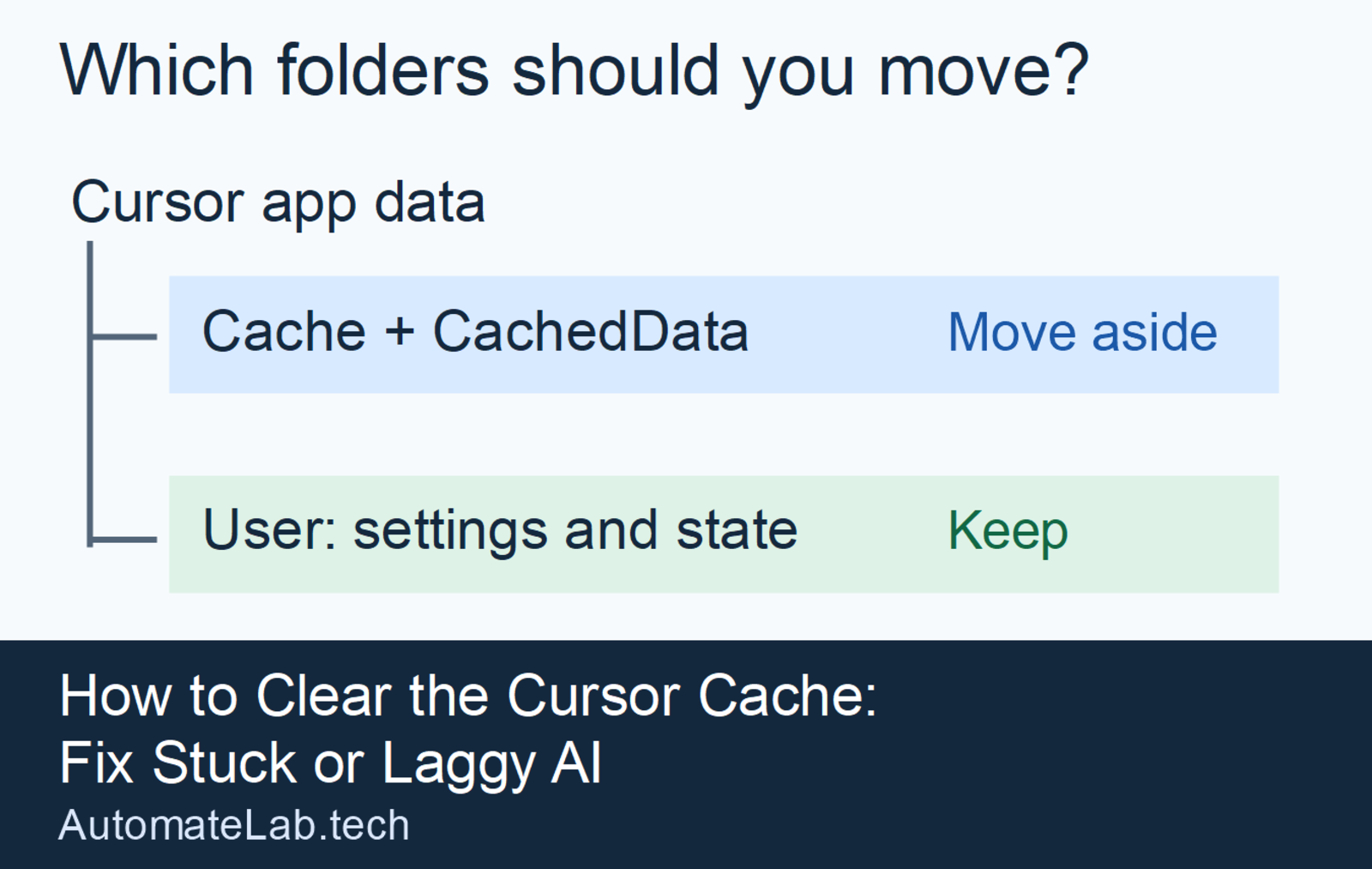
TL;DR: To clear the Cursor cache, fully quit Cursor and move Cache and CachedData out of its app-data folder, leaving User in place.
Checked 10 November 2026. Cursor keeps disposable cache files and local editor state in the same app-data folder. Moving two named cache folders gives you a reversible test. Moving the entire User directory can hide local conversations and reset workspace state. If the editor works and only agent requests hang, start with the connection check below.
When should you clear the Cursor cache?
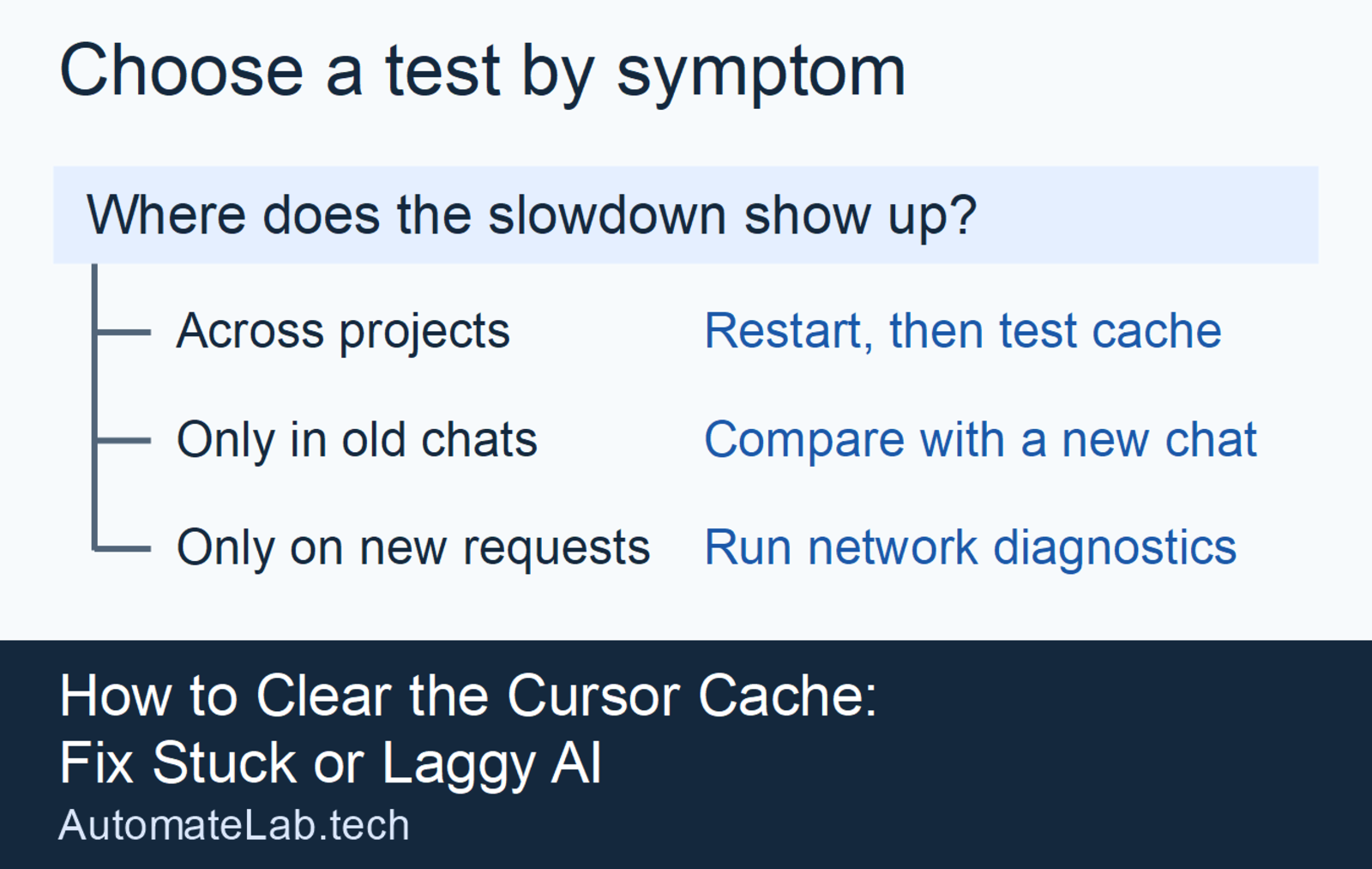
Try it when the desktop editor still draws a blank window or feels slow across projects after a full restart. If only one old chat is slow, open a fresh chat in the same project and compare. If the editor responds normally but every new agent request hangs, open Cursor Settings → Network → Run Diagnostics and check Cursor status. Follow the Cursor connection error guide if the diagnostic points to a connection failure.
What can you try inside Cursor before clearing the cache?
Open the Command Palette with Ctrl+Shift+P on Windows or Linux, or Cmd+Shift+P on macOS, then search for Reload Window. Save open files first. If the lag returns, fully quit the desktop app and reopen the same project. On macOS, closing the last window can leave the app running, so use Cmd+Q. Cursor also recommends testing cursor --disable-extensions for editor input delay, if the cursor command is available in your shell. See Cursor's performance guide.
Where are the Cursor cache folders?
Open the app-data folder for the desktop Cursor installation you are testing. The Windows path uses %APPDATA%, which normally opens the Roaming directory. On macOS, use Finder's Go to Folder and paste the path. On Linux, enter the path in your file manager and show hidden folders if needed. These are the usual locations. If the folder is missing, check whether Cursor uses a different data directory before moving any files.
| OS | Usual app-data folder | Folders to move for this test |
|---|---|---|
| Windows | %APPDATA%\Cursor | Cache, CachedData |
| macOS | ~/Library/Application Support/Cursor | Cache, CachedData |
| Linux | ~/.config/Cursor | Cache, CachedData |
Cursor support's Windows cache list also includes Code Cache and GPUCache. Start with the two in the table so you can tell whether that smaller change helped. macOS support guidance and Linux support guidance identify the same two cache folders. Cursor's startup troubleshooting guide covers broader app-data resets. Back up any state you want to keep before trying one.
Does clearing the cache rebuild the Cursor index?
Clearing the desktop cache refreshes local runtime files. Cursor staff say current versions search files on your machine and have retired the old server-side semantic index. Some versions still offer Index Repositories for Instant Grep under Cursor Settings → Indexing & Docs. Check your version and whether that toggle appears. If the agent misses one specific file, check .cursorignore and whether the file is in the open folder. See the Cursor staff explanation of Instant Grep and agent troubleshooting guide.
What if clearing the cache doesn't fix the lag?
For lag in old conversations, test a new conversation before touching User/globalStorage or User/workspaceStorage. Cursor support documents Developer: Delete Old Chats... and Developer: GC Agent KV Blobs for deliberate chat cleanup where those commands are available. Deleting a chat removes its messages and can remove checkpoints. Save anything you want to keep. Avoid deleting state.vscdb by hand, since Cursor support says that can leave chat stuck on loading. See Cursor's chat cleanup instructions.
If only one workspace misbehaves, test an empty local folder with the same account and extensions. Capture logs from the failing workspace with Developer: Open Logs Folder before resetting anything. If the error is Agent Execution Timed Out when you open a notebook, follow the Cursor Jupyter timeout guide. The Automation Error Index lists other fixes by message.
How do you clear the Cursor cache safely in five steps?
- Save your work and fully quit Cursor. On Windows or Linux, exit from the tray if Cursor is still running there.
- Open the matching app-data folder from the table and make a temporary backup folder outside it.
- Move only
CacheandCachedDatainto that backup. Skip a folder if it does not exist. - Relaunch Cursor and repeat the exact action that was slow. Compare the same file or prompt in the same project.
- If you need to undo the test, quit Cursor again and move any newly created copies aside before restoring the original folders.
FAQ
Will clearing the Cursor cache delete my settings or extensions?
Moving only Cache and CachedData leaves the User folder and installed extensions in place. Keep User/globalStorage and User/workspaceStorage intact to preserve local editor state and chat data.
Why is Cursor indexing stuck?
Current Cursor versions use local search and may offer an Instant Grep index. Check the installed version, the open project folder and its ignore rules before assuming that a missing result means the index is stuck.
Where is the Cursor cache on Windows?
The usual Windows location is %APPDATA%\Cursor. Paste that path into File Explorer and look for Cache and CachedData.
Do I need to quit Cursor before deleting the cache?
Yes. Fully exit Cursor before moving cache folders so a running process cannot keep using or rewriting them.
How often should I clear the Cursor cache?
Clear it when troubleshooting a persistent desktop issue. If the same action stays slow after a cache test, check extensions, network diagnostics or local chat state according to the symptom.