
How to Fix Cursor Agent Execution Backend Unavailable in WSL
A WSL-specific checklist for Cursor's Execution backend unavailable error, including the duplicate extension trap, reset command, and log checks.
TL;DR: Cursor's "Execution backend unavailable" error in WSL usually means the remote extension host is stuck; reset WSL, remove a duplicate WSL extension, and restart Cursor.
Cursor can still open the project and show files while every Agent tool call fails. When ls, pwd, file reads, and MCP calls fail together, the problem is usually the local WSL session or extension host, not the Cursor subscription or the selected model.
What does "Execution backend unavailable" mean in Cursor WSL?
On Windows plus WSL2, Cursor has to keep a remote connection alive between the Windows editor and the Linux project. Agent actions depend on that connection. If the remote resolver or extension host does not start, the Agent cannot run its terminal, file, or browser tools and reports Execution backend unavailable.
A Cursor support thread describes the related timeout as a client-side WSL problem even when the account's AI features are working. That distinction matters: changing models or checking billing will not repair a dead local execution path. The same thread recommends resetting WSL, updating Cursor, opening a project directly, and exporting the Main, Extension Host, and Window logs when the error returns.
Before changing anything, run one quick test in the affected project. Ask Agent to run pwd and read a small file. If both actions fail, compare the symptom with the Cursor agent connection error guide and continue with the WSL checks below.
How do you confirm that WSL is the failing layer?
Use the failure pattern, not one failed prompt. A model response problem normally leaves terminal and file tools available. A broken execution backend makes several tools fail in the same conversation, often with a reload prompt or a worker stuck on Reload Window.
| Symptom | Likely layer | First check |
|---|---|---|
| Only one model request fails | Model or provider | Try a second model without changing WSL. |
pwd, file reads, and terminal calls all fail | Agent execution path | Reset WSL and inspect the remote extensions. |
| WSL project never opens or stays on Reload Window | Remote resolver or extension host | Check for two WSL extensions and restart Cursor. |
How do you fix Cursor Agent execution in WSL?
- Close stuck Cursor windows. Close the editor and any Agents Window that remains open. A second Agent window can start a fresh execution session when the editor window is stuck, but close both before the full reset.
- Restart from a real project folder. Launch Cursor on the WSL project itself instead of opening the editor to a generic home directory. Then reconnect to the distribution and test
pwdbefore starting a long Agent task.
Update or reinstall Cursor Agent. If the remote extension is healthy but the worker still fails, check the Linux-side Agent binary. Cursor documents cursor-agent --version as the verification command and provides cursor-agent update and cursor-agent upgrade for updates.
cursor-agent --version
cursor-agent update
Check the installed WSL extensions. Cursor's own WSL integration uses anysphere.remote-wsl. If Cursor also has Microsoft's ms-vscode-remote.remote-wsl, the two resolvers can register the same remote connection. In Cursor, open Extensions and remove the Microsoft extension, leaving the Cursor-native one.
cursor --list-extensions
cursor --uninstall-extension ms-vscode-remote.remote-wsl
Reset the WSL virtual machine. Open PowerShell and run wsl --shutdown. This stops every running distribution. Reopen the project only after the command returns.
wsl --shutdown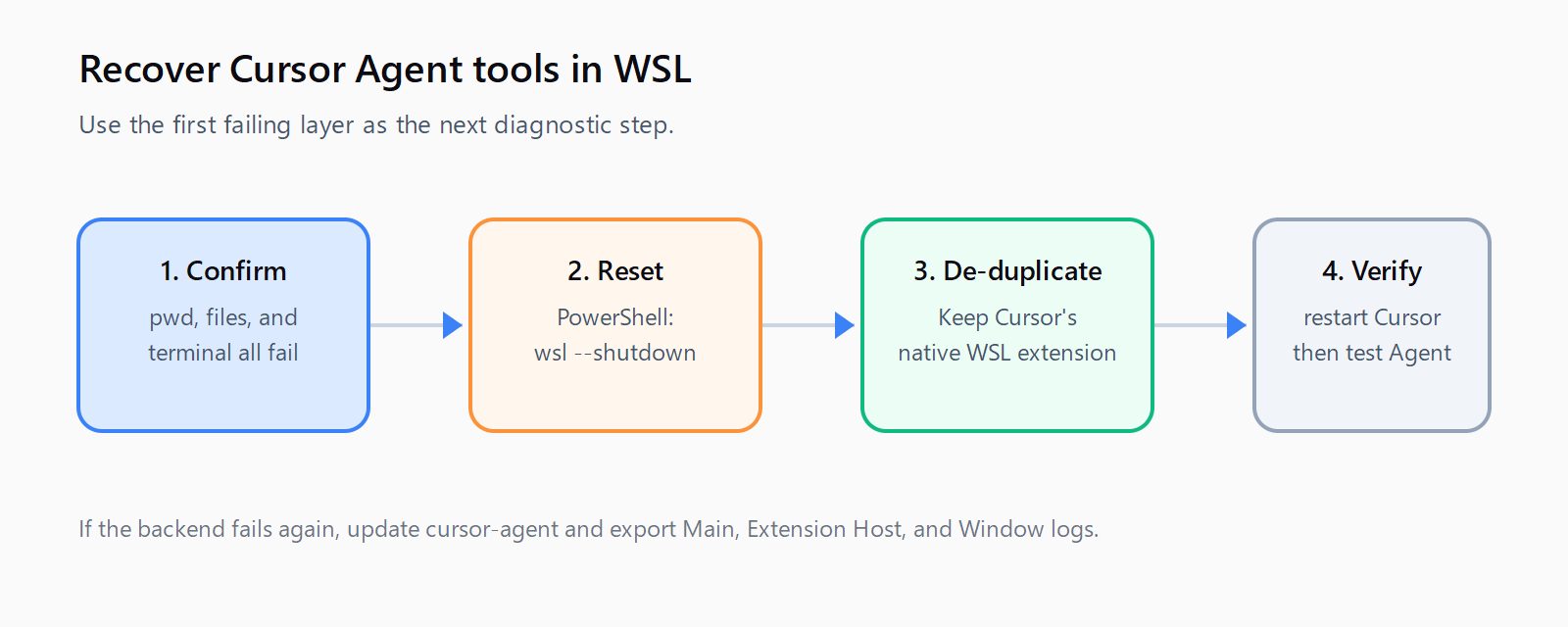
How do you verify that the backend is working again?
Run the checks in this order:
- Open the WSL project in Cursor and wait for the remote connection to finish.
- Ask Agent to run
pwd; the output should show the Linux project path. - Ask Agent to list one directory and read one small text file.
- Run a harmless command such as
git status --shortbefore starting a write or build task.
If the first two checks work but a later command fails, the backend is probably recovered and the remaining issue belongs to the shell, repository, or command itself. If all tool calls fail again immediately, export logs from Command Palette using Developer: Export Logs... and include Main, Extension Host, and Window logs in a Cursor support report.
What should you try if the WSL fix does not hold?
First, clear the Windows-side Cursor cache and restart the application. The Cursor cache cleanup guide covers the locations without mixing them with the Linux .cursor-server directory. If the visible symptom is a permanent extension-host wait rather than the backend error, use the Cursor extension host recovery steps.
A version rollback appears in community reports as a temporary workaround, but it is not a universal repair. One user reported that Cursor 3.5.38 worked where 3.6.31 did not, while another still saw the problem on 3.7.12. Record the Cursor version, Windows build, WSL distribution, and extension list before changing versions so the comparison is useful.
For other automation and tool failures, the Automation Error Index is a better starting point than repeating a full reinstall.
FAQ
Why does Cursor show the error only in WSL?
WSL adds a remote resolver and Linux-side extension host between the Windows editor and the project. A failure in that connection can stop Agent tools even when native Windows projects still work.
Does wsl --shutdown permanently fix Cursor Agent?
No. It clears the current WSL session and often restores a stuck worker. If the same error returns, inspect duplicate WSL extensions, update Cursor Agent, and export logs.
Should both WSL extensions stay installed?
No. If Cursor has both ms-vscode-remote.remote-wsl and anysphere.remote-wsl, remove the Microsoft extension and keep Cursor's native integration.
How do I reinstall Cursor Agent in WSL?
Start with cursor-agent --version and cursor-agent update. If the binary is missing or broken, use Cursor's official installation command from the CLI documentation, then verify the version again.
What logs should I send if the error returns?
Use Command Palette, run Developer: Export Logs..., and include the Main, Extension Host, and Window logs. Add the Cursor version, Windows build, WSL distribution, and output from cursor --list-extensions.
How do you test the repair in five minutes?
- Close Cursor and stop WSL with
wsl --shutdown. - Remove
ms-vscode-remote.remote-wslif Cursor'sanysphere.remote-wslis installed. - Reopen the WSL project directly and test
pwd. - List a directory, read a file, and run
git status --short. - Update Cursor Agent and export logs if the backend fails again.