
Power Apps vs Power Automate: What's the Difference?
Power Apps builds the screen people use; Power Automate runs the workflow behind it. The difference, when to use each, and how they work together.
TL;DR: Power Apps builds the interface people use while Power Automate runs the workflows behind it, so reach for Power Apps when someone needs a screen and Power Automate when a process should run unattended.
Power Apps and Power Automate are siblings in Microsoft's Power Platform, and the names are similar enough that people pick the wrong one or assume they need both. They solve different halves of the same problem: one is the front door, the other is the engine room. Here is the difference, when to use each, and how they work together.
What is the core difference between Power Apps and Power Automate?
Power Apps is an app builder. You use it to create a screen - a form, a dashboard, a record editor - that people open and interact with. Power Automate is a workflow engine. It runs in the background with no interface, reacting to triggers and carrying out actions like sending approvals, syncing data, or posting notifications. If a human needs to look at something and act, that is Power Apps. If a process should happen without anyone watching, that is Power Automate. For a fuller picture of the second tool, see what Power Automate is.
When should you use Power Apps?
Reach for Power Apps when users need to interact with data directly - submitting forms, updating records, tracking tasks, or stepping through a process behind a UI. A well-built app is the front door to a business process: it standardises how data enters the system so what arrives is clean and predictable. If your problem is "people keep emailing me inconsistent spreadsheets," an app that forces the right fields is the fix.
Power Apps comes in two flavours. Canvas apps start from a blank screen where you drag and drop controls - think PowerPoint layout with Excel-style logic - giving you full design freedom. Model-driven apps generate their interface from your Dataverse data model, enforcing structure at the cost of visual flexibility. Canvas gives you flexibility and the chance to overcomplicate; model-driven gives you consistency and less room to wander.
When should you use Power Automate?
Reach for Power Automate when a process should run without exposing complexity to anyone - approval routing, cross-system data sync, scheduled jobs, trigger-based notifications. It is the engine behind the scenes, and it never shows a screen. The classic use is an approval: a request comes in, the flow routes it to the right manager, records the decision, and updates the source system, all without a person babysitting it.
Because flows run unattended, the failure modes are different from an app's - a broken connection or a misconfigured trigger fails silently rather than throwing a visible error. When that happens, the Power Automate flow checker and a look at how to fix authorization errors are the first stops.
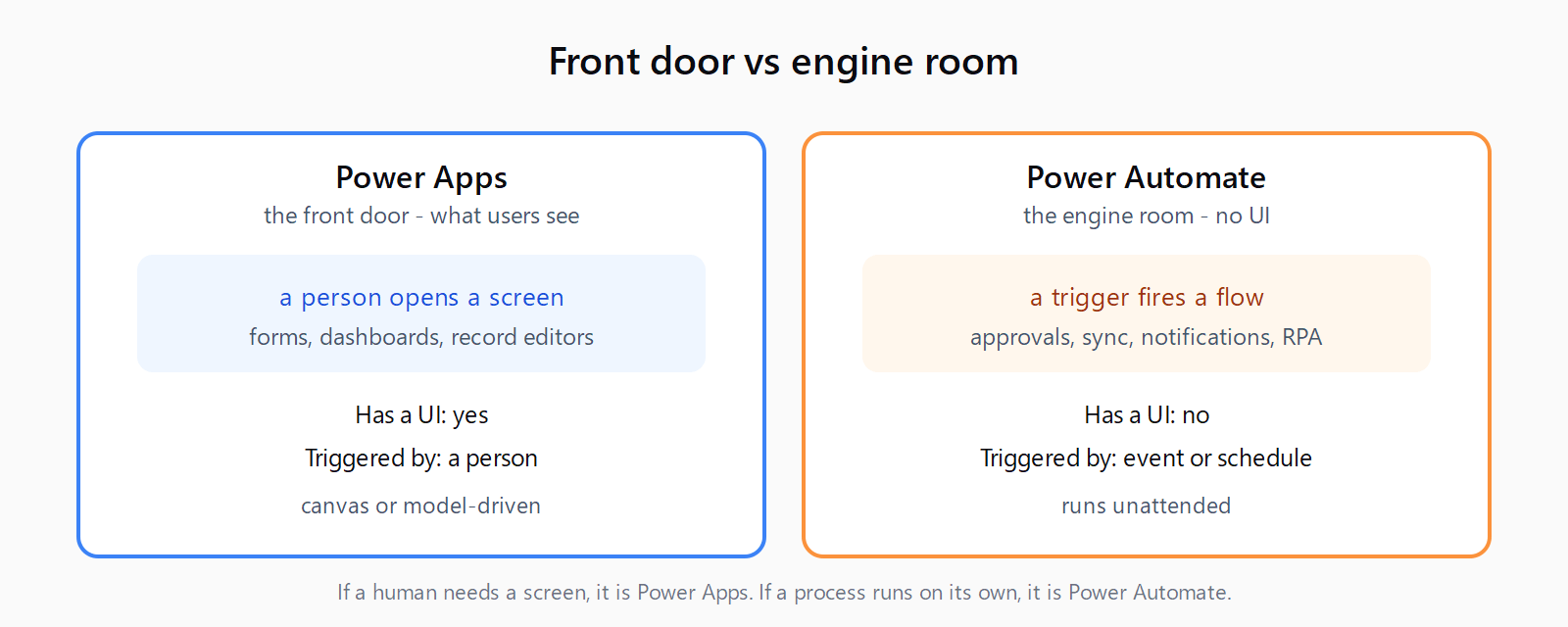
How do Power Apps and Power Automate compare?
| Dimension | Power Apps | Power Automate |
|---|---|---|
| Purpose | Build an interface people use | Run workflows in the background |
| Has a UI? | Yes - that is the point | No - it is the engine |
| Triggered by | A person opening the app | An event, schedule, or button |
| Typical job | Forms, dashboards, record editors | Approvals, sync, notifications, RPA |
| Pricing (2026) | Canvas apps with standard connectors free in M365; premium per-user plans for more | Premium $15/user/mo; Process $150/bot/mo |
How do Power Apps and Power Automate work together?
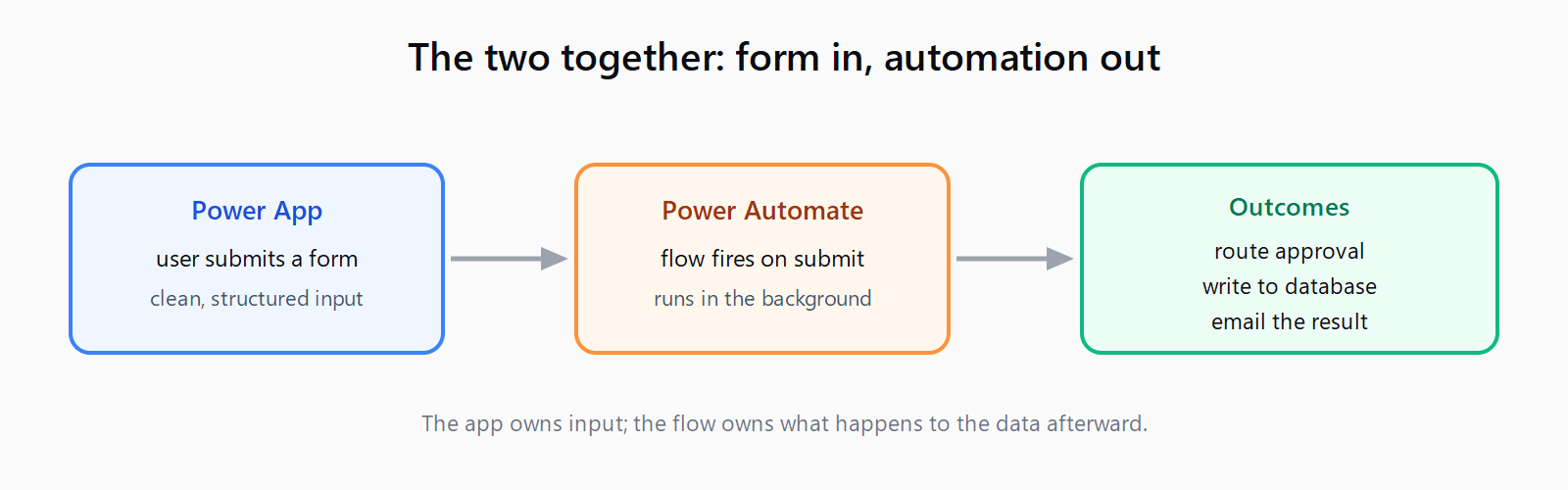
The two are designed to pair. A common pattern: a Power App gives an employee a clean form to submit a request, and a Power Automate flow fires the moment they hit submit - routing the approval, writing to the database, and emailing the outcome. The app is the interface; the flow is the automation behind the button. You can call a flow directly from inside a Power App, passing data from the screen into the workflow, which is how most real Power Platform solutions are built. Choosing between them is often the wrong framing - the question is usually which part of the solution each one owns.
How much do Power Apps and Power Automate cost in 2026?
Both have a free on-ramp inside Microsoft 365 and paid tiers for premium capabilities. Canvas Power Apps that use only standard connectors are usable within an Office 365 environment at no extra cost, with premium per-user licensing required for premium connectors and Dataverse. Power Automate Premium is $15 per user per month for premium connectors, cloud flows, and attended RPA, while the Process plan is $150 per bot per month for unattended automation. As always, confirm current pricing with Microsoft before committing, because the Power Platform tiers change regularly.
What is the most common mistake mixing the two?
The usual error is putting logic in the wrong tool. Teams pack complex multi-step automation into a canvas app's button handlers - chaining patches, loops, and API calls into the UI layer - where it becomes slow, hard to test, and impossible to reuse. That logic belongs in a Power Automate flow the app calls. The reverse mistake is building a flow that tries to collect rich input through a string of prompts when a five-field Power App form would be cleaner and reusable. The rule of thumb: the app owns what the user sees and types, the flow owns what happens to that data afterward. When a feature feels awkward to build, it is often a sign it is sitting in the wrong half of the platform.
Which should you choose in three questions?
- Does a person need a screen to interact with? If yes, you need Power Apps.
- Should something happen automatically on a trigger or schedule? If yes, you need Power Automate.
- Is it a form that kicks off a process? You need both - the app for input, the flow for the work.
FAQ
Is Power Apps the same as Power Automate?
No. Power Apps builds interfaces people use; Power Automate runs workflows in the background with no UI. They are separate products in the Power Platform that are often used together.
Can Power Apps work without Power Automate?
Yes. A Power App can read and write data on its own. You add Power Automate when you need background automation - approvals, notifications, or syncing - triggered by what happens in the app.
Do I need to license both Power Apps and Power Automate?
Not always. Canvas apps and cloud flows using standard connectors have free tiers within Microsoft 365. You need paid licenses for premium connectors, Dataverse, or unattended RPA.
Which is better for approvals?
Power Automate runs the approval logic; Power Apps can provide the submission form. For a pure approval routed by email or Teams, Power Automate alone is enough.
What is the difference between canvas and model-driven Power Apps?
Canvas apps give you a blank screen and drag-and-drop design freedom. Model-driven apps generate their interface from your Dataverse data model, enforcing structure with less visual customization.