
Automate social media posting with n8n: full workflow walkthrough
Build one n8n workflow that reads a Google Sheets queue and posts to all four major platforms -- including the Instagram two-step container trick and Meta token renewal.
TL;DR: Build one n8n workflow that reads a Google Sheets content queue and posts to X (Twitter), LinkedIn, Facebook, and Instagram on a fixed schedule -- the main friction is Instagram's two-step container/publish API and Meta's 60-day access token requirement.
Manual posting across four platforms eats at least two hours a day for any solo creator or small marketing team in 2026. The common fix is a SaaS scheduler, which adds another $50-100/month. n8n lets you replace that with a single self-hosted workflow that you own and can extend -- but every tutorial that says "just add an Instagram node" omits the part where Instagram's API refuses text-only posts and requires a publicly hosted image URL before a second publish call. This walkthrough covers the full setup, including that two-step flow.
What does the complete n8n social media workflow look like?
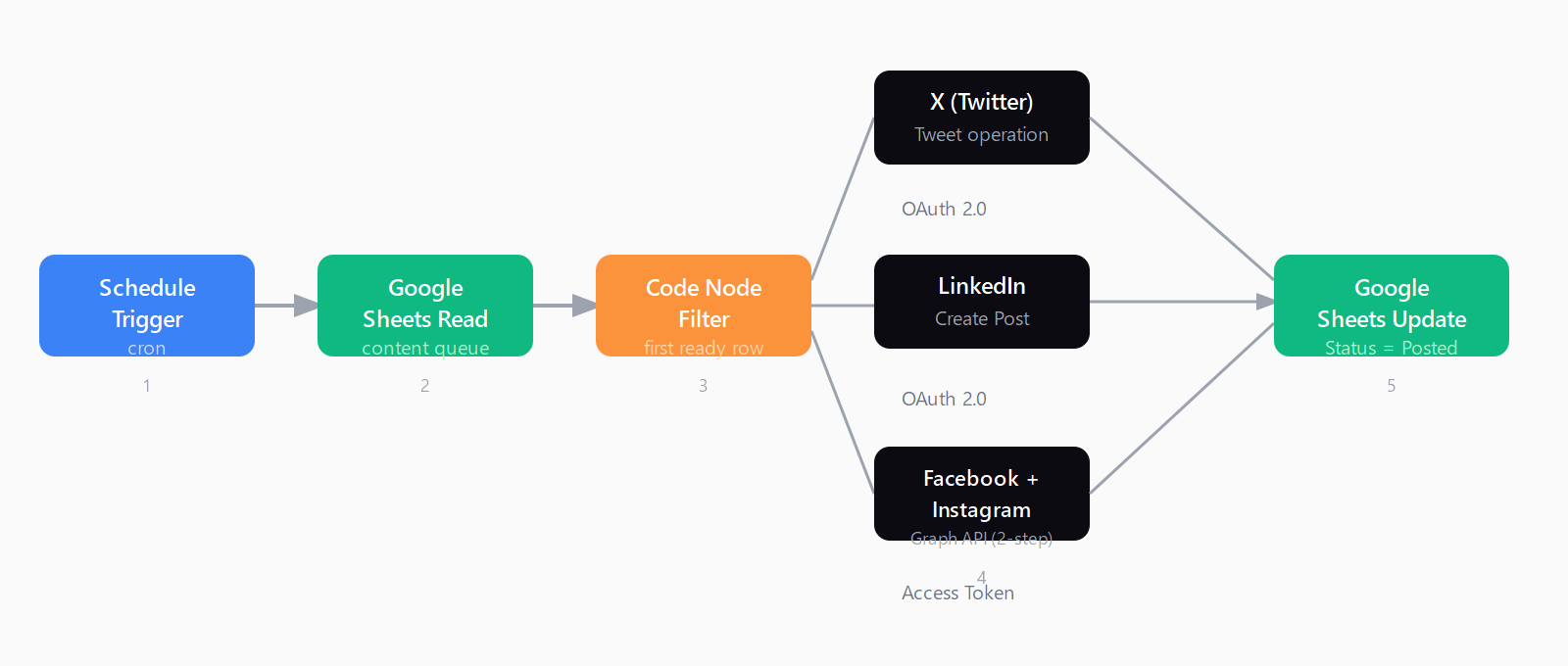
The workflow has five stages:
- Schedule Trigger -- fires once or twice a day on a cron-style interval.
- Google Sheets (Read) -- fetches rows where the Status column equals "Ready to Post".
- Code node (filter) -- picks the first matching row and surfaces its text, image URL, and target platform columns.
- Platform branches -- parallel paths to the X node, LinkedIn node, and Facebook Graph API node (which also handles Instagram).
- Google Sheets (Update) -- marks the row as "Posted" once each platform call returns 200.
This architecture means your content team works in a spreadsheet they already know, and n8n handles the API calls. You can export the workflow as JSON to version-control it or share it across environments.
How do you build the content queue and Schedule Trigger?
Create a Google Sheet with at minimum these columns: Post Text, Image URL, Platforms, Status, Posted At. Fill Status with "Ready to Post" for any row that should go out next.
In n8n, add a Schedule Trigger node. Set it to "Every Day" and choose a time in UTC (note that n8n cloud and most self-hosted installs run UTC). For a twice-daily cadence, duplicate the trigger at a second time -- or use a cron expression like 0 9,18 * * * for 9am and 6pm UTC.
Connect a Google Sheets node set to "Read Rows" and point it at your spreadsheet. Below it, add a Code node with this JavaScript to filter to the first ready row:
const rows = $input.all();
const ready = rows.find(r => String(r.json.Status || '').toLowerCase() === 'ready to post');
return ready ? [ready] : [];
If the array is empty (nothing left to post), n8n stops the execution at that node -- no errors, just a clean exit. Add an IF node after if you want a Slack alert when the queue runs dry.
How do you connect X (Twitter) and LinkedIn in n8n?
For X, add the X (Formerly Twitter) node and choose the "Tweet" operation. Authenticate with X OAuth 2.0 credentials -- you need a developer account at developer.x.com with a project and app created under the Free tier. The app must have "Read and Write" permissions. Map {{ $json['Post Text'] }} to the tweet text field.
For LinkedIn, add the LinkedIn node and choose "Create Post". n8n's OAuth 2.0 credential for LinkedIn handles the token exchange. The one gotcha: LinkedIn's API requires your posts to be tied to your person URN, not just your account. n8n fetches this automatically when you authenticate, but if you see a "missing author" error, open the credential and click "Reconnect" -- the URN is fetched at connection time.
Why does Instagram require a different setup in n8n?
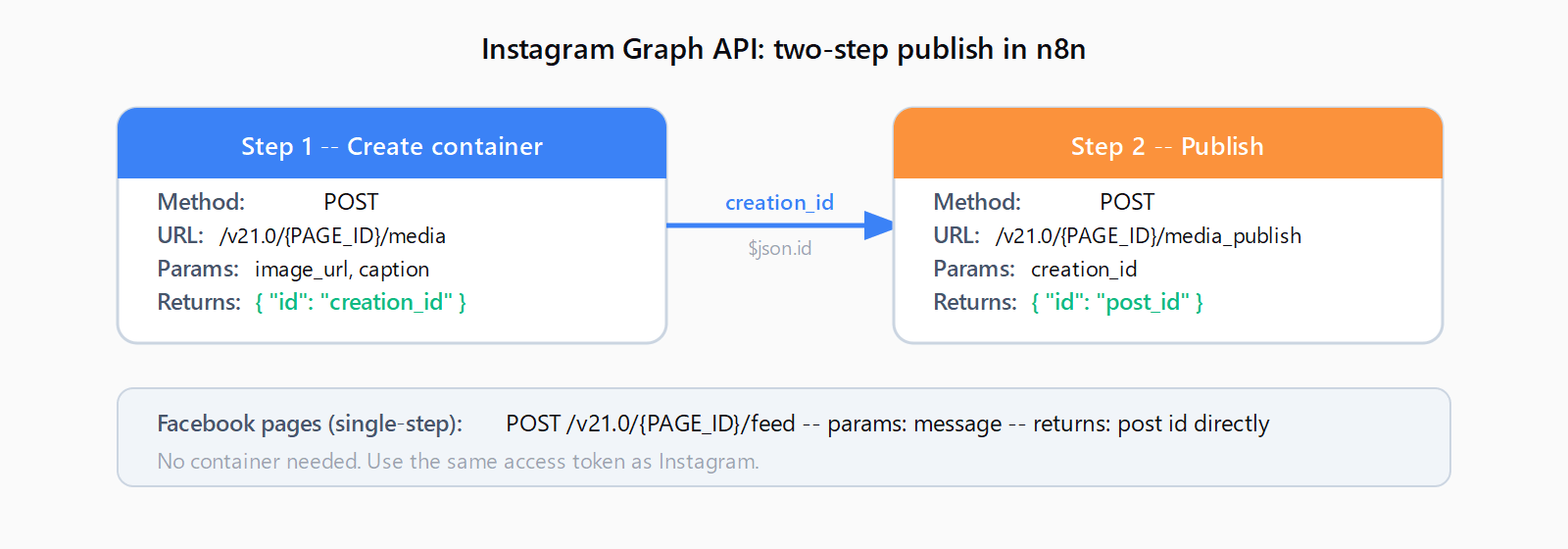
Instagram does not accept text-only posts via the API. Every post must have an image or video, and that media must be a publicly accessible URL -- not a binary upload. The Graph API then uses a two-step sequence: first create a container (POST to /me/media), then publish it (POST to /me/media_publish).
In n8n, this maps to two HTTP Request nodes (or two Facebook Graph API nodes) wired in sequence:
- First node -- POST to
https://graph.facebook.com/v21.0/{{PAGE_ID}}/mediawith parametersimage_url(your hosted PNG/JPG) andcaption(your post text). The response returns acreation_id. - Second node -- POST to
https://graph.facebook.com/v21.0/{{PAGE_ID}}/media_publishwithcreation_id={{ $json.id }}from step one.
Facebook page posts are simpler: one POST to /{{PAGE_ID}}/feed with a message parameter. Both use the same access token.
To set up credentials for Meta platforms, create a Business app in Meta for Developers and request these five permissions: pages_show_list, pages_read_engagement, pages_manage_posts, instagram_basic, and instagram_content_publish. Connect your Facebook Page and Instagram account via Meta Business Suite before generating a token.
How do you prevent Meta access tokens from expiring every hour?
The token generated in Graph API Explorer is a short-lived token valid for about an hour. n8n's workflow will fail silently the next morning if you use it directly. The fix is a one-time extension:
- Copy the short-lived token from Graph API Explorer.
- Open the Access Token Debugger.
- Paste the token and click "Extend Access Token".
- Copy the long-lived token (valid 60 days) and paste it into n8n's Facebook Graph API credential.
Set a reminder at day 55 to repeat this step. A more reliable option is to add a second n8n workflow that calls Meta's /oauth/access_token?grant_type=fb_exchange_token endpoint to refresh the token automatically -- but for most teams, the manual 60-day refresh is sufficient to start.
How do you add error handling to the workflow?
Connect an Error Trigger node to a Slack or email notification node. n8n's Error Trigger fires whenever any node in the workflow throws -- catching rate-limit errors (Meta allows roughly 200 posts per hour per page), network timeouts, or an empty image URL. The automated email workflows in n8n skill set you already know applies directly here: add an SMTP node as the error output and route the error message into the email body.
For production use, also enable the per-node execution debugging view in n8n's Executions panel to see exactly which HTTP call returned an error and what payload it sent.
FAQ
Can n8n post to Instagram without an image?
No. The Instagram Graph API requires at least one image or video for every post. Text-only captions are not supported via the API (only through the Instagram app UI). Use a hosted image URL -- store your brand graphics on a CDN, or generate images with n8n's OpenAI node and upload them to Cloudinary or S3 before the Instagram publish step.
Does n8n support X (Twitter) API v2?
Yes. n8n's X node uses the v2 API with OAuth 2.0 PKCE authentication. The older v1.1 OAuth 1.0a credentials no longer work for posting on the Free tier as of 2023. When creating credentials in n8n, select "OAuth2" and fill in your app's Client ID and Client Secret from the X Developer Portal.
How do I avoid posting duplicates if n8n runs twice?
The Google Sheets "Status" column pattern prevents this: once a row is marked "Posted", the Code node filter skips it. The risk is a crash between the platform POST returning 200 and the Sheets update writing "Posted" -- in that case the row stays "Ready to Post" and posts twice. Guard against it by checking the response code before the update node, or accept the rare duplicate and clear it manually.
Can I schedule posts for a specific future time with this workflow?
Not directly -- the Schedule Trigger fires immediately, not at a per-post time. To schedule individual posts, add a "Publish At" column to your Sheet and an IF node that checks whether now >= publishAt before posting. Alternatively, use n8n's Wait node to pause execution until the target timestamp.
What happens when the Meta access token expires mid-workflow?
The Facebook Graph API returns a 190 error code ("Invalid OAuth access token"). Add a Set node at the top of the workflow that calls /debug_token to check the token's expiry, and route to an error notification if it expires in fewer than 7 days. That gives you enough warning to extend the token before it breaks.
How do I post different content to each platform?
Add platform-specific columns to the Google Sheet -- for example "X Text" (under 280 chars), "LinkedIn Text" (longer professional version), and "Image URL". Map each branch node to its own column. LinkedIn posts perform better with three or four short paragraphs and no external links in the body (add the link in the first comment instead).