
How to send an HTTP request in Power Automate (with examples)
The generic HTTP action in Power Automate is premium-only. Here is how to configure it -- and when to use the free service-specific actions for Microsoft 365 APIs instead.
TL;DR: Add the "HTTP" action in Power Automate and set Method, URI, and Headers -- but the generic HTTP action requires premium; for Microsoft 365 calls, the free SharePoint, Teams, and Outlook service actions work without a premium license.
Power Automate flows that call REST APIs break into two categories: flows hitting Microsoft 365 services (SharePoint lists, Teams channels, Outlook mail) and flows hitting everything else (Stripe, GitHub, internal APIs, custom webhooks). Which HTTP action you use matters, because one requires a premium license and one does not. Most tutorials skip this distinction entirely and leave developers halfway through a build before they hit the license wall.
Which HTTP action do you need?
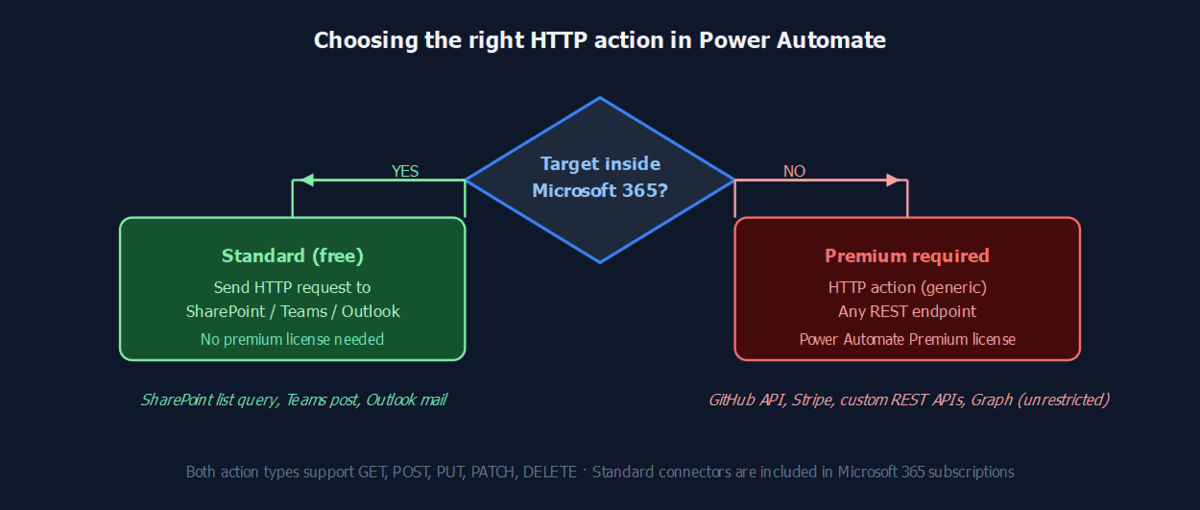
Power Automate ships two different types of HTTP action, and confusing them is the number-one billing surprise on the platform:
- HTTP (premium connector) -- calls any REST endpoint: third-party APIs, custom services, Microsoft Graph without restrictions. Requires a Power Automate Premium or Process license.
- Send an HTTP request to SharePoint / Teams / Outlook / etc. (standard connector) -- calls specific Microsoft 365 service APIs only. Included in standard Microsoft 365 subscriptions. No premium license required.
If your endpoint is inside Microsoft 365, start with the service-specific action. If you need to call an external API or unrestricted Microsoft Graph endpoints, you need the premium HTTP action.
How do you add the HTTP action to a cloud flow?
- Open your flow in Power Automate and click + New step.
- In the action search box, type
HTTP. - Select HTTP from the results (listed under the HTTP connector). If you do not have a premium license, this action will be marked with a diamond icon -- use the service-specific actions below it instead.
- Set the Method dropdown: GET, POST, PUT, PATCH, or DELETE.
- Enter the URI: the full URL of the endpoint, including any query parameters.
- Add Headers as key-value pairs (e.g.,
Content-Type: application/json,Accept: application/json). - For POST/PUT/PATCH requests, add the request Body as a JSON string or use the expression editor to build it dynamically from flow variables.
The action stores the response in its output object. Downstream steps can reference outputs('HTTP')['statusCode'] for the HTTP status and body('HTTP') for the response payload. Run the Flow Checker after adding any HTTP action -- it will flag missing required fields before you run the flow.
How do you set up authentication?
Three patterns cover most use cases:
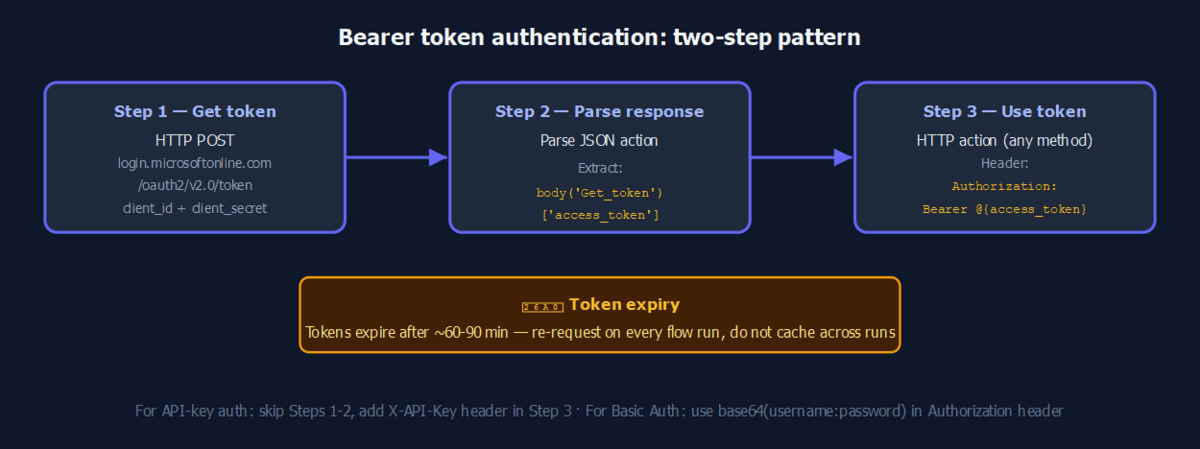
Bearer token (OAuth 2.0): Make a first HTTP action that POSTs to the token endpoint:
Method: POST
URI:    https://login.microsoftonline.com/{tenantId}/oauth2/v2.0/token
Body:   grant_type=client_credentials
        &client_id={clientId}
        &client_secret={clientSecret}
        &scope=https://graph.microsoft.com/.default
Parse the response, extract body('Get_token')['access_token'], then pass it in every subsequent request header as Authorization: Bearer @{body('Get_token')['access_token']}. Note that tokens expire after roughly one hour -- each flow run should re-request a fresh token rather than caching across runs.
API key: Add the key as a custom header (X-API-Key: your-key) or as a query parameter in the URI. Do not store keys as literal strings in your flow -- use an environment variable or a Power Automate connection reference so the value is not visible in the flow editor.
Basic Auth: Set Authorization: Basic @{base64(concat(username, ':', password))} in the headers. Power Automate does not support NTLM; on-premises APIs that require it are not reachable unless you route through an on-premises data gateway with a Basic-auth wrapper.
How do you parse the JSON response?
After the HTTP action, add a Parse JSON action:
- Set Content to
body('HTTP')(use dynamic content). - Click Generate from sample.
- Paste a sample JSON response from a test run.
- Power Automate generates the schema automatically.
After parsing, every field in the response appears as a dynamic content token in downstream actions. For response arrays, add an Apply to each loop and reference items via items('Apply_to_each')['fieldName'].
Field names in the schema are case-sensitive and must match the API response exactly. A mismatch does not throw an error during build -- it returns null at runtime, which is one of the harder bugs to trace without test runs.
What do HTTP requests look like in practice?
GET request to an external API:
Method:  GET
URI:     https://api.github.com/repos/microsoft/PowerAutomate-Samples
Headers: Accept: application/vnd.github+json
         User-Agent: PowerAutomate/1.0
The response body contains stargazers_count, open_issues, and other repo metadata. Pass these to a Teams message or an email body via dynamic content.
POST JSON to a custom endpoint:
Method:  POST
URI:     https://api.example.com/orders
Headers: Content-Type: application/json
         Authorization: Bearer @{body('Get_token')['access_token']}
Body:    {
           "orderId": "@{triggerBody()?['orderId']}",
           "amount":  @{triggerBody()?['amount']},
           "status":  "confirmed"
         }
SharePoint REST API without premium license:
Use the Send an HTTP request to SharePoint action (inside the SharePoint connector), not the generic HTTP action:
Site Address: https://contoso.sharepoint.com/sites/MySite
Method:       GET
Uri:          _api/web/lists/getbytitle('Orders')/items?$select=Id,Title,Status
Headers:      Accept: application/json;odata=nometadata
The site address is a separate field -- the URI contains only the path after the site root. This action handles SharePoint authentication automatically.
What are the common failure modes?
120-second timeout: Synchronous HTTP calls in cloud flows hard-stop at 120 seconds. APIs that process large datasets or run background jobs will hit this limit. Use asynchronous patterns (fire a request, poll a status endpoint) or move to Azure Logic Apps for longer timeouts. If your flow returns 401 or 403 errors, the issue is nearly always authentication, not the HTTP action configuration itself.
Retry policy masking errors: By default the HTTP action retries on 408, 429, and 5xx responses. During development, disable the retry policy (action settings -> Retry Policy -> None) so failures surface immediately instead of retrying four times with 60-second waits between each.
Relative pagination URLs: Power Automate's built-in pagination expects absolute next-page URLs. If the API returns a relative URL like ?page=2 instead of https://api.example.com/data?page=2, you must construct the full URL in an expression before passing it to the next iteration.
FAQ
Do I need a premium license for HTTP requests in Power Automate?
The generic HTTP action is a premium connector and requires a Power Automate Premium or Process license. The service-specific actions ("Send an HTTP request to SharePoint", "Send an HTTP request to Teams", etc.) are standard connectors included in Microsoft 365 subscriptions -- no premium license required.
What is the difference between the HTTP action and Send an HTTP request to SharePoint?
The HTTP action calls any REST endpoint and requires premium. The SharePoint action calls SharePoint REST APIs only, is standard tier (no premium), and handles SharePoint authentication automatically. Use SharePoint-specific actions for SharePoint workloads; use the HTTP action for third-party APIs and unrestricted Microsoft Graph calls.
How do I parse a JSON response in Power Automate?
Add a Parse JSON action after the HTTP action. Set Content to body('HTTP'), click "Generate from sample," paste a real API response, and Power Automate builds the schema. Parsed fields then appear as dynamic content tokens throughout the rest of the flow.
How do I add Bearer token authentication to a Power Automate HTTP request?
Add a first HTTP action that POSTs to your OAuth 2.0 token endpoint with client credentials or auth code. Parse the response and extract the access_token field. On every subsequent HTTP action, add the header Authorization: Bearer @{body('Get_token')['access_token']}. Request a fresh token in every flow run -- tokens typically expire after one hour.
What is the HTTP action timeout in Power Automate?
Synchronous HTTP calls time out at 120 seconds. If the target API takes longer, the flow fails with a timeout error. Redesign using asynchronous polling (trigger an async job, poll a status endpoint until it completes) or switch to Azure Logic Apps, which supports longer action timeouts.
Why are my HTTP trigger issues causing flows not to run at all?
HTTP timeout and authentication failures are different from trigger issues. If the flow never starts, the problem is in the trigger configuration, not the HTTP action. If the flow starts but the HTTP step fails, check auth headers, response schema, and the 120-second timeout.