
Fix "agent execution provider did not respond in time" in Cursor
Cursor agent mode blocked by 'The agent execution provider did not respond in time'? Reload Window first, then escalate to Restart Extension Host, CachedData clear, or a clean reinstall if the log shows a hash mismatch.
TL;DR: Press Ctrl+Shift+P, run "Developer: Reload Window" -- and if that fails, escalate to "Restart Extension Host," CachedData clear, or a clean reinstall when the Output log shows a hash mismatch on cursor-agent-exec.
Cursor throws "The agent execution provider did not respond in time" when the extension host -- the process that runs all VS Code-compatible extensions including Cursor's own agent loop -- fails to signal readiness within its 60-second window. The error code in Cursor's logs is ERROR_EXTENSION_HOST_TIMEOUT. It appears across Cursor 3.1 through 3.6 and is not limited to any specific file type (the Jupyter-notebook variant has a separate root cause and fix). The fix depends on which of three causes is at work.
What causes the "agent execution provider did not respond in time" error?
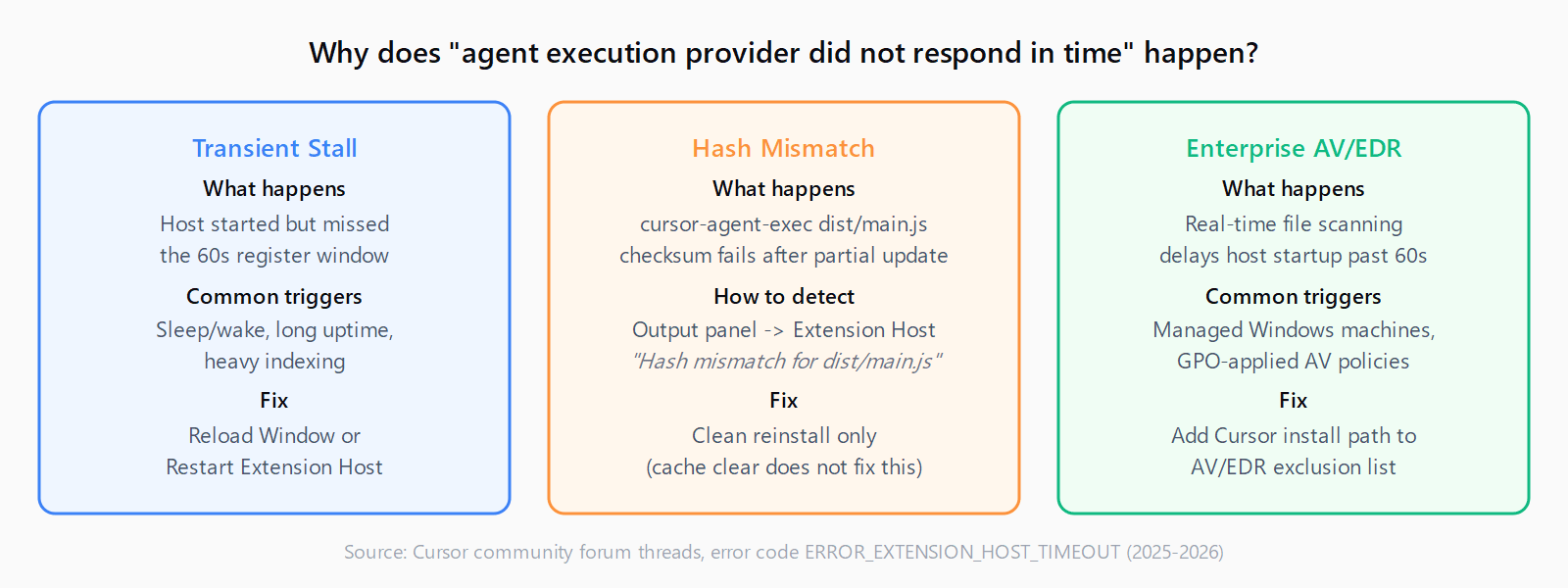
Three root causes account for the vast majority of reports on the Cursor community forum:
- Transient extension host stall. The extension host process started but didn't finish registering the
cursor-agent-execprovider before the timeout. Happens after sleep/wake cycles, long uptime, or heavy background indexing. A reload clears it. - Hash mismatch on cursor-agent-exec. A partial update leaves
anysphere.cursor-agent-exec/dist/main.jsin a state where its checksum no longer matches the manifest. Cursor's integrity check then refuses to activate the provider. No UI warning appears -- the only signal is an "Extension verification failed" line in the Extension Host output log. Cache clears do not fix this; a clean reinstall does. - Enterprise AV/EDR scanning Cursor files. Security tools that scan executables in real time can delay extension host startup past the 60-second deadline. Cursor support confirmed this pattern for organisations running endpoint protection on Windows.
Fix 1: How do you restart the extension host in Cursor?
Two quick commands live in the command palette (Ctrl+Shift+P on Windows/Linux, Cmd+Shift+P on macOS):
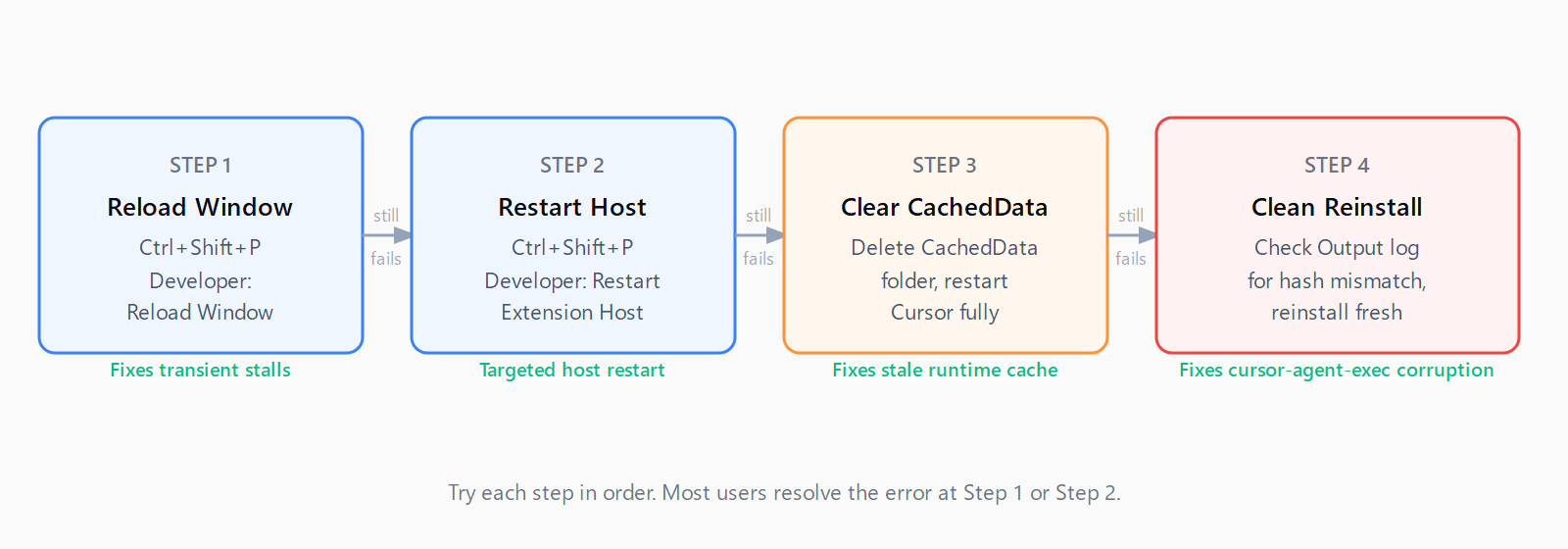
- Developer: Reload Window -- restarts the entire Cursor window including the extension host. Fixes transient stalls in most cases.
- Developer: Restart Extension Host -- restarts only the extension host without closing open files. Faster, and sufficient when the stall is in the host process rather than the window state.
Try "Reload Window" first. If the error returns within the same session, try "Restart Extension Host." If both fail repeatedly, the cause is not transient -- move to Fix 2 or Fix 3.
Fix 2: How do you isolate a conflicting extension causing the timeout?
Launch Cursor from a terminal with extensions disabled:
cursor --disable-extensionsIf agent mode works in this state, an extension is preventing the host from registering on time. Re-enable extensions one at a time (from the Extensions panel) and reload between each until the error reappears. The last extension you enabled is the conflict.
If disabling all extensions does not fix the error, skip ahead to Fix 3 -- the problem is in Cursor itself, not an add-on. For comparison, the extension host hang (a related but distinct error) follows the same isolation sequence.
Fix 3: How do you clear the Cursor CachedData folder to fix the provider timeout?
A stale or corrupted runtime cache can block the extension host from completing initialisation. Quit Cursor completely (verify no Cursor processes remain in Task Manager / Activity Monitor / pgrep cursor), then delete the CachedData folder:
- Windows:
%APPDATA%\Cursor\CachedData - macOS:
~/Library/Application Support/Cursor/CachedData - Linux:
~/.config/Cursor/CachedData
Restart Cursor after deleting the folder; it will rebuild the cache on first launch. For a more thorough reset, see the full guide on clearing the Cursor cache, which also covers the workspace index and the CachedExtensions folders.
Fix 4: How do you detect and fix a cursor-agent-exec hash mismatch?
If the error persists after a cache clear, open Cursor's Output panel (View > Output) and switch the dropdown to "Extension Host." Look for a line like:
Extension verification failed for anysphere.cursor-agent-exec:
Hash mismatch for files: dist/main.js
This line confirms a corrupted installation. The fix is a complete clean reinstall -- not a cache clear:
- Uninstall Cursor fully (on Windows use "Add or Remove Programs"; on Linux use your package manager, not just
rmof the AppImage). - Delete the remaining data folders: CachedData, Cache, and GPUCache as listed in Fix 3.
- Download the latest installer from cursor.com/downloads and install fresh.
On Linux, install via the .deb package rather than the AppImage if you were using the AppImage before -- the AppImage format has shown more partial-update failures in this specific error pattern.
Fix 5: How do you fix the timeout on managed Windows machines with AV/EDR?
If the error appears only on managed Windows machines and not on personal laptops, endpoint protection is the likely cause. Add Cursor's install directory to your AV/EDR exclusion list:
C:\Users\<username>\AppData\Local\Programs\cursor\(default user install)C:\Program Files\cursor\(system-wide install)
Apply the exclusion at the policy level so it survives GPO refreshes. Cursor support confirmed this resolves the timeout for teams on Versions 3.5.x and 3.6.x running real-time file-scanning tools.
What about the "Enable Legacy Terminal" setting?
Cursor Settings > Agents includes a "Legacy Terminal" toggle. Some users on 3.2.x and 3.3.x reported that enabling it restored agent functionality temporarily by routing terminal commands through an older execution path that bypasses the provider registration step. It is a workaround, not a fix -- the underlying timeout can still surface on non-terminal tasks. Use it to unblock work while you investigate the root cause with Fixes 1-5 above.
The Automation Error Index catalogs this and other Cursor errors with verified fixes for each platform.
FAQ
What does ERROR_EXTENSION_HOST_TIMEOUT mean in Cursor?
It means the extension host process -- which runs all extensions including Cursor's own agent provider -- did not signal readiness within the 60-second window. The full error message is "The agent execution provider did not respond in time. This may indicate the extension host is not running or is unresponsive." It appears in Cursor 3.1 through 3.6 across all platforms.
Does reloading the window always fix the agent execution provider timeout?
It fixes transient stalls caused by sleep/wake cycles or long uptime. It does not fix hash mismatches on cursor-agent-exec or AV-induced startup delays -- those require a clean reinstall or an exclusion policy respectively.
How do I find the Extension Host log in Cursor?
Open the Output panel with Ctrl+Shift+U (Windows/Linux) or Cmd+Shift+U (macOS), then switch the dropdown in the top-right of the panel from "Tasks" to "Extension Host." The hash mismatch line and any other startup errors appear there.
Can I run Cursor without extensions to test agent mode?
Yes. Launch from a terminal with cursor --disable-extensions. If agent mode works in that state, an extension is blocking host registration. Re-enable extensions one at a time to find the conflict.
Is this the same error as Cursor "Waiting for extension host"?
Related but distinct. "Waiting for extension host" is a UI hang that appears while the editor waits for the host to start, and it often resolves on its own or with a window reload. The "agent execution provider did not respond in time" error fires after the 60-second deadline has passed without a response from the provider specifically -- it is a harder failure that indicates the host either never started or cannot activate the agent extension.