
Fix "agent execution provider did not respond in time" in Cursor
Match Cursor Agent timeout logs to the right repair: extension isolation, installation verification, managed security or Remote SSH provider registration.
TL;DR: Fix Cursor's agent execution provider timeout by saving extension-host logs, reloading the window, then matching the evidence to an extension, installation, security or remote-host problem.
This message can appear before Agent performs any work, even in an empty folder. Collect evidence before resetting Cursor: reinstalling can preserve the setting that caused the failure.
Checked 2 November 2026 against current Cursor documentation and dated support replies; the diagnostic steps below are recommendations, not a reproduced Cursor test.
What causes the "agent execution provider did not respond in time" error?
Cursor could not initialize or reach the execution provider that Agent needs. The message identifies a failed startup or registration stage; it does not identify one universal cause. Cursor's Agent troubleshooting documentation describes a 60-second extension-host startup timeout and associates it with Timeout waiting for EverythingProvider in network diagnostics. Other builds and remote logs can show different retry deadlines.
For combined notebook and Agent symptoms, start with the Cursor Jupyter and Agent timeout guide. For a registration stack trace, use the narrower waitForProviderRegistration diagnosis. Both help distinguish the affected component without assuming every timeout has the same fix.
| Evidence | Next check |
|---|---|
| Empty Extension Host output. | Save the empty panel and exported logs for support. |
| Failure changes when user extensions are disabled. | Repeat the same prompt while restoring extensions in groups. |
| Verification failure naming cursor-agent-exec. | Inspect the installed application files. |
| Local Agent works; Remote SSH fails. | Collect the matching remote session logs. |
Fix 1: How do you restart the extension host in Cursor?
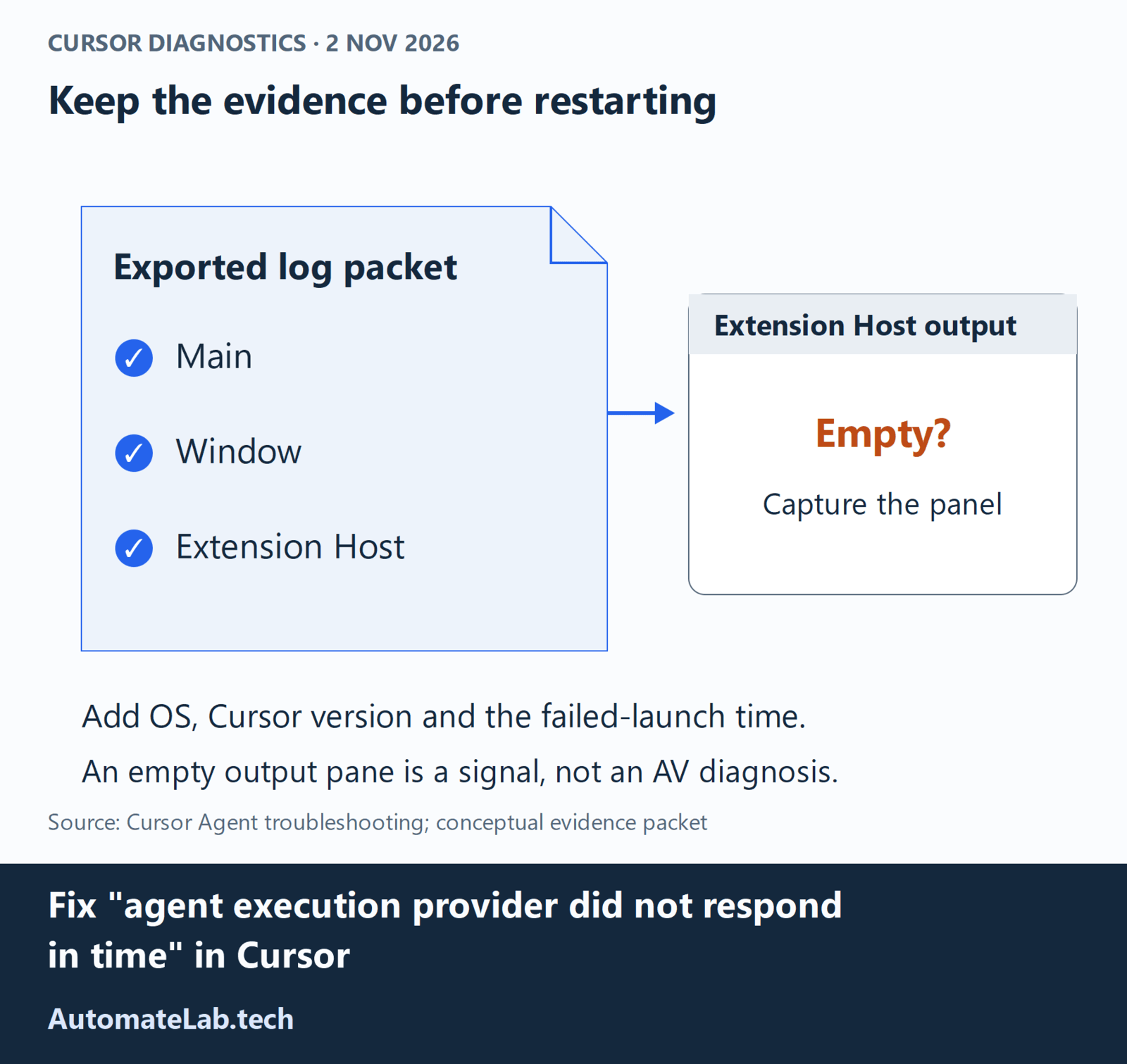
Save your work and capture the failure before restarting. Open the command palette with Cmd/Ctrl+Shift+P, run Developer: Export Logs..., and select Main, Window and Extension Host. Also inspect Output's Extension Host channel; an empty channel is useful evidence.
Then use the error dialog's Reload Window button. Cursor staff recommended this recovery in an April 2026 support reply, while describing a known release issue. If available in your build, Developer: Restart Extension Host is another restart to try. A recovered session does not establish why startup stalled; record whether the next full launch fails again.
Fix 2: How do you isolate a conflicting extension causing the timeout?
Compare the same small prompt in the same workspace using the documented extension isolation command. Close Cursor fully before launching this diagnostic command, and confirm that the cursor command is installed in your shell:
cursor --disable-extensionsIf Agent works, re-enable extensions in groups and repeat the prompt. Repeat the comparison: one successful run may come from a fresh session rather than an extension change. If it still fails, investigate settings and logs rather than declaring every installed extension innocent or blaming the model.
One concrete settings case appears in a September 2026 staff diagnosis: disabling Index Repositories for Instant Grep caused Agent sends to time out, and reinstalling preserved that setting. Staff named 3.21.18 as the fix version. On an affected older build, enabling the setting and accepting the reload was the workaround; update rather than assuming this switch fixes all current failures.
Fix 3: Should you clear Cursor's CachedData folder for this timeout?
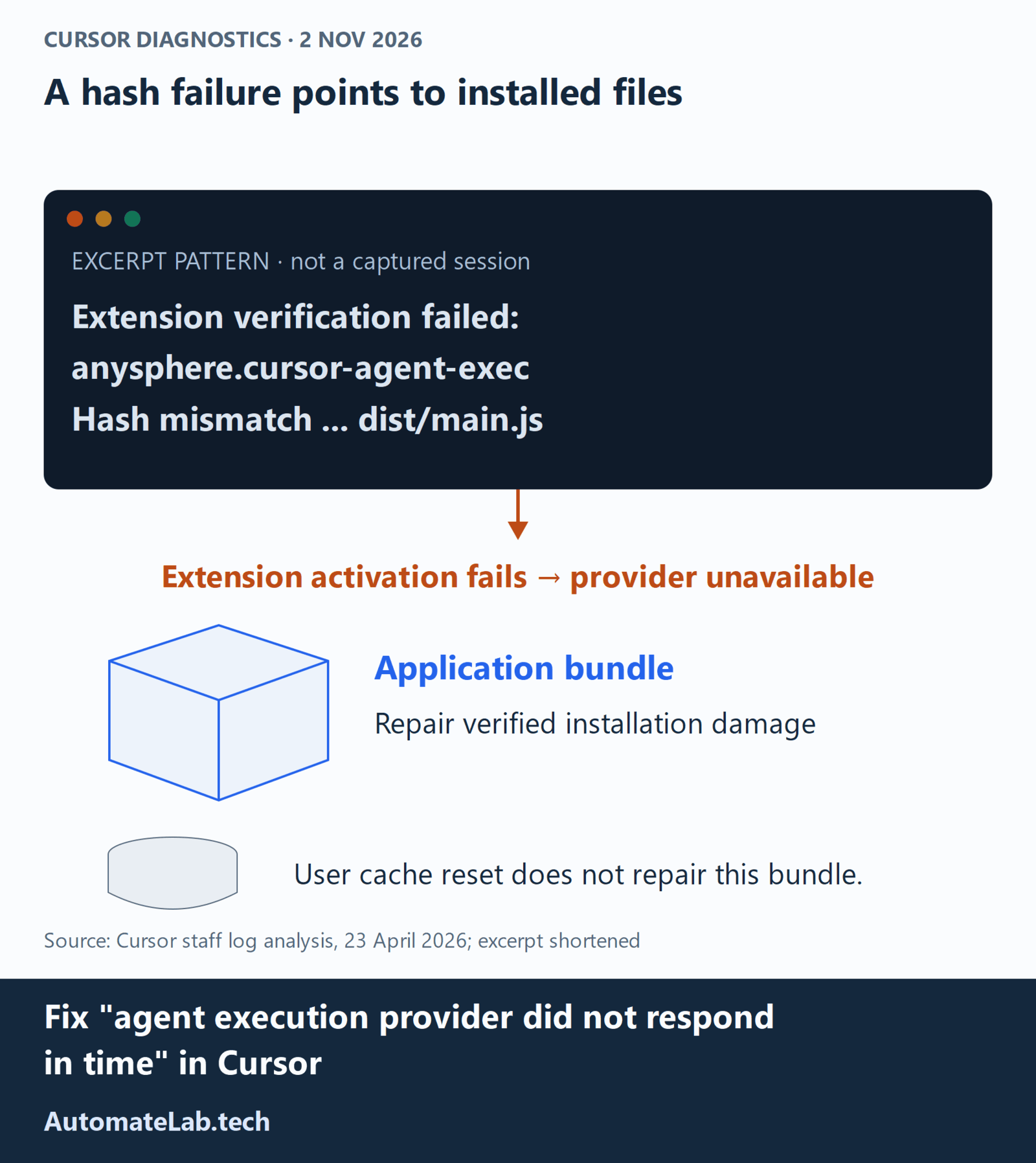
Reset a cache when the logs or comparison tests point to local state. It cannot repair a failed integrity check in the application bundle. Export logs first, close Cursor fully, back up the relevant folder and prefer a reversible rename over deletion. Change one thing at a time so the next result remains interpretable.
Use the Cursor cache locations and reset guide to identify the correct folder for your operating system. Keep projects, settings and conversation storage outside an indiscriminate cleanup. If the same failure returns immediately, stop repeating cache resets and inspect the activation error.
Fix 4: How do you detect and fix a cursor-agent-exec hash mismatch?
Look for an extension verification failure naming anysphere.cursor-agent-exec, a hash mismatch and a subsequent activation failure. In an April 2026 log analysis, Cursor staff traced this combination to corrupted or modified installation files. Clearing user data did not address that installation failure.
Preserve settings and logs, quit all Cursor processes, then reinstall using a fresh official installer appropriate to your OS and installation method. Check which application copy your launcher opens, especially after mixing Linux package and AppImage installs. Do not disable integrity checks or delete unrelated directories to force activation. Check whether the same verification error appears in the new logs.
Fix 5: How do you investigate AV/EDR interference on managed Windows?
Ask IT to compare security events with the failed launch time. Cursor's current endpoint security configuration explains that file interception or process injection can delay startup. It lists processes and paths by operating system and, on Windows, by user or system installation.
Have IT apply the relevant documented exclusions under the organization's policy, then repeat the same test. An empty host log alone does not prove antivirus interference. Avoid blanket drive exclusions, disabling protection or bypassing execution policy as routine troubleshooting.
What about the "Enable Legacy Terminal" setting?
A May 2026 staff reply suggested Legacy Terminal under Cursor Settings, Agents as a workaround. Treat that path as historical and build-dependent. It does not establish a general repair for a failed hash check or remote provider registration.
How do you check Remote SSH and verify the repair?
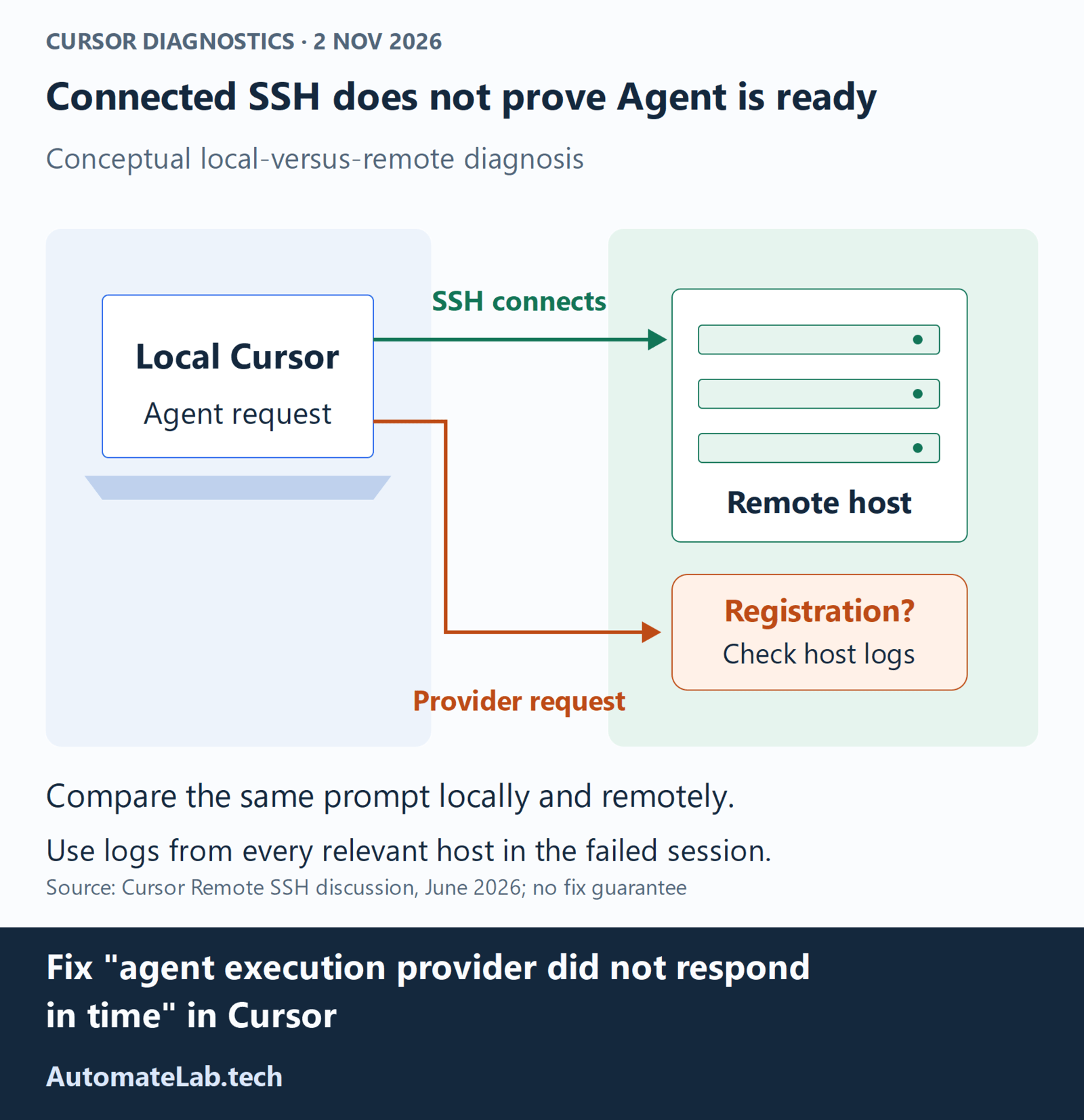
Compare a local empty folder with the remote workspace. In a June 2026 Remote SSH discussion, staff investigated registration on the remote extension host. The reporter later found agent extensions activating in short-lived hosts and reported recovery after an update. Include logs from the failed session, not just one remote host file.
- Save logs and compare the same prompt after a reload.
- Repeat with user extensions disabled, then restore them in groups.
- Use a reversible cache reset only when local-state evidence supports it.
- Check installation verification errors before reinstalling.
- Ask IT to investigate security events and relevant exclusions.
- Use Legacy Terminal only as a build-specific diagnostic.
After the change, test a harmless prompt, an approved file-reading task and a full restart in the affected workspace. If failure continues, send support the OS, version, timestamps and redacted logs. Find sibling messages in the Automation Error Index.
FAQ
What does ERROR_EXTENSION_HOST_TIMEOUT mean in Cursor?
Cursor could not make the Agent execution host available before its deadline. Use the activation and registration logs to identify the cause.
Does reloading the window always fix the agent execution provider timeout?
No. It can recover a session, while an installation, settings, security or remote-host problem can recur after the next launch.
How do I find the extension host log in Cursor?
Run Developer: Export Logs... and select Extension Host alongside Main and Window. Also inspect Output's Extension Host channel and record whether it is empty.
Can I run Cursor without extensions to test Agent mode?
Use cursor --disable-extensions to compare behavior with user extensions disabled. Repeat the same prompt and restore extensions in groups before attributing the failure.
Is this the same error as Cursor "Waiting for extension host"?
The messages can describe related host availability failures. Match the actual log signature and local or remote environment before choosing a repair.